
Before you start
- The audit is In Progress.
- You are its Lead Auditor.
- You know who will work on the finding: they are its Responsible Users.
Steps
Open the audit from Audits › Audits and open its Findings tab. Select Add New.
The form Add Finding shows the finding's Tentative ID, for example FND-AUD-SUP1-7. Fill in the required fields: Finding Category (Critical Finding, Major Finding, Minor Finding or Observation), Title and Responsible Users. You can also write a Description, set a Due Date, link Events or CAPAs, and add Supporting Files.
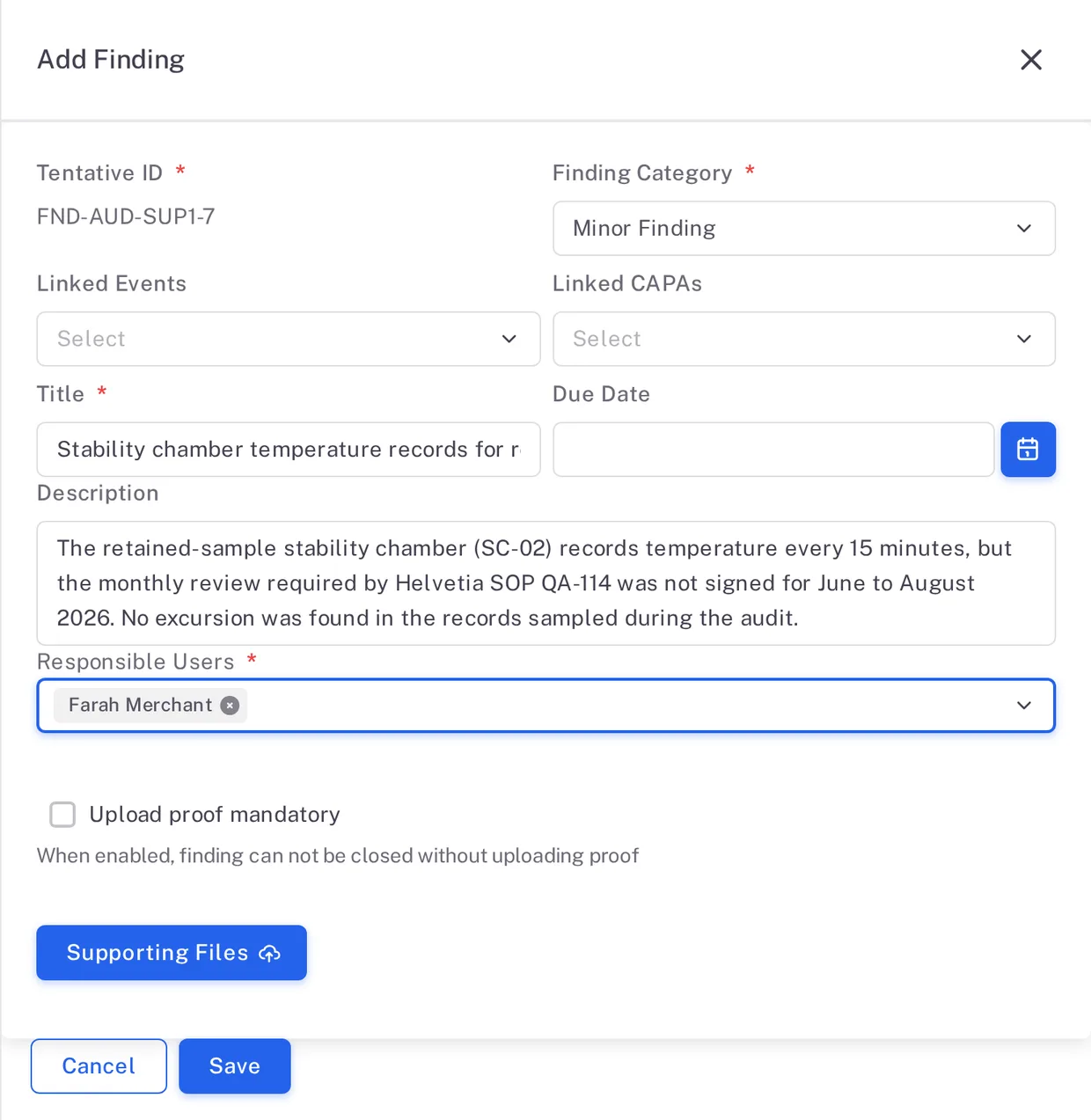
Step 2. The Add Finding form with the Tentative ID, Minor Finding chosen, a title, a description and one Responsible User If proof must be uploaded before the finding can be closed, tick Upload proof mandatory: "When enabled, finding can not be closed without uploading proof".
Select Save.
Result
The finding is listed on the Findings tab as Open, and the counter under the audit's title counts it, for example "0 / 2, 0%, Finding Closed".
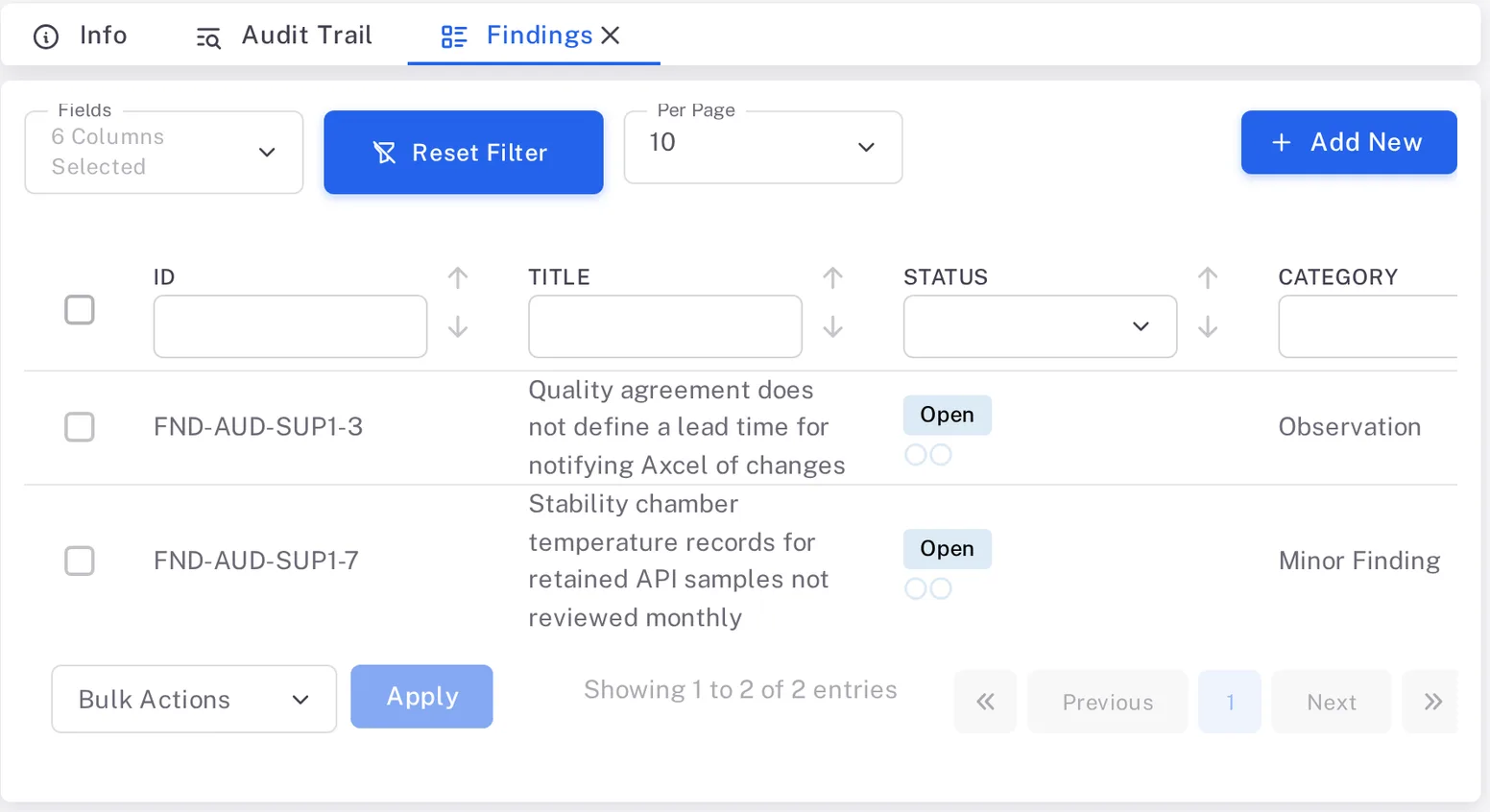
Next: the finding's Responsible Users work on it and send it for approval; see Send an audit finding for approval.
What gets recorded
The entry appears on the audit's Audit Trail tab.
What the audit trail records
You saved the finding.
- Action Type
- Created
- Digitally Signed
- No
- Username
- Your username
- Date Created
- Date and time of the action
- Activity
- "Finding created"