
Before you start
- Your system role is Administrator, Supervisor or Regular User: these roles can create audits.
- You know which Groups the audit belongs to.
- You know the Audit Type and who takes part (see How an audit moves from Draft to Closed). An Internal or Incoming audit needs at least one user as a Host; an Outgoing or Supplier audit needs a user as Lead Auditor.
Steps
In the menu, open Audits › Audits. Above the list, select Full. The form opens on its first step, Basic Details.
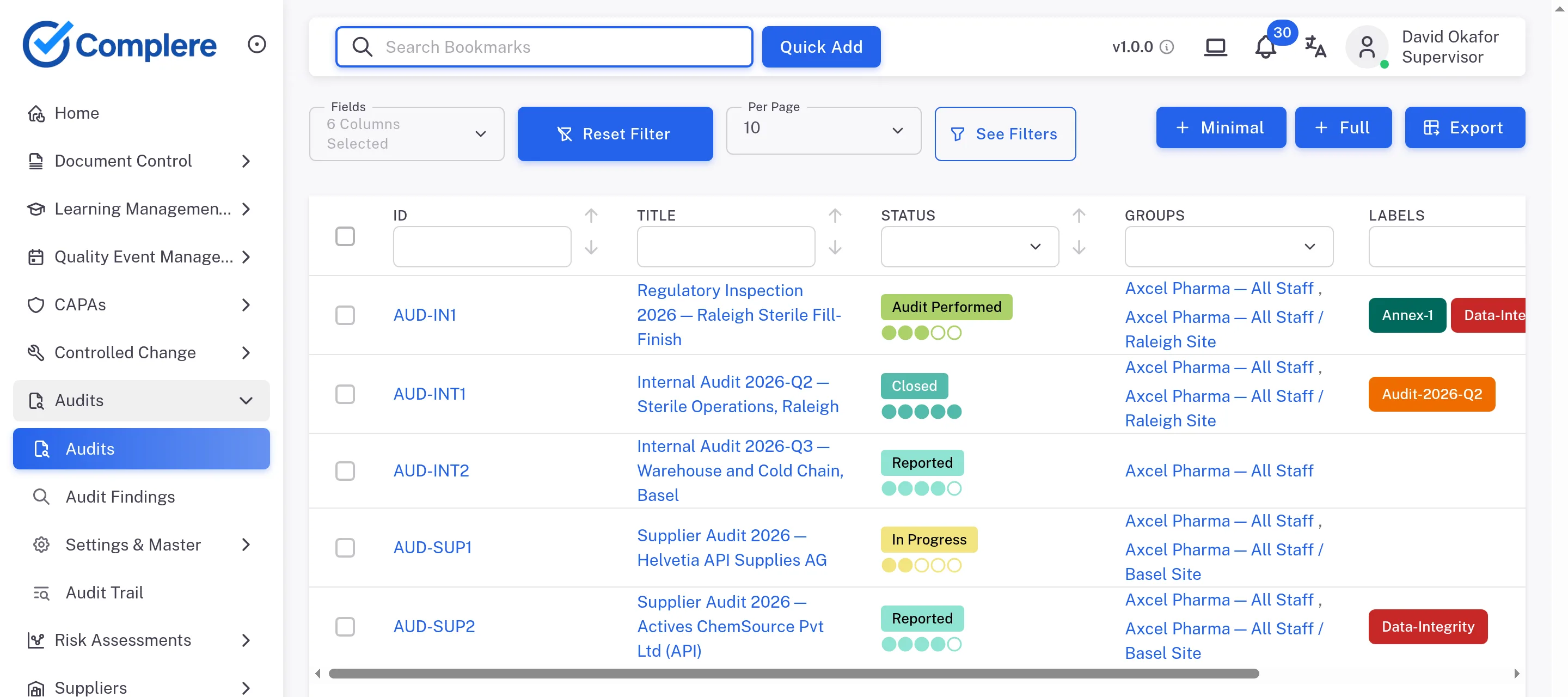
Step 1. The Audits list with the Minimal and Full buttons above it Fill in the required fields, marked with a red asterisk:
- Groups — select the field, tick the groups in the Groups dialog and select Ok;
- Title — each audit needs its own title;
- Audit Type — select Incoming, Outgoing, Internal or Supplier. The Tentative ID appears, generated from the audit type. The ID given on saving can differ from it;
- Planned Date — from the calendar or with the 1 Month, 2 Months, 3 Months or 6 Months buttons.
You can also fill in Audit Reason (Initial, Scheduled, For Cause, Qualification, Requalification or Surveillance), Scope, Information, Products, Contacts and Departments. For a Supplier audit, choose the audited suppliers under Suppliers.
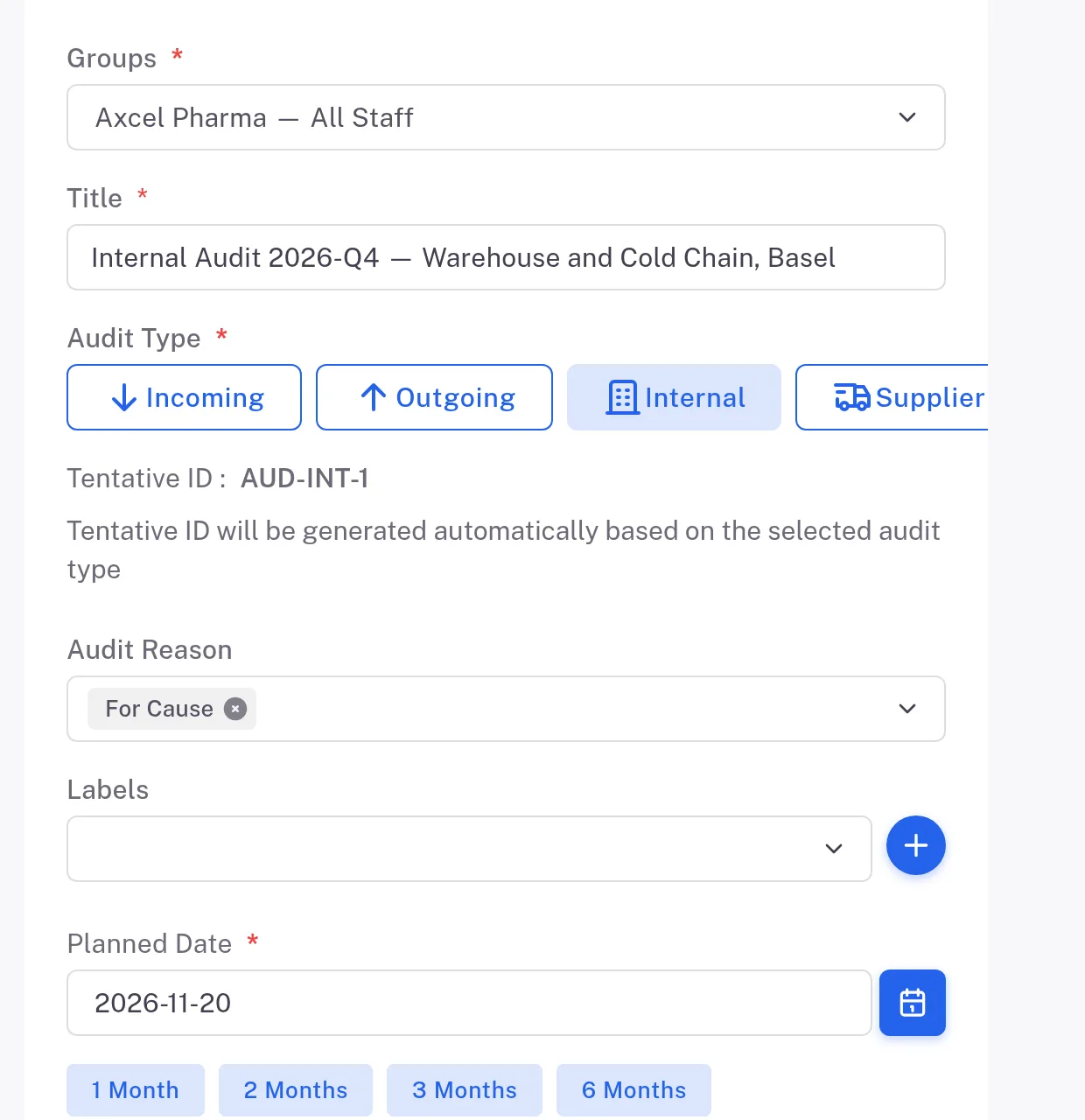
Step 2. The Basic Details step with Groups, Title, Audit Type, Tentative ID and Planned Date filled in Select Next. On Roles Configuration, name the people for your audit type. The step reads "Users in roles will be populated from …", naming the groups you chose.
Internal
- Hosts — required, chosen from your users.
- Lead Auditor and Additional Auditors — optional, chosen from your users.
Incoming
- Hosts — required, chosen from your users.
- Lead Auditor Email and Additional Auditor Email rows — the external auditors, each with a Full Name and a Job Description.
Outgoing
- Lead Auditor — required, chosen from your users.
- Additional Auditors — optional.
- Host Email rows — the other company's hosts, each with a Full Name and a Job Description.
Supplier
- Lead Auditor — required, chosen from your users.
- Additional Auditors — optional.
- Host Email rows — the supplier's hosts, each with a Full Name and a Job Description.
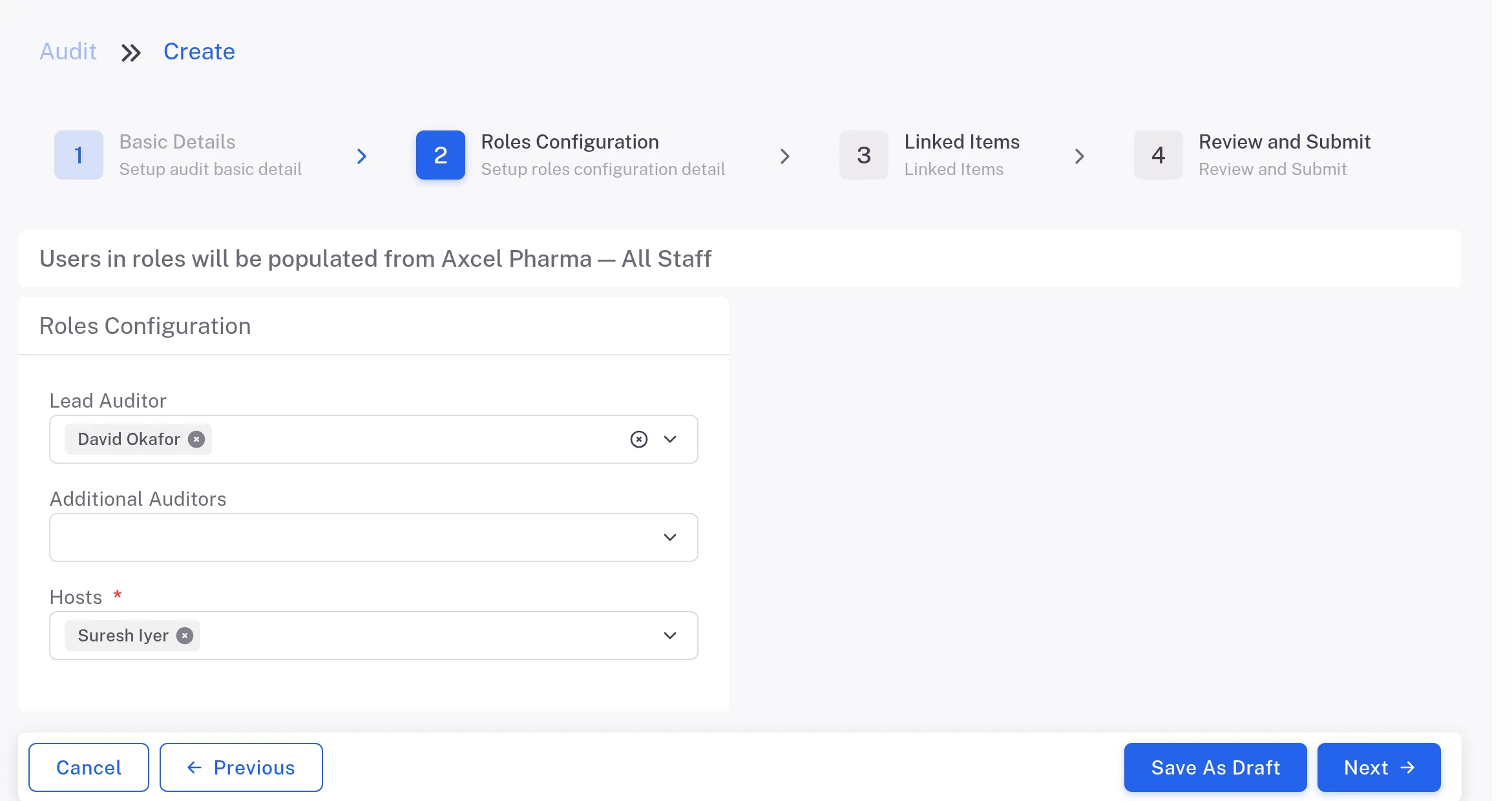
The Roles Configuration step for an Internal audit, with Lead Auditor, Additional Auditors and Hosts Select Next until Review and Submit opens, and check what you entered. To change something, go back with Previous.
Select Save. Saving asks for no signature.
Result
- The audit page opens. The audit is in Draft and has its ID, for example AUD-INT3; the page reads "0 / 0, 0%, Finding Closed". You are shown as Created By.
- The people you named appear on the audit's Roles tab, under Lead Auditor, Additional Auditors and Hosts.
- Next: the Lead Auditor signs the audit on to Planned. In Draft, the status button opens the form Escalate status to Planned straight away; see How an audit moves from Draft to Closed.
What gets recorded
The entry appears on the audit's Audit Trail tab.
What the audit trail records
You saved the new audit.
- Action Type
- Created
- Digitally Signed
- No
- Username
- Your username
- Date Created
- Date and time of the action
- Activity
- Audit created
If something is different
- You want to stop and finish later. Select Save As Draft. It needs at least a Title (otherwise Complere shows "The title field is required.") and returns you to the list, where the draft has no ID yet. To continue, select the edit button on its row.
- The title is refused. When you select Next, the title is marked "… Title was already exists": another audit already has that title. Enter a different one.
- You are creating an audit of a supplier. You can also start from the supplier: on the supplier's page, open the Audits tab and select Add New. The form opens with Supplier selected and the supplier already chosen under Suppliers.
- You only need to record an audit quickly. Minimal opens a short form with Groups, Audit Type and Title, then Submit.