
Before you start
- The module is called Audits on screen. Its menu has Audits (the list of audits) and Audit Findings. Some users also see Settings & Master and Audit Trail there.
- Modules are enabled for your company by Complere.
- Users with the Administrator, Supervisor or Regular User role can create audits.
Every audit has one Audit Type. The type decides who is named as auditor and who is audited:
| Audit Type | Auditors | Audited side (Hosts) |
|---|---|---|
| Internal | Lead Auditor and Additional Auditors, chosen from your users (both optional) | Hosts, chosen from your users (required) |
| Incoming | An external lead auditor and additional auditors, each entered with an e-mail, a full name and a job description | Hosts, chosen from your users (required) |
| Outgoing | Lead Auditor, chosen from your users (required), and Additional Auditors | The other company's hosts, each entered with an e-mail, a full name and a job description |
| Supplier | As for Outgoing | The supplier's hosts, entered as for Outgoing. The audited suppliers are picked under Suppliers |
Other people on an audit:
- The person who created the audit is shown as Created By at the top of the audit page.
- Responsible Users — named on each finding. They work on the finding and send it for approval.
How it works
A signature moves the audit on. The Lead Auditor and Hosts sign it on from the status button at the top of the page; the Lead Auditor's signature alone is enough. See Sign an audit on to Reported.
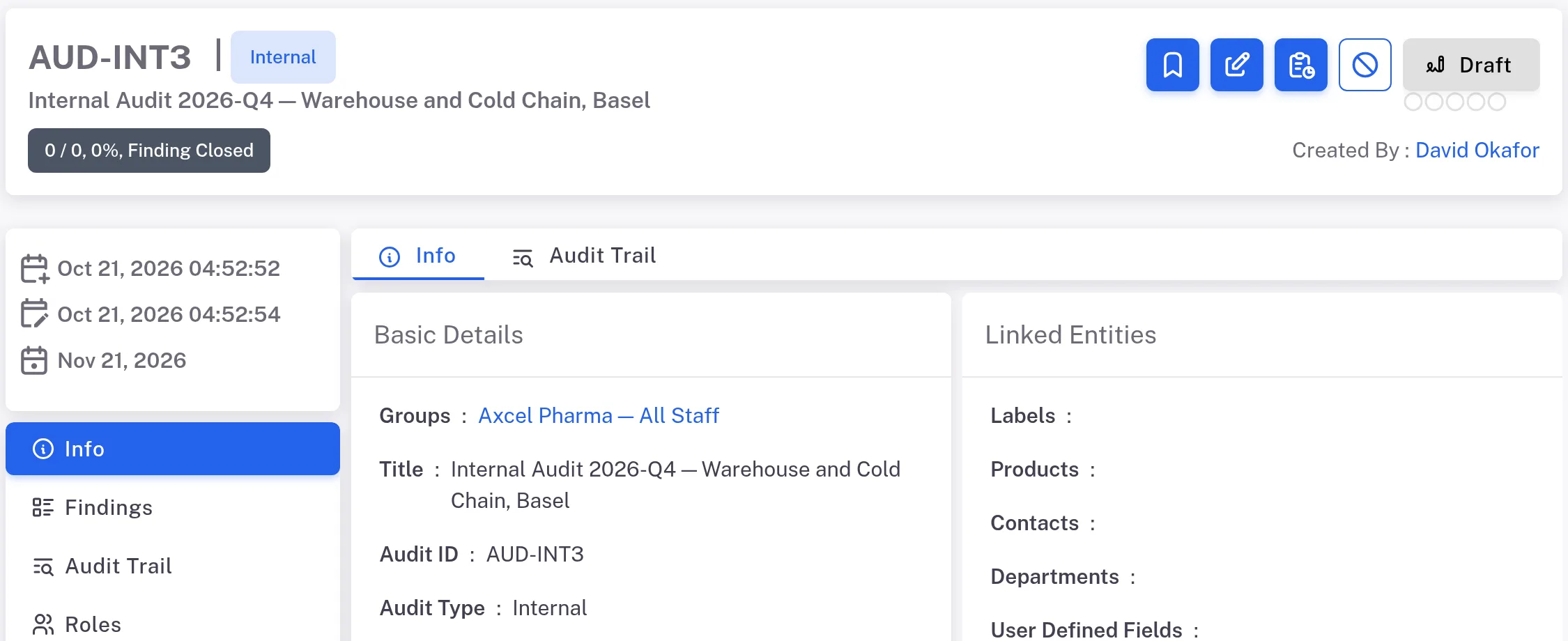
Step 1. An internal audit in Draft: the audit ID, title and finding counter, the status button reading Draft, and the Info, Findings, Audit Trail and Roles tabs It runs Draft › Planned › In Progress › Audit Performed › Reported › Closed. From Planned it can go to Audit Performed or back to Draft; from In Progress, back to Planned. A move back needs a Reason.
The Roles tab names who is on the audit, role by role. The Audits lifecycle shows who acts in each status.
Findings have their own lifecycle: Open › Pending Approval › Closed. The Lead Auditor adds them on the Findings tab (Add a finding to an audit); their Responsible Users send them for approval (Send an audit finding for approval); then they are closed or sent back (Close an audit finding).
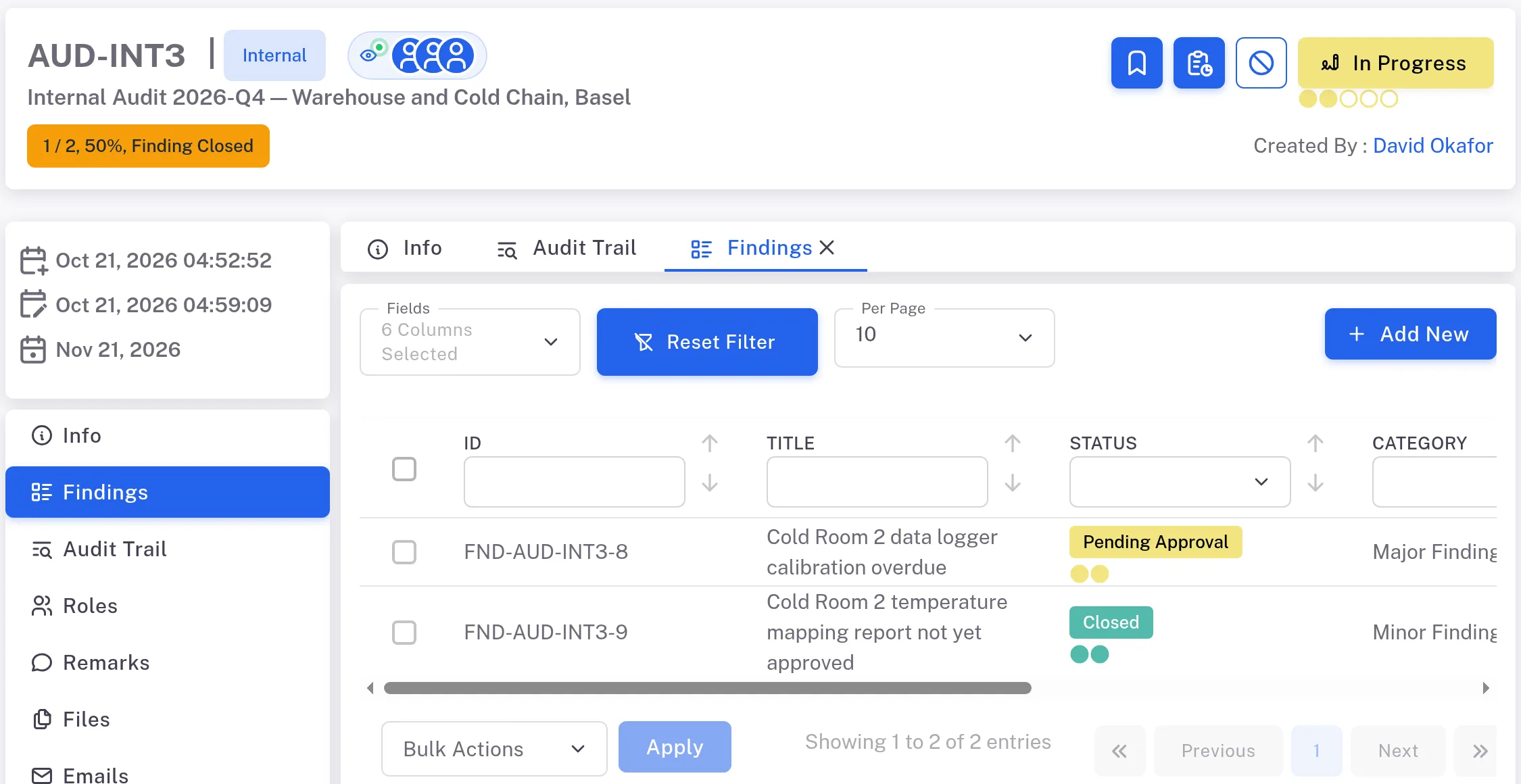
Step 4. The Findings tab of an internal audit in In Progress: one finding in Pending Approval, one Closed, and the counter 1 / 2, 50%, Finding Closed An audit moves from Reported to Closed only when every finding is Closed. See Close an audit.
Result
You can tell, for any audit, what type it is, who is named in each role, which status it is in, and whose signature it waits for. For every action and role in one table, see Audits: who can do what. Users who are allowed to see it can read the audit's history on its Audit Trail tab.
If something is different
- You cannot move the audit to the next status. You are not named in a role that can act in the current status. Open the Roles tab to see who is named.
- The audit will not move from Reported to Closed. At least one finding is not Closed. Open the Findings tab and close the remaining findings first.
- A finding was sent back, and when it returns for approval no Host can close it. The Host who sent it back sees no move in the Escalate panel, and the other Hosts are offered only "Escalate status back to Open". Contact Complere support (see Ask Complere support for help).
- The send-back form asks for Additional Auditors and offers no names. On an audit with no Additional Auditors, the "Status reject to Draft" and "Status reject to Planned" forms have a required Additional Auditors field with no names to choose, and Sign does nothing. Contact Complere support (see Ask Complere support for help).