
Before you start
- Administrator, Supervisor and Regular User can create change requests; Read Only User cannot.
- You know who will act as Coordinators, Approvers and QAs.
- Fields marked with a red asterisk (*) are required.
Steps
Open Controlled Change › Change Requests and select Full. The form (Change Requests › Create) opens at the Basic Details step.
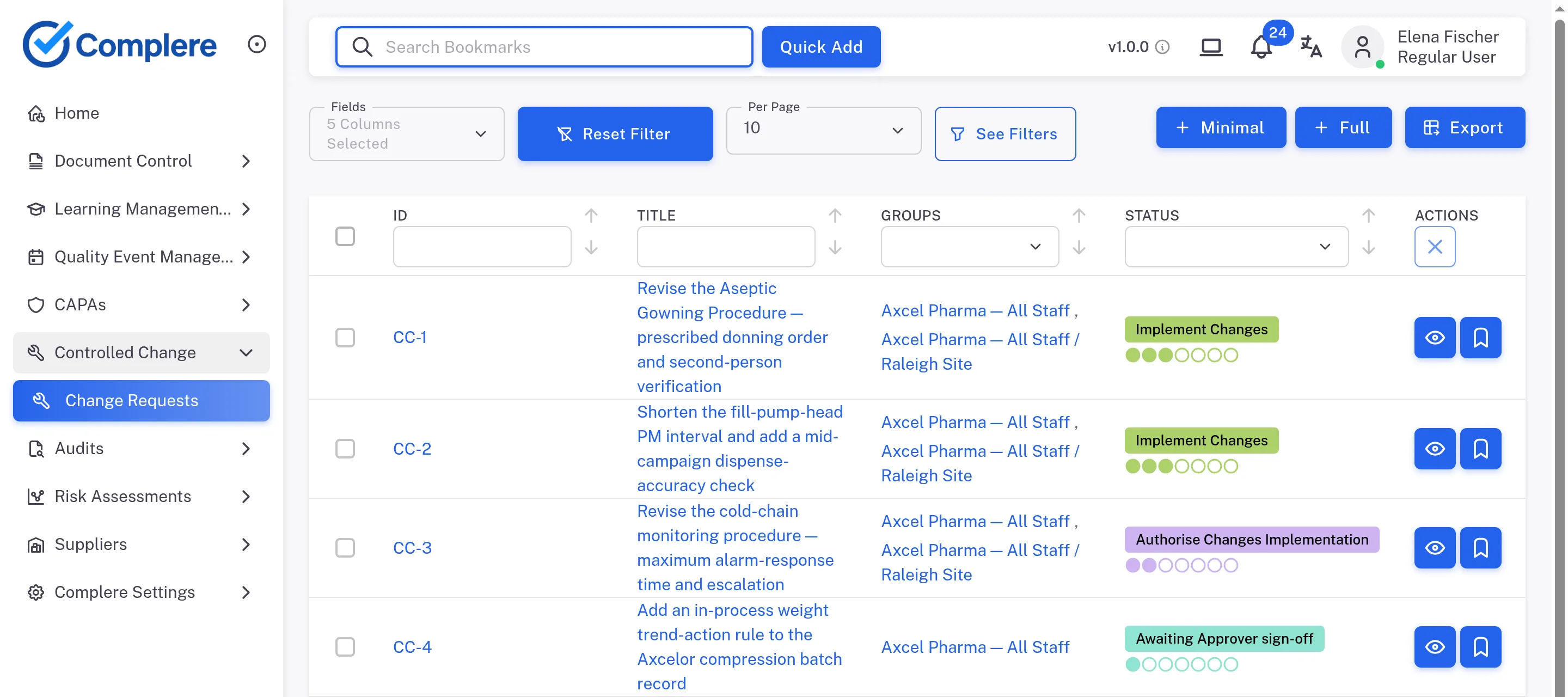
Step 1. The Change Requests list with the Minimal and Full buttons Select the Groups field. A Groups dialog opens: tick the groups the change request belongs to and select Ok. The Tentative ID is shown.
Type the Title (no other change request may have the same title) and pick the Due Date, from the calendar or with the 1 Month, 2 Month, 3 Month or 6 Month buttons. Add Labels, Products, Contacts, Departments and Notifications if you need them.
Describe the change in Description, Reason For Change (up to 2000 characters), Impact (up to 2000 characters) and Cost Estimate (up to 100 characters). Description can be written in one of two ways.
Single Field
One text box for the whole description.
Multi Field
Separate boxes: Before Change, After Change and Key Modifications (up to 700 characters each).
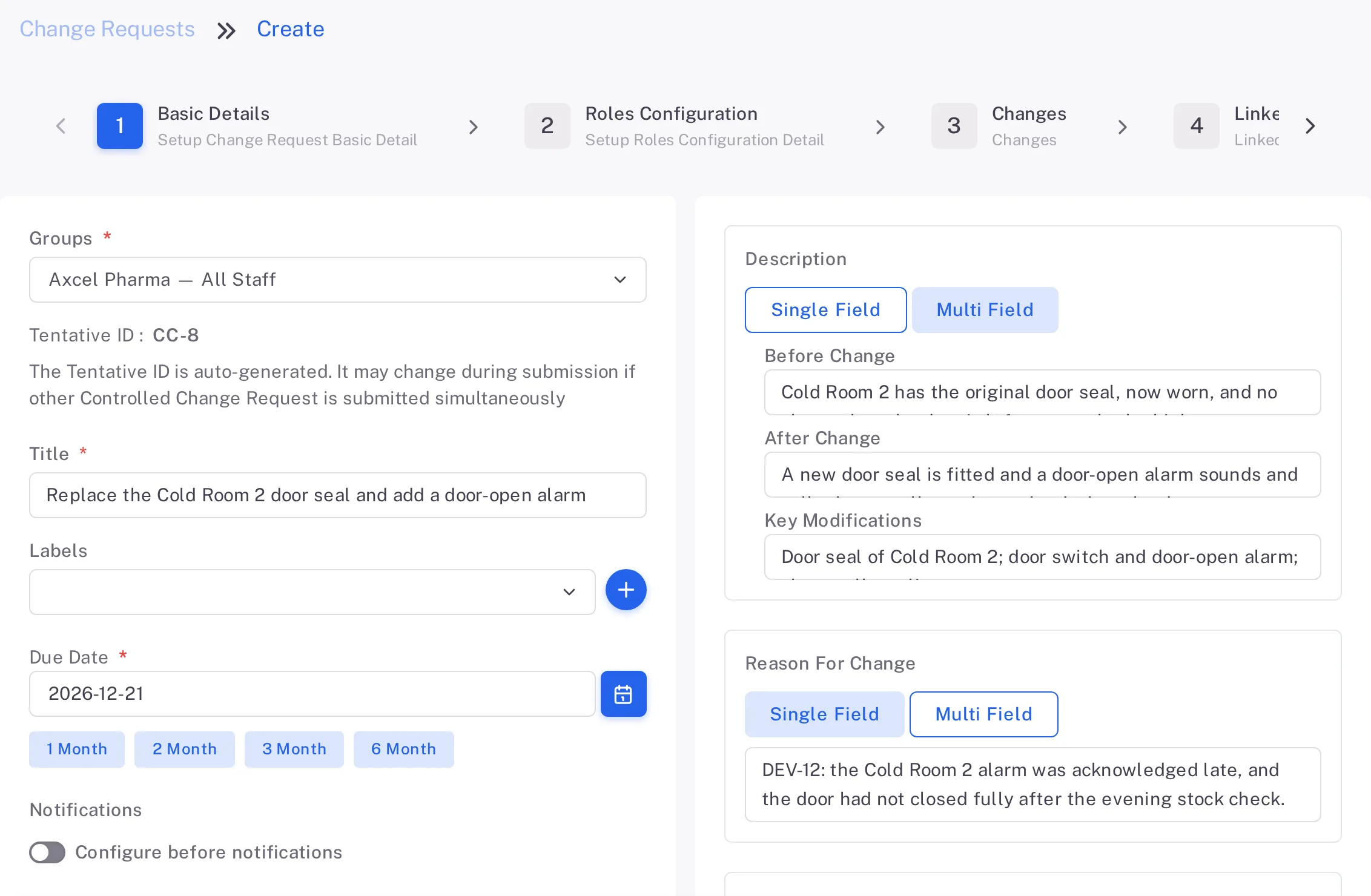
The Basic Details step with Groups, the Tentative ID, Title, Labels and Due Date with the 1 Month to 6 Month buttons, Description as Multi Field with Before Change, After Change and Key Modifications, and Reason For Change Select Next. In Roles Configuration, choose the Coordinators, Approvers and QAs ("Users in roles will be populated from" the group you chose). You are named as an Initiator when you save.
Select Next. In Changes, fill in Change 1, then select Add Change for each further change you plan. The counter beside Add Multiple shows how many more you can add.
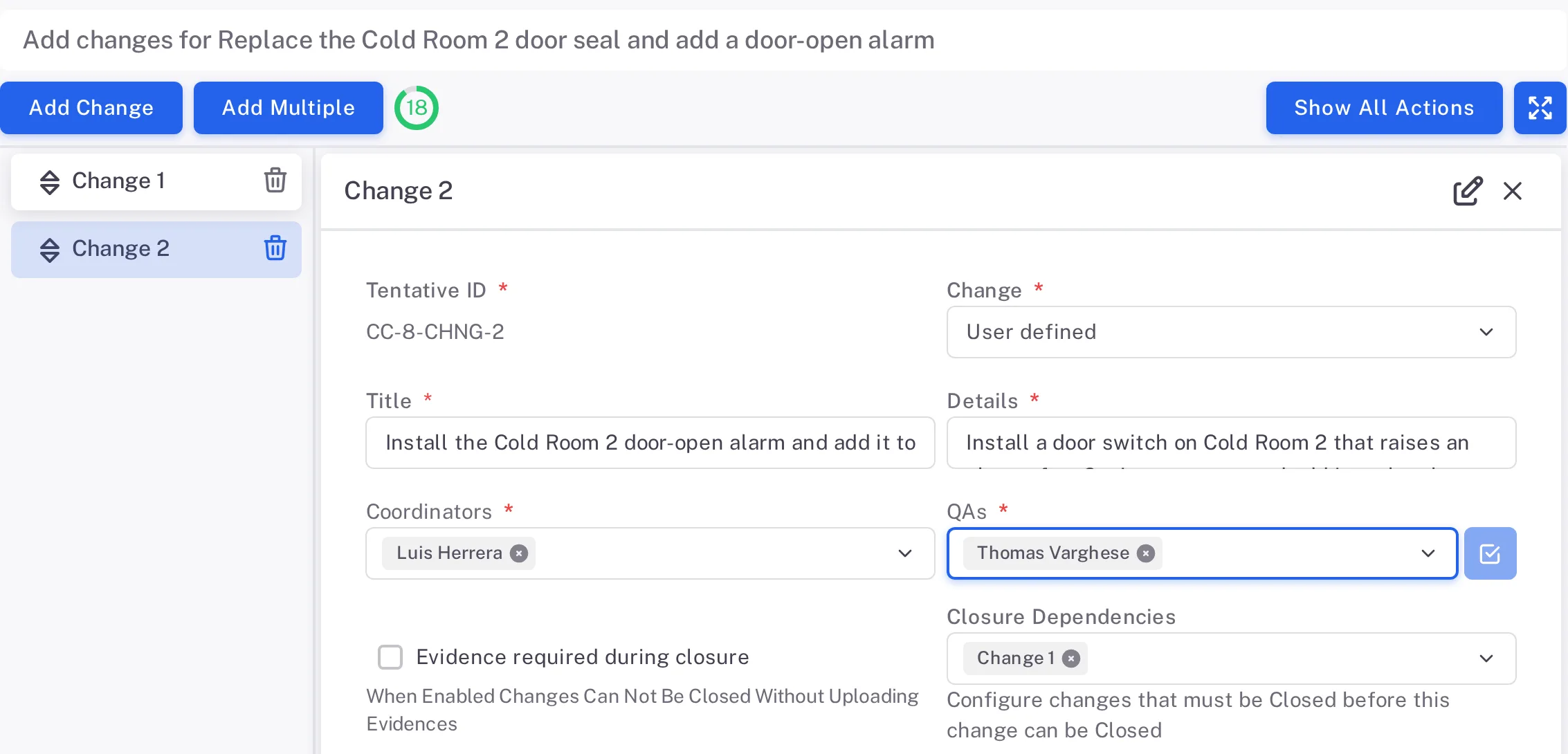
Step 6. The Changes step of the same change request with Change 1 and Change 2 in the list and Change 2 open: Change, Title, Details, Coordinators, QAs, Evidence required during closure and Closure Dependencies set to Change 1 Field What to enter Change The kind of change: User defined, Make New Document Version Effective or Get Users Trained In Training. For Make New Document Version Effective you choose the Documents; for Get Users Trained In Training, the Users and the Training. Those two kinds have no Details, Coordinators, QAs or Evidence required during closure. Title and Details What the change is and what has to be done (Details up to 500 characters). Coordinators and QAs The people who carry out and sign off this change. The QAs come from the change request's QAs. Evidence required during closure The screen reads: "When Enabled Changes Can Not Be Closed Without Uploading Evidences". Closure Dependencies Other changes of this change request that must be Closed before this one can close. The change's Due Date then starts no earlier than theirs. Due Date When the change is due: between today and the change request's due date. Supporting files Files that help whoever carries out the change. Select Next. On Linked Items, add links to other records (Module, Relationship, Items, Remark) if you need them, then select Next.
On Review and Submit, check what you entered, then select Save. To save and start another change request, select Save & New: Complere saves this one and opens an empty form. To finish it later, select Save As Draft: the change request is listed without an ID. Saving asks for no signature.
Result
- The change request's page opens. It is in Initiated, with its ID, and reads, for example, "0/1, 0% Changes Closed". It also appears in the Change Requests list.
- Its changes are listed on its Changes Listing tab. Next: an Initiator or a Coordinator signs to send it on; see How a change request moves from Initiated to Closed.
What gets recorded
Each entry appears on the change request's Audit Trail tab.
What the audit trail records
You saved the change request.
- Action Type
- Created
- Digitally Signed
- No
- Username
- Your username
- Date Created
- Date and time of the action
- Activity
- "Change Request created"
At the same time, for its changes.
- Action Type
- Changes Created
- Digitally Signed
- No
- Username
- Your username
- Date Created
- Date and time of the action
- Activity
- "Changes Created"
At the same time, one entry for each change.
- Action Type
- Created
- Digitally Signed
- No
- Username
- Your username
- Date Created
- Date and time of the action
- Activity
- The change ID, then "Change Request Change created successfully", for example "CC-2-CHNG-1 · Change Request Change created successfully"
If something is different
You see no Minimal or Full button.
Your role does not allow you to create change requests. Ask your administrator. See Controlled Change: who can do what.
You selected Minimal.
Minimal opens a short form with Groups, Title and Description, and a Submit button. The steps above are for Full.
The title is refused.
Another change request already has this title. Under Title the form reads "Entered Name '…' already exists. Please enter unique title", and Next does nothing. Choose a different title.