
Before you start
- The supplier is in Draft (see Add a supplier), Awaiting Approval or Awaiting QA Review.
- You are named on the supplier in the role that signs in that status: Coordinators in Draft, Approvers in Awaiting Approval, QAs in Awaiting QA Review.
- You know your Complere password.
Steps
Open the supplier from Suppliers › Suppliers and check its details, sites and materials.
Select the status button at the top of the page.
-
As a Coordinator in Draft, the form Escalate status to Awaiting Approval opens straight away. It shows the Required Signers for the move and how many have signed, and Signed By.
-
As an Approver in Awaiting Approval, the Escalate panel offers Escalate status to Awaiting QA Review and Escalate status back to Draft.
-
As a QA in Awaiting QA Review, it offers Escalate status to Approved, and back to Awaiting Approval or Draft.
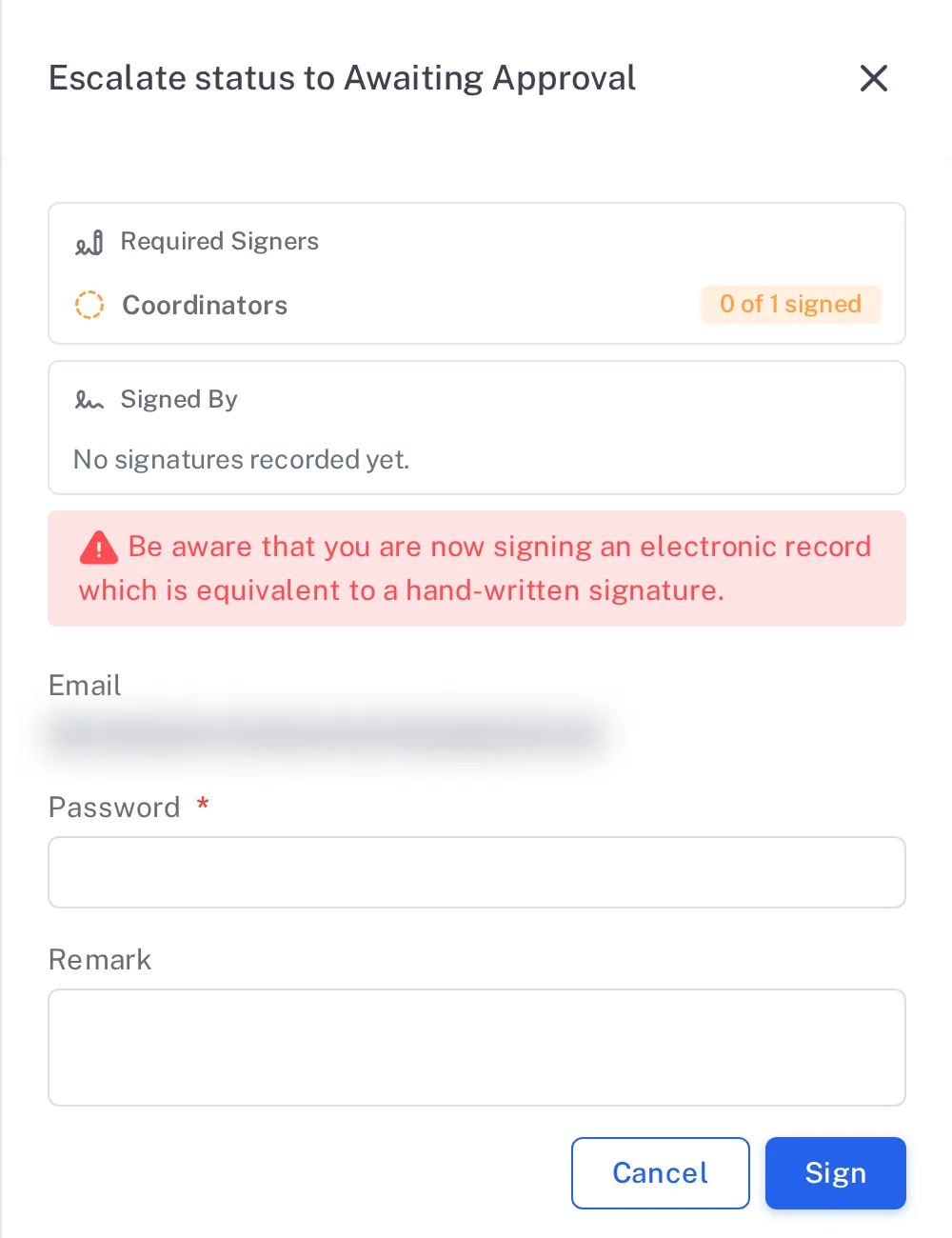
Step 2. The Escalate status to Awaiting Approval form: Required Signers Coordinators 0 of 1 signed, Signed By, the signature warning, Email, Password and Remark 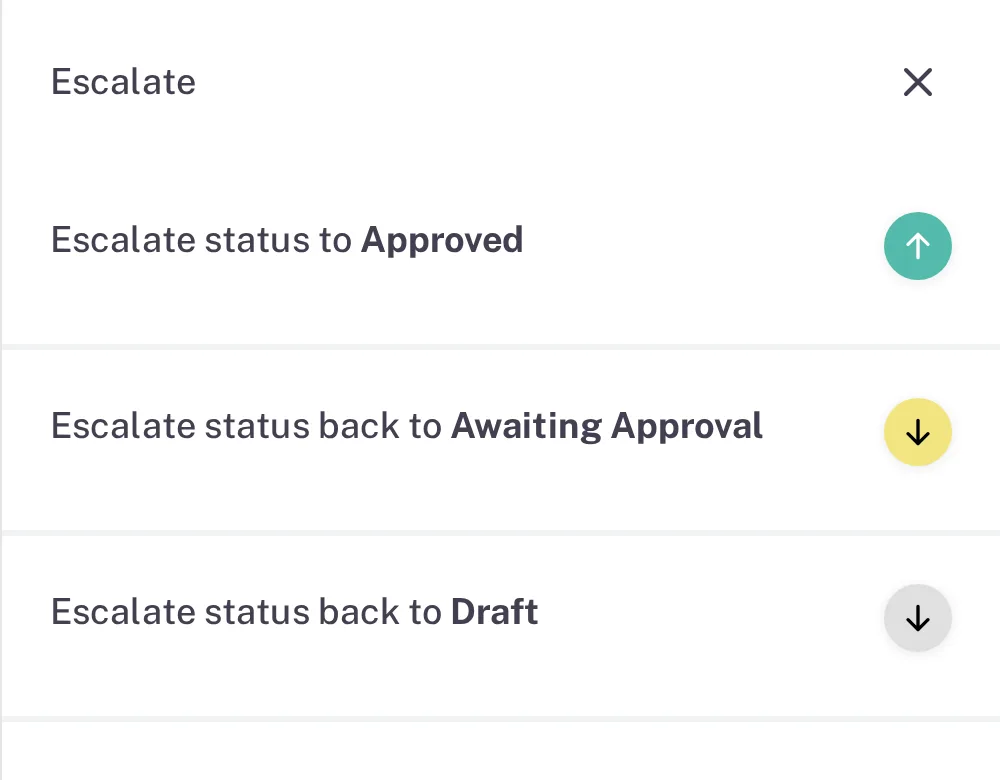
Step 2. The QA's Escalate panel: Escalate status to Approved, back to Awaiting Approval and back to Draft -
Select the arrow beside the forward move. Type your password, and a Remark if you want one, then select Sign. As a QA, a move back opens the form "Status reject to …", which asks for a Reason; the supplier is then signed on again from that status.
Result
| You signed in | The supplier moves to |
|---|---|
| Draft (Coordinator) | Awaiting Approval |
| Awaiting Approval (Approver) | Awaiting QA Review |
| Awaiting QA Review (QA) | Approved |
Complere sends the supplier notification e-mail after each move. To send a supplier back instead, see step 3.
What gets recorded
Each entry appears on the supplier's Audit Trail tab.
What the audit trail records
Someone signed the supplier on.
- Action Type
- Change Status
- Username
- Your username
- Date Created
- Date and time of the action
- Activity
- Names the role and the new status as the system writes it, for example "The supplier has been signed by the Coordinators and its status has been updated to awaiting_approval", followed by the remark.
Complere sent the supplier notification e-mail after each move. After the QA's approval the entry is supplierApproved.
- Action Type
- supplierStatusChanged
- Username
- System Account
- Date Created
- Date and time of the action
- Activity
- "Supplier notification email sent"
If something is different
The move to Approved is greyed out.
A Critical or Major supplier needs a Quality Agreement first: the supplier page shows a banner, and the greyed move gives its reason. See How supplier qualification works.