
Before you start
- Your system role lets you add suppliers (a Regular User can).
- You know which Groups the supplier belongs to.
- You have the supplier's details to hand: its name and legal name, its business type, the country it is registered in, how critical it is to you, its sites and the materials or services it supplies.
- You know who will be the Coordinators, the Approvers and the QAs. Only users whose profile has Is QA? switched on are offered as QAs.
Steps
In the menu, open Suppliers › Suppliers. Above the list, select Full. The form opens on its first step, Basic Details.
Fill in the required fields, marked with a red asterisk:
- Groups — one or more: tick them in the Groups dialog and select Ok.
- Name — the name you use for the supplier. Each supplier needs its own name.
- Legal Name — the name the supplier is registered under.
- Business Type — Manufacturer (filled in), Distributor, Service Provider, Consultant or Other.
- Jurisdiction — the country.
- Criticality — Critical, Major or Minor.
You can also fill in Tax ID, DUNS, Parent Supplier, Scope of Supply, Requesting Function, Business Justification and Notes.
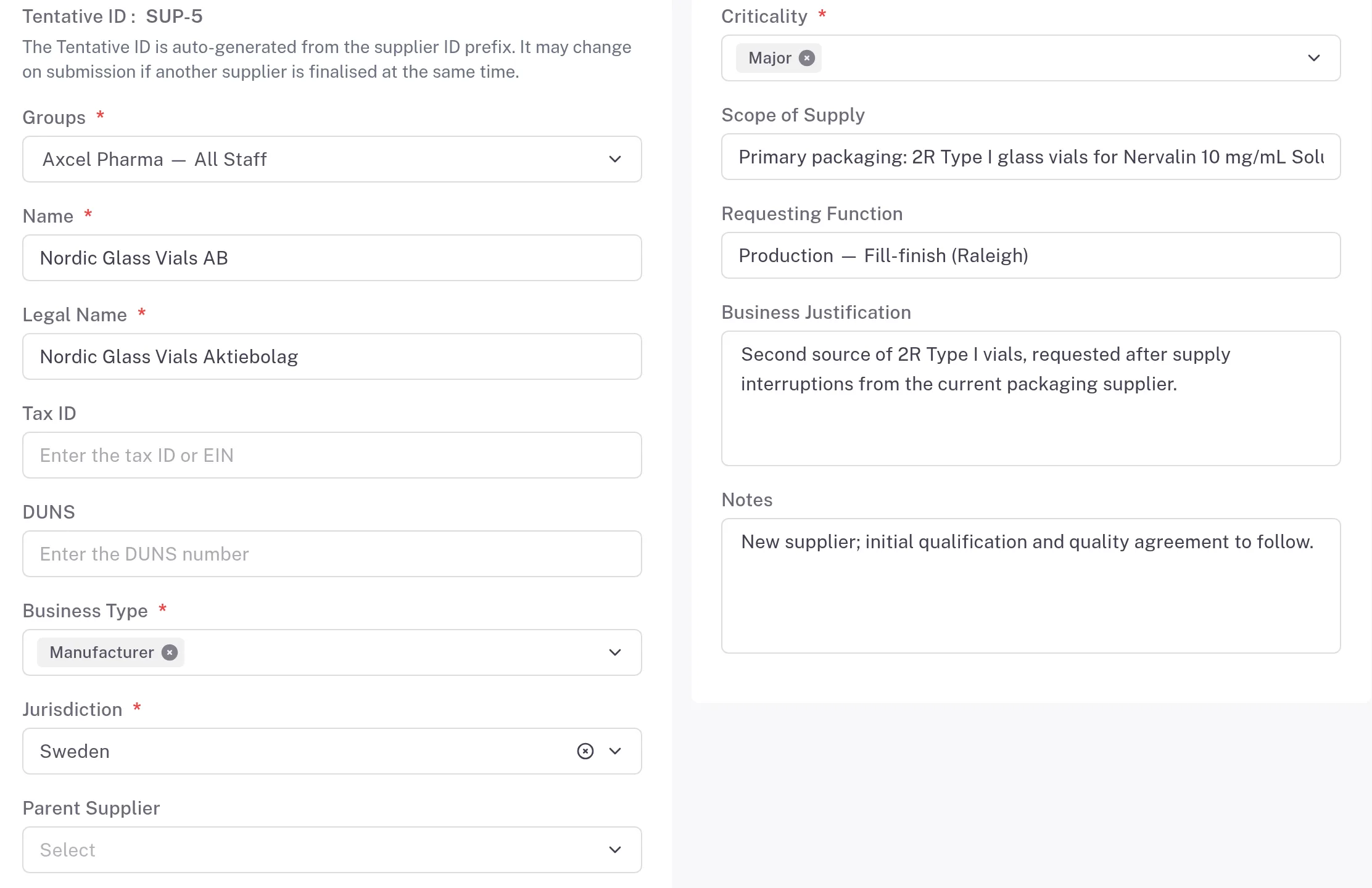
Step 2. The Basic Details step with Groups, Name, Legal Name, Business Type, Jurisdiction and Criticality Select Next. On Supplier Sites, select Add Site and fill in the site (the fields are in the table below the steps). The first site is marked Primary Site for you. Add more sites the same way, and use Mark as primary site on the main one.
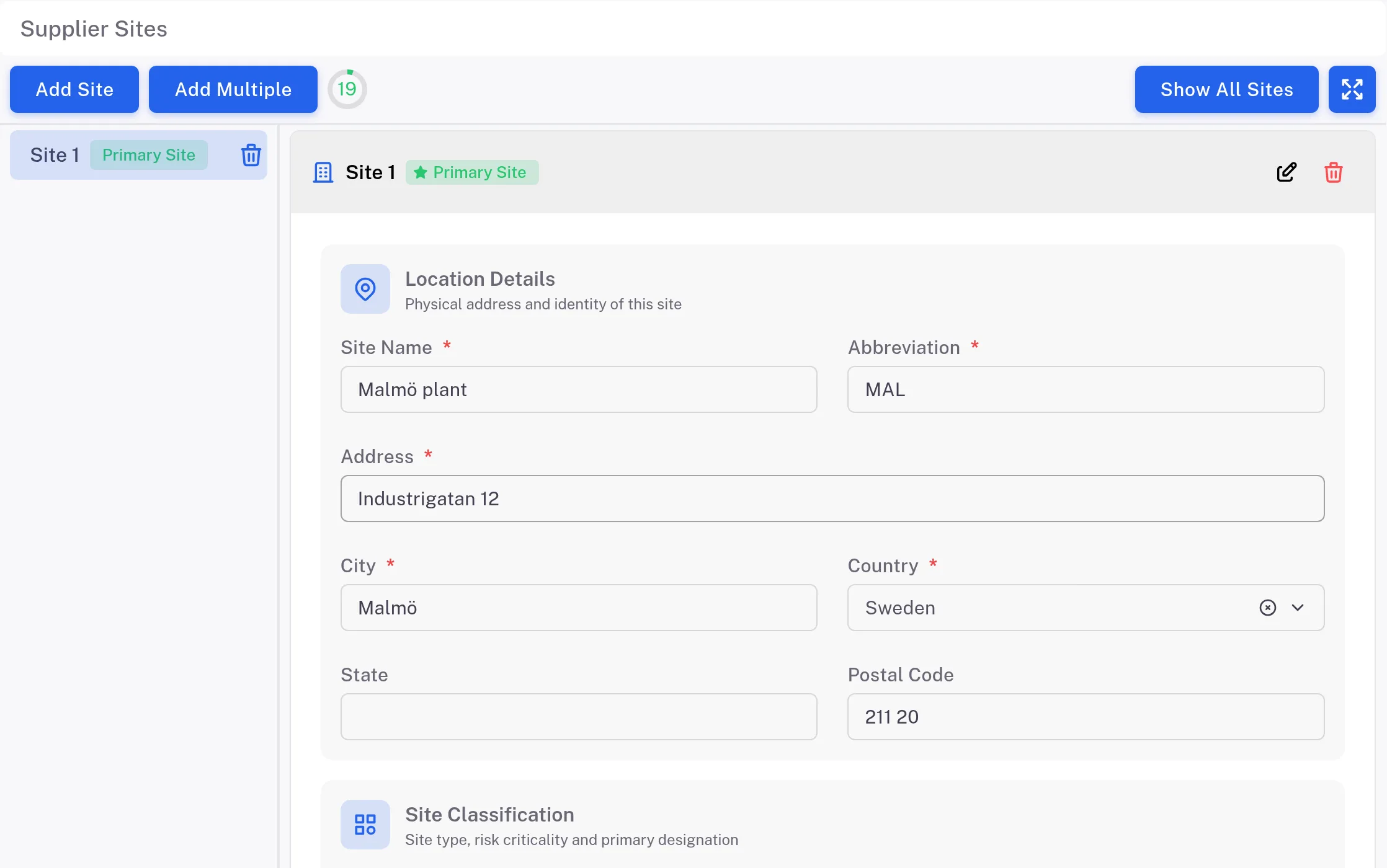
Step 3. The Supplier Sites step with one site card filled in and marked as the primary site Select Next. On Supplier Materials, select Add Material and fill in the material. Supplier Site and Scope Type are filled in for you; change them if needed. Product and Material Name are both marked with a red asterisk, and they stay marked after you fill in one of them; a Material Name alone is enough to go on.
Select Next. On Roles Configuration, name the Coordinators, the Approvers and the QAs.
Select Next. On Linked Items (Labels, Departments, External References, Contacts), fill in what you need, or select Next to pass it.
On Review and Submit, check what you entered. To change something, go back with Previous.
Select Save. Complere shows "Supplier created successfully".
The fields on a site and a material
| Card | Required | Optional |
|---|---|---|
| Site (Add Site) | Site Name, Abbreviation, Address, City, Country, Site Type (for example Manufacturing or Test Lab) | State, Postal Code, Site Criticality, Mark as primary site, FDA Registration Number, FEI, GMP Licence, ISO Certifications, Manufacturing Scope |
| Material (Add Material) | Supplier Site, Scope Type (for example Manufacture, Distribute, Calibrate, Test), and Product and Material Name (both marked; a Material Name alone is enough) | Material Code, Grade, Valid From, Valid To, Scope Description, Notes |
Result
- The supplier page opens. The supplier is in Draft and has its ID (for example SUP-4).
- You are shown as Created By, and the people you named appear on its Roles tab (Coordinators, Approvers, QAs).
- For a Critical or Major supplier the page reads "Quality Agreement required before approval": a current Quality Agreement must be linked before the supplier can be approved.
- Next: a Coordinator submits the supplier for approval: from the status button, the form Escalate status to Awaiting Approval opens straight away. See Sign a supplier for approval.
What gets recorded
The entry appears on the supplier's Audit Trail tab.
What the audit trail records
You saved the new supplier.
- Action Type
- Created
- Digitally Signed
- No
- Username
- Your username
- Date Created
- Date and time of the action
- Activity
- The supplier's name and "created", for example "Supplier name created"
If something is different
- The name is refused. Next does not check the name, but saving does: with Save As Draft, Complere says "'…' already exists. Please enter unique title". Another supplier already has that name. Enter a different one.
- The material step will not let you go on. Valid To is earlier than Valid From: the field reads "Valid To must be on or after Valid From". Correct the dates, or leave them empty.
- A name you expect is missing from the QAs list. Only users whose profile has Is QA? switched on are offered as QAs.