
Before you start
- The supplier is Approved.
- You are named in Approvers on the supplier and your system role is Administrator: an Approver with that role is offered Escalate status to Disqualified. An Approver or QA who is a Supervisor or Regular User is not.
- You know why the supplier is disqualified. You must type it as a Remark.
- You know your Complere password.
Steps
Open the supplier from Suppliers › Suppliers.
Select the status button at the top of the page. It shows Approved. The Escalate panel offers Escalate status to On Hold, Escalate status to Probation and Escalate status to Disqualified.
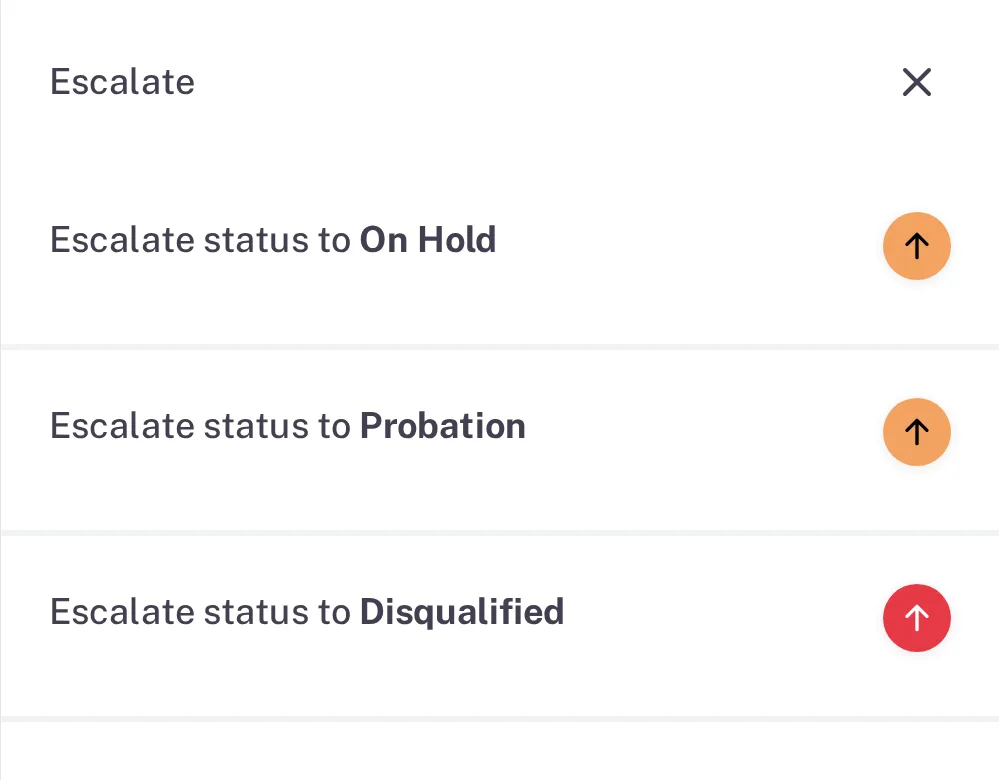
Step 2. The Escalate panel of an approved supplier with On Hold, Probation and Disqualified Select the arrow beside Escalate status to Disqualified. The form opens with your Email, a Password box and a Remark box, which is required.
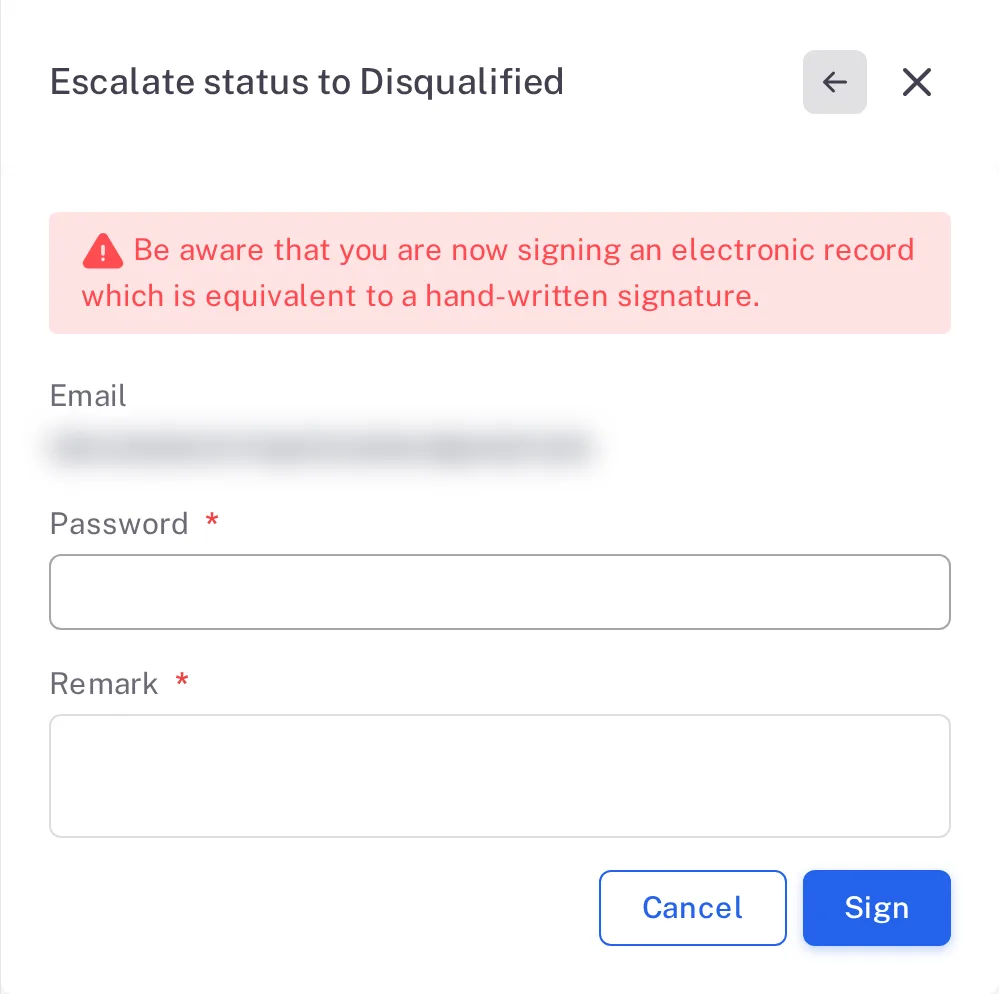
Step 3. The Escalate status to Disqualified form with the signature warning, Email, Password, Remark and the Sign button Type your Password, and in Remark why the supplier is disqualified. Select Sign. To stop without signing, select Cancel.
Result
The supplier is Disqualified, and your status button is greyed out. It stays in Suppliers › Suppliers with the status Disqualified. On the Approved Supplier List, the Status of its materials reads Suspended. Complere sends the supplier notification e-mail.

What gets recorded
Each entry appears on the supplier's Audit Trail tab.
What the audit trail records
You disqualified the supplier.
- Action Type
- Change Status
- Username
- Your username
- Date Created
- Date and time of the action
- Activity
- "The supplier has been signed by the Approvers and its status has been updated to disqualified", followed by your remark.
Complere sent the supplier notification e-mail.
- Action Type
- supplierStatusChanged
- Username
- System Account
- Date Created
- Date and time of the action
- Activity
- "Supplier notification email sent"
If something is different
You do not see Escalate status to Disqualified.
An Approver whose system role is Administrator sees it. An Approver or QA who is a Supervisor or Regular User sees only On Hold and Probation. Ask an Approver who is an administrator.