
Before you start
- The module is called Suppliers on screen. Depending on your permissions, its menu has Suppliers (the supplier records), Approved Supplier List, Supplier Qualifications, Supplier SCARs, Receiving Inspections and Supplier Scorecard. An Administrator also sees Settings & Master and Audit Trail. This article is about the supplier record.
- Modules are enabled for your company by Complere.
- A Regular User can add suppliers. A Read Only User can open them.
What a supplier record holds. Its basic details (Name, Legal Name, Business Type, Jurisdiction, Criticality — Critical, Major or Minor), its Sites and its Materials. The supplier page also has tabs for its Contacts, Qualifications, Receiving Inspections, Scorecards, SCARs, Audits, Events, Audit Trail, Roles, Documents, Remarks, Files, Emails, Notifications and Workflows, shown to users allowed to see them.
The people on a supplier are named on its Roles tab:
- The person who created the record is shown as Created By at the top of the supplier page. Complere sets this for you; it is not a role on the Roles tab.
- Coordinators — own the record and submit it for approval.
- Approvers — give the business approval.
- QAs — give the final quality approval. Only users whose profile has Is QA? switched on can be named as QAs.
How it works
Moves are made from the status button. It shows the supplier's current status, and its Escalate panel lists the moves you may make.
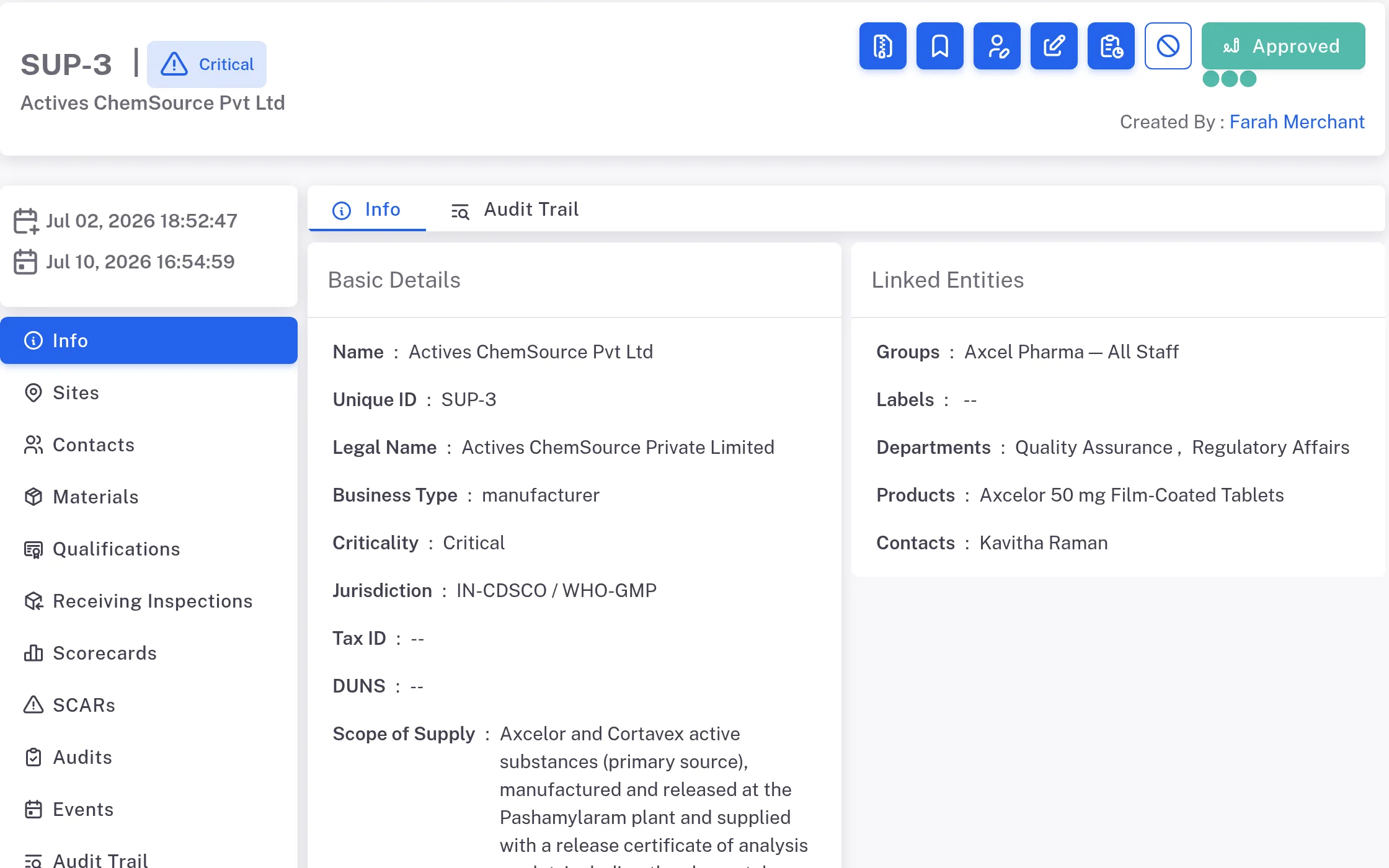
Step 1. An approved supplier page with its criticality, the status button at the top, Created By, and the Info, Sites, Contacts and Materials tabs It runs Draft › Awaiting Approval › Awaiting QA Review › Approved. Submitting from Draft and each approval are signed; the form shows the Required Signers and how many have signed. See Sign a supplier for approval.
A supplier can be sent back. Approvers and QAs are offered moves back to an earlier status. A QA's move back asks for a Reason; the supplier is then signed on again from there.
An approved supplier has side statuses. Approvers and QAs are offered On Hold and Probation, Coordinators On Hold only; an Approver whose system role is Administrator is also offered Disqualified. See Put a supplier on hold, Take a supplier off hold, Disqualify a supplier.
The Roles tab names who is on the supplier. The Suppliers lifecycle shows who acts in each status.
Result
You can tell, for any supplier, which status it is in, who is named on it and who acts next. For every action and role in one table, see Suppliers: who can do what. Users who are allowed to see it can read the supplier's history on its Audit Trail tab.
If something is different
- You cannot approve at Awaiting QA Review. The supplier is Critical or Major and has no current Quality Agreement: the page reads "Quality Agreement required before approval", and in the Escalate panel the arrow of "Escalate status to Approved" is greyed, with the reason "This Critical/Major supplier has no current Quality Agreement. A valid Quality Agreement must be linked before it can be approved." The banner has a Go To Documents button.
- You are an Approver or QA and are not offered Disqualified. It is offered to an Approver whose system role is Administrator. An Approver or QA who is a Supervisor or Regular User is offered On Hold and Probation only. Ask that person (see Disqualify a supplier), or put the supplier on hold instead: see Put a supplier on hold.
- You cannot move the supplier to the next status. You are not named in the role that acts in the current status. Open the Roles tab to see who is named.