
Before you start
- CAPAs is in your menu (with CAPAs under it) when the CAPA module is enabled for your company by Complere.
How it works
A CAPA passes through its statuses from Initiated to Closed. The CAPA module page shows them in order; select a status there to see who acts in it. Each CAPA names people in these roles:
| Role | What they do on the CAPA |
|---|---|
| Initiators | The person who created the CAPA. Can send it on from Initiated. |
| Coordinators | Send the CAPA on from Initiated, and record the effectiveness review. |
| Approvers | Sign in Awaiting Approver sign-off. |
| QAs | Authorise the actions, sign Awaiting QA sign-off and verify effectiveness. |
A signature moves the CAPA on. Only people named in the role acting in the current status can sign; the button is greyed for everyone else. Holding two such roles, you pick your Role. How to sign: Sign a CAPA as Approver or QA.
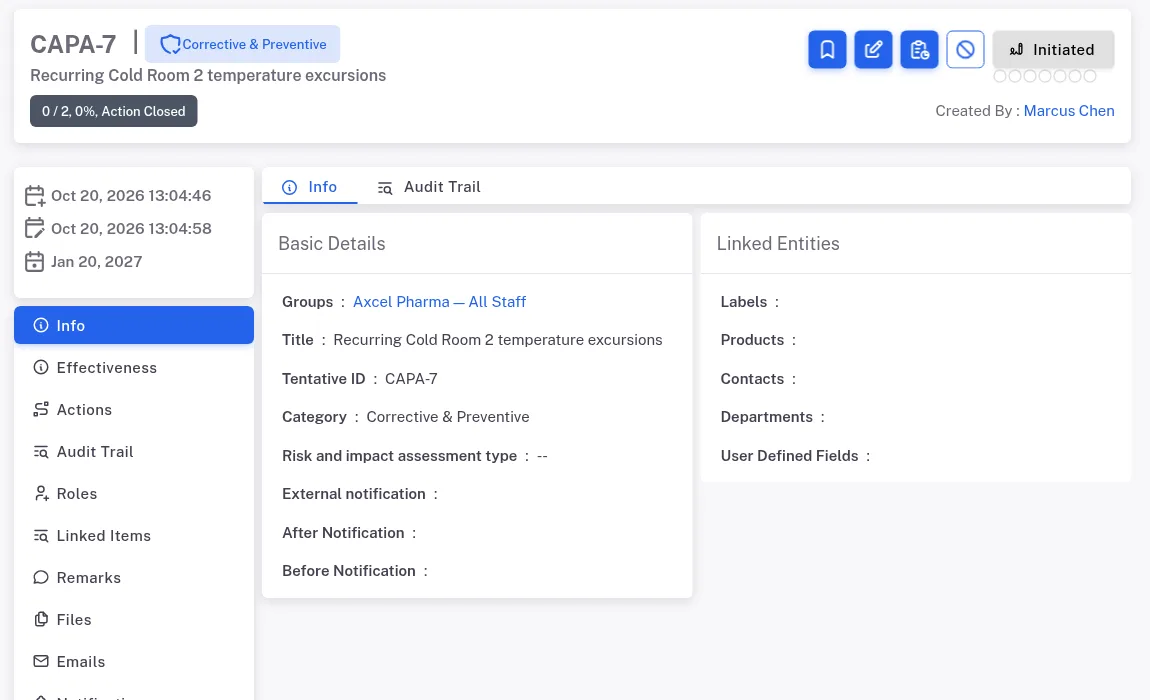
Step 1. A CAPA in Initiated seen by its Coordinator: the ID, category and title, the action counter 0 / 2, the Initiated status button with its empty dots, Created By, and the Info tab The actions are the work. In Implement Actions each action has its own Coordinators, QAs and statuses: In Progress, Awaiting Dependency, Awaiting QA sign-off, Closed. The counter under the CAPA's title shows how many are closed. See Close a CAPA action.
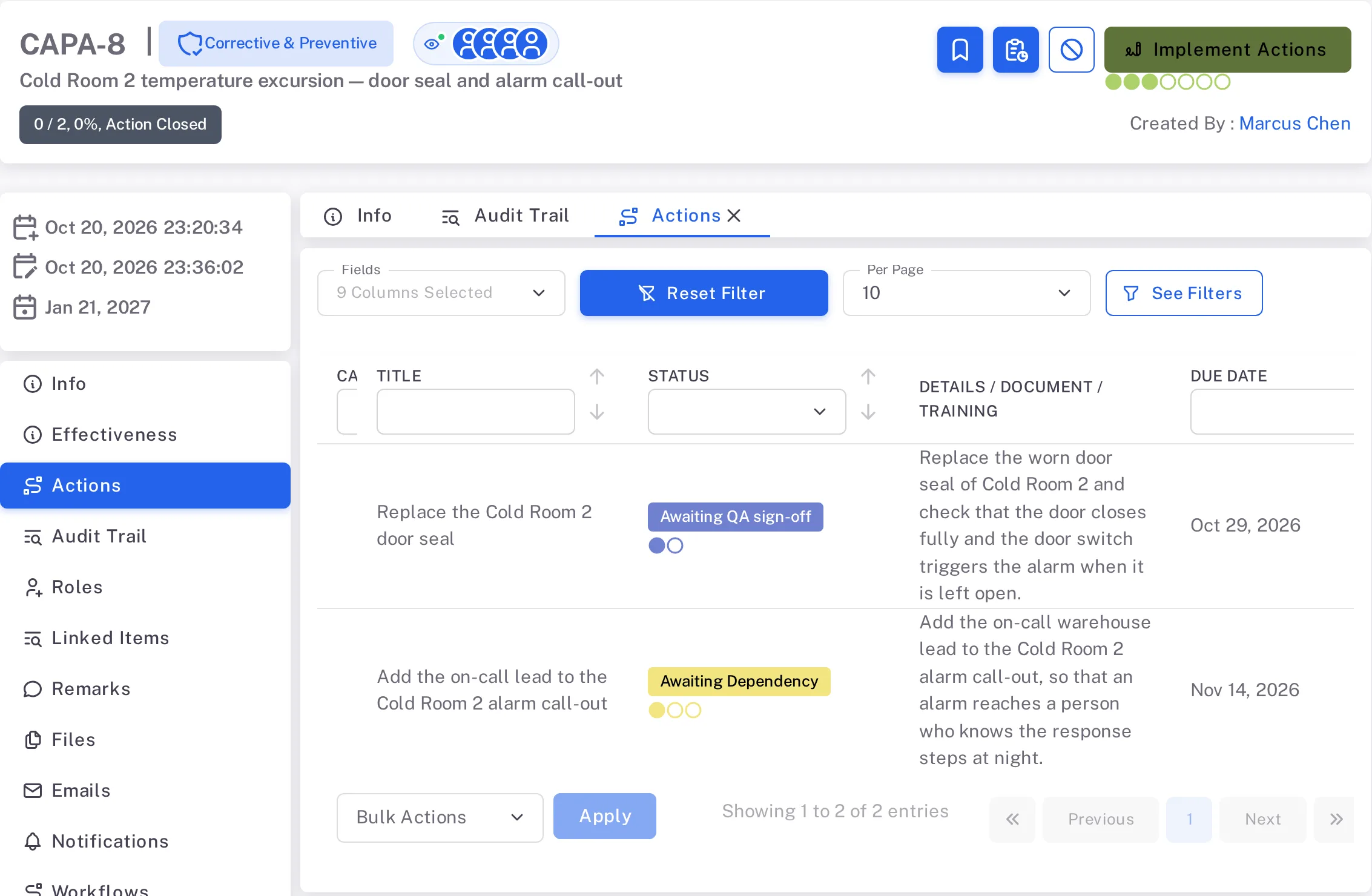
Step 2. The Actions tab of a CAPA in Implement Actions: one action in Awaiting QA sign-off and the action that depends on it in Awaiting Dependency, with the counter 0 / 2, 0%, Action Closed under the title The CAPA moves on by itself when every action is Closed. It goes to Awaiting QA sign-off unsigned; the Audit Trail lists the move as Status auto-advanced, in the name of whoever closed the last action.
In Awaiting QA sign-off, the QAs sign it on. They sign the CAPA on to Awaiting Effectiveness Review; their Escalate panel also offers Escalate status to Closed. See Sign a CAPA as Approver or QA.
Effectiveness is reviewed, then verified. A Coordinator answers Was the action effective? (Record the effectiveness review of a CAPA). Yes sends the CAPA to Awaiting Effectiveness Verification, where the QAs close it (Close a CAPA); No sends it back to Awaiting QA sign-off.
A CAPA can go back. An Approver's move back to Initiated opens "Status reject to Initiated" and asks for a Reason; the Audit Trail lists it as Status Rejected. The moves back each panel offers are in Sign a CAPA as Approver or QA. After Closed the button is greyed.
Result
You can read where a CAPA is and who acts next:
- The status button shows the current status; its dots show how far the CAPA has come. The counter under the title shows how many actions are closed.
- The Roles tab shows who is named in each role; the Workflows tab shows the CAPA's path.
- The Linked Items tab shows the records the CAPA is linked to: documents, trainings, events, CAPAs, change requests, audits and risk assessments (for example the event it was raised from).
- Changes to the CAPA and its actions are listed on its Audit Trail tab, which is shown to users who are allowed to see it. Each signature is listed as Change Status (for an action, with its ID first: "CAPA-7-AXN-1 · The action has been signed by the QAs and its status has been updated from Awaiting QA sign-off to Closed"). See Read the audit trail of a record or a module.
- Next: every action and the roles that can take it, status by status, in CAPAs: who can do what.
If something is different
- The status button is greyed. You are not named in the role that acts in this status. Open the Roles tab.
- The CAPA will not leave Implement Actions ("All associated actions must be closed before proceeding to the next step"). One of its actions is not Closed yet. Open the Actions tab.
- An action stays in Awaiting Dependency. It stays there even after the actions under its Closure Dependencies are Closed, until one of its Coordinators signs it on to Awaiting QA sign-off. See Close a CAPA action.
- A status on the CAPA module page never appears. A status marked Optional on the module page is not used on every record. The QAs' panel in Awaiting QA sign-off also offers "Escalate status to Closed".
- Signing the move to Implement Actions shows "Something Went Wrong", and the signing form stays open. The move is saved: the CAPA is in Implement Actions and its actions are In Progress. Do not sign again. Contact Complere support (see Ask Complere support for help).
- The Effectiveness tab opens with No already selected. Check Was the action effective? before you select Save And Escalate: with No, the form reads "Status reject to Awaiting QA sign-off" and the CAPA goes back to the QAs. Contact Complere support (see Ask Complere support for help).