
Before you start
- For one record: you can open the record, and your role shows its Audit Trail tab. A Read Only User, for example, sees the tab on a risk assessment and a training, but not on a document, CAPA, event, change request, audit or supplier.
- For a whole module: your role is Administrator or Supervisor. Only these roles have the module's Audit Trail page.
- What each column means is in How the audit trail works.
Steps
Open the audit trail.
On a record
Open the record, for example a change request, and select the Audit Trail tab. The list shows Activity, Action Type, Username, Email, Date Created and Actions, newest first.
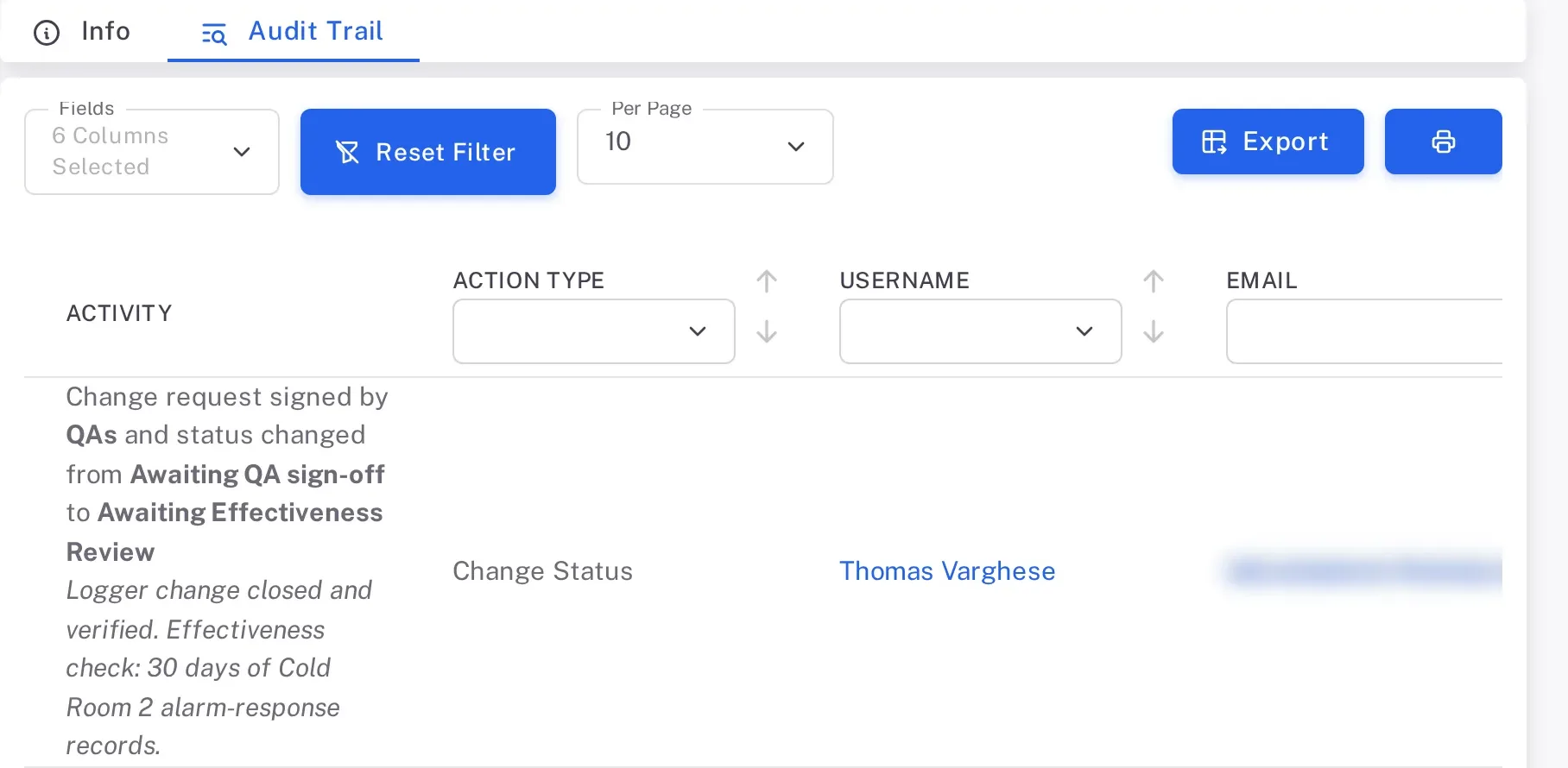
The Audit Trail tab of a change request, with Fields, Reset Filter, Per Page, Export and the print button above the list and its first entry For a whole module
In the menu, open the module and select Audit Trail, for example Controlled Change › Audit Trail. The list shows Title (the record the entry belongs to), Scope (the kind of record, for example Change Request or Change Requests Changes), Activity, Date Created and Actions.
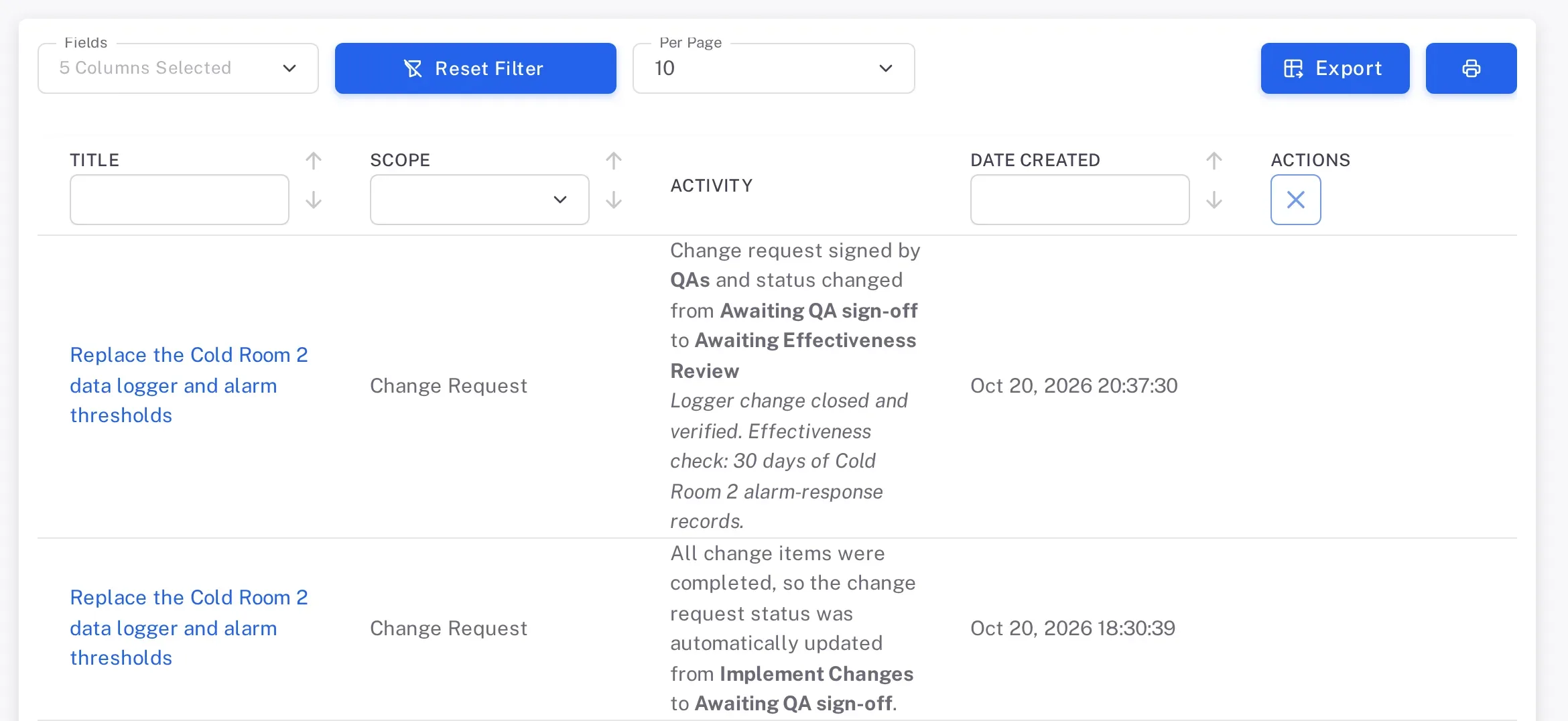
The Controlled Change Audit Trail page: Fields, Reset Filter, Per Page, Export and print above the Title, Scope, Activity, Date Created and Actions columns To add or remove a column, open Fields, choose the column, and select the tick button beside Fields. Activity, Date Created and Actions always stay. On a module page, add Action Type, Username, Email or Digitally Signed this way.
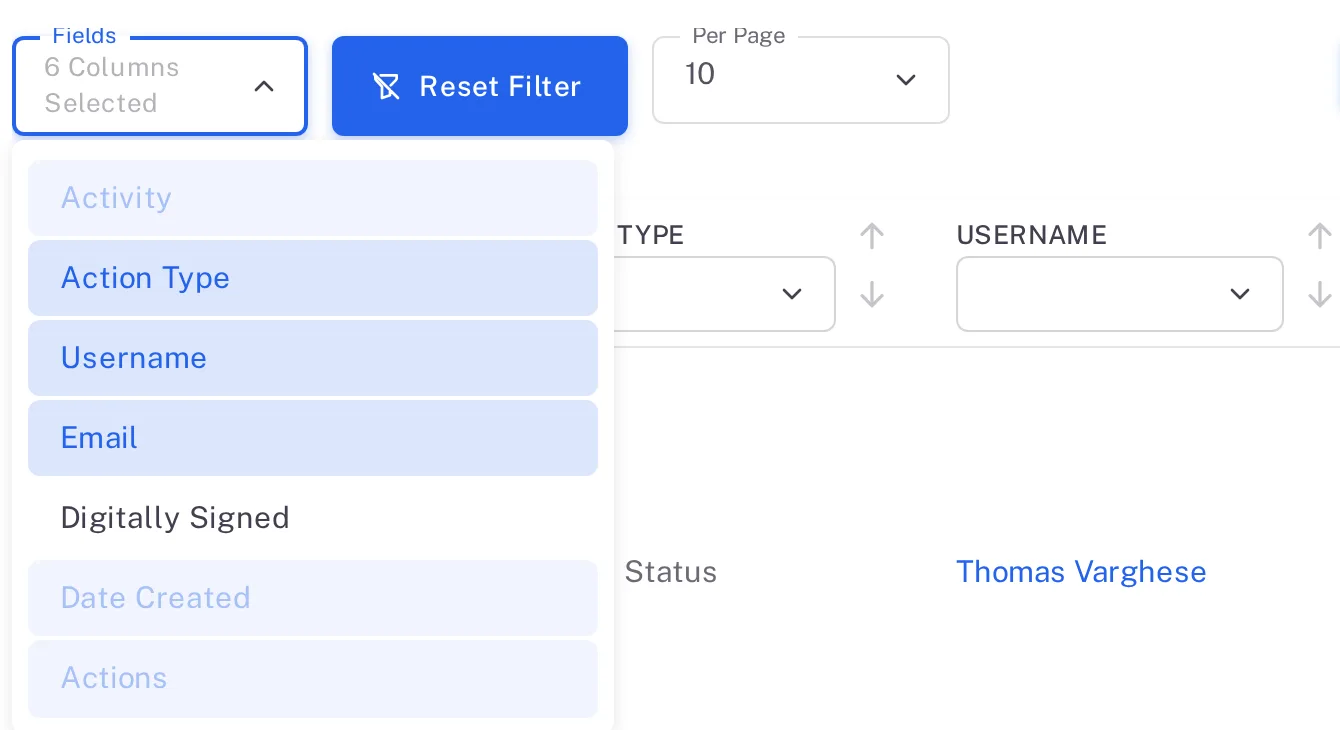
Step 2. The Fields list open, with Action Type, Username and Email selected and Digitally Signed not selected To find particular entries, use the filter box under a column heading, for example choose Change Status under Action Type. To sort, select the up or down arrow beside a heading. To clear every filter, select Reset Filter.
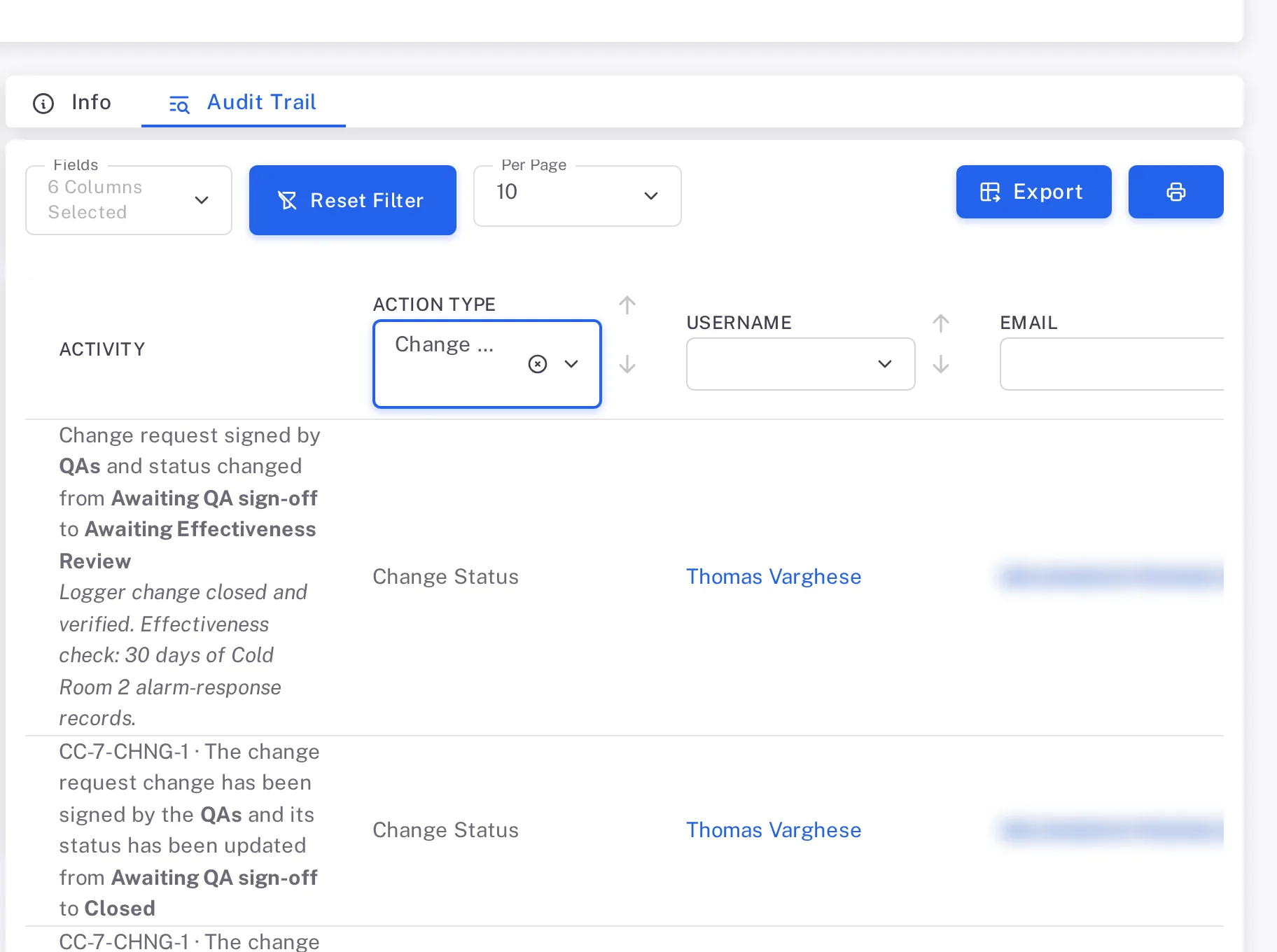
Step 3. The Action Type filter set to Change Status, leaving only the signatures that moved the change request on To see what an entry recorded, select the eye button at the end of its row (its tooltip reads View). The window is titled with the action, the person and the time, for example "Changes Created by Elena Fischer on Oct 20, 2026 12:21:46", and lists each Field Name with its Previous Value and its Current Value. Close it with the cross.
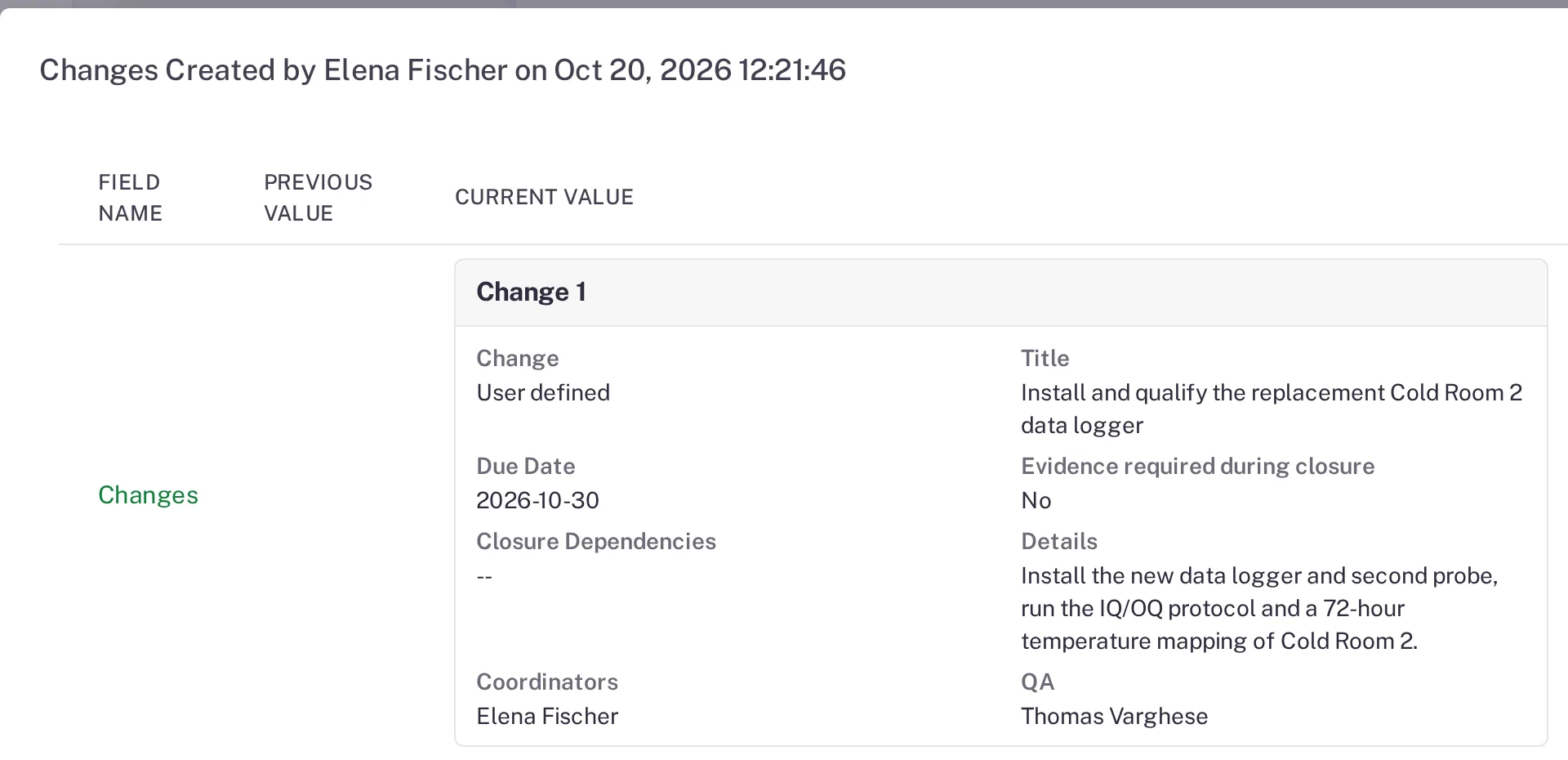
Step 4. The View window of a Changes Created entry: Field Name, Previous Value and Current Value, with the change's title, due date, details, coordinator and QA
Result
- You see every entry for the record or the module, or only the ones your filters keep.
- For each entry you can say who did what, when, and the reason they gave; with Digitally Signed added, whether they signed it.
- For entries with an eye button, you can see the values before and after.
Next: keep a copy of the list as a spreadsheet or a PDF — see Export or print an audit trail.
If something is different
You chose Status Rejected under Action Type and no entries show, or the list has no Status Rejected.
The Status Rejected filter shows no entries on a document's Audit Trail tab and on the Document Control and Audits Audit Trail pages, even when a record was sent back. On the Controlled Change Audit Trail page, the Action Type list has no Status Rejected. On a CAPA's or a change request's Audit Trail tab, and on the CAPAs Audit Trail page, the filter lists the rejections. To find rejections elsewhere:
- Select Reset Filter, then sort the Action Type column with the arrows beside its heading. Entries of the same action type sit together.
- Read the Activity sentence of each entry. A rejection names the role and the status the record went back to, for example "CAPA reject by Coordinators and status changed to Awaiting QA sign-off", with the reason in italics under it.
Contact Complere support (see Ask Complere support for help).
You cannot see Date Created or the eye button.
The list is wider than the page. Scroll the list to the right. To make room, remove a column you do not need, such as Email, under Fields.
The module's Audit Trail page reads "You are not authorized!".
Your role is not Administrator or Supervisor. Use the Audit Trail tab of each record instead, or ask an administrator.