
Before you start
- In Complere, an electronic signature is you confirming who you are again, at the moment you take a regulated action. Being signed in is not enough: Complere checks you again for that one action, with the e-mail address shown on the form and your Complere password.
- Complere asks for a signature on actions such as:
- moving a record to its next status, or sending it back to an earlier one — the Escalate panel that opens from the record's status button;
- marking a record obsolete;
- for administrators: disabling or enabling a user.
- You see a signing form only for actions your role and your place on the record allow.
How it works
Start the action, for example select the record's status button. When there is only one move, the signing form opens straight away. Otherwise the Escalate panel lists the moves ("Escalate status to …", "Escalate status back to …") and you select the arrow of the one you want.
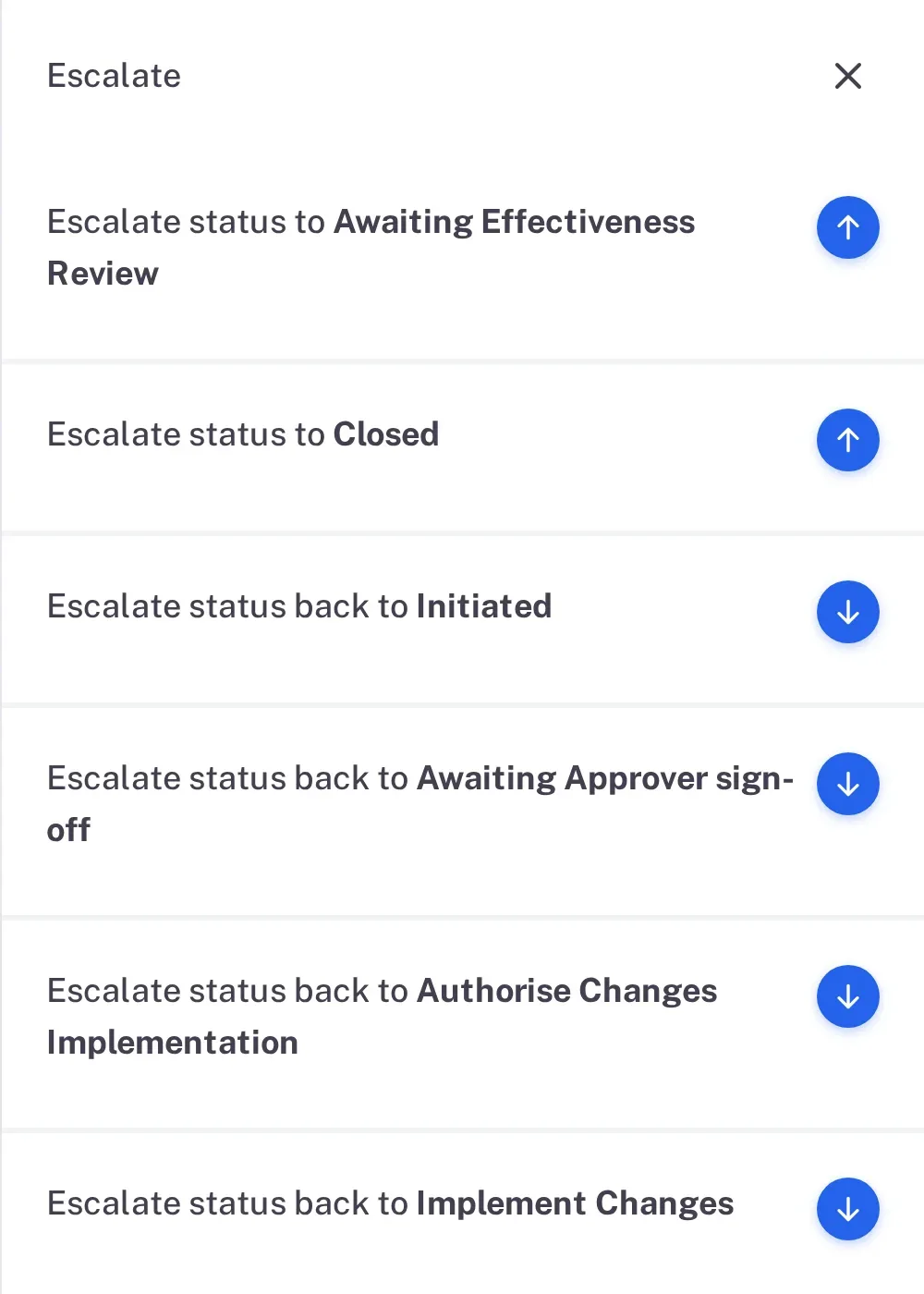
Step 1. The Escalate panel listing Escalate status to Awaiting Effectiveness Review, to Closed, and back to four earlier statuses, each with its arrow Read the form. Its title names the move, for example "Escalate status to Awaiting Effectiveness Review". Most signing forms open with a warning.
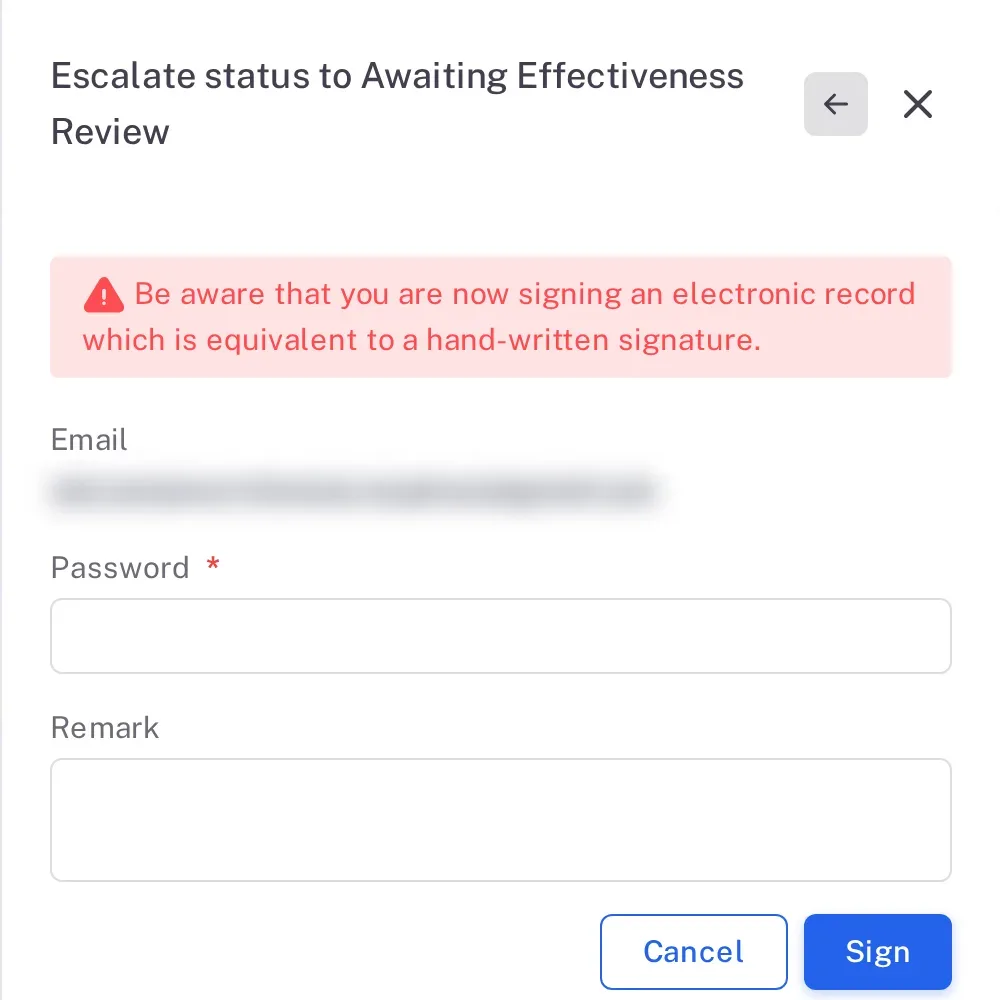
Step 2. The signing form Escalate status to Awaiting Effectiveness Review, with the warning, the Email shown (blurred here), the Password and Remark fields and the Cancel and Sign buttons Check that the Email shown is yours, and type your Password — the same password you sign in with.
If the form shows a Role field — you hold more than one role that may sign this move — choose the role you sign in (for example Initiators or Coordinators). Fields marked with a red star must be filled in. Whether the Remark is required depends on the form: it is optional when a change request is signed on to its next status, and required when a supplier is put On Hold or Disqualified. Sending a CAPA back to an earlier status opens a form titled "Status reject to …" that asks for a Reason instead. When you type a remark, it is shown with your signature in the audit trail.
Select Sign. To stop without signing, select Cancel: the form closes and the record stays in its status.
Result
- Complere has checked your password and the action is done: for example the record's status has moved ("Change request signed by QAs and status changed to Awaiting Effectiveness Review"), or your signature is counted towards it ("The change request was signed by Approvers.").
- The signature is written to the audit trail of the record you signed, with your name, the time and any remark you typed.
Next: read the signed entries on a record — see Read the audit trail of a record or a module.
What gets recorded
Your signature on a record writes an entry on its Audit Trail tab (shown in the Action Type column). Add the Digitally Signed column under Fields to see Yes for entries such as these:
What the audit trail records
You signed, and the record stays in its current status until the other required people have signed.
- Action Type
- Signed in current status
- Digitally Signed
- Yes
- Username
- Your username
- Date Created
- Date and time of the action
- Activity
- Names the role you signed in, for example "The change request was signed by Approvers."
Your signature was the last one needed, so the record moved on.
- Action Type
- Change Status
- Digitally Signed
- Yes
- Username
- Your username
- Date Created
- Date and time of the action
- Activity
- Names the role and the move, for example "Change request signed by QAs and status changed from Awaiting QA sign-off to Awaiting Effectiveness Review"; for a document it reads "The document has been signed by the Authors and its status has been updated from Draft to Under Review".
- Reason
- The Remark you typed, in italics under the sentence, when you typed one.
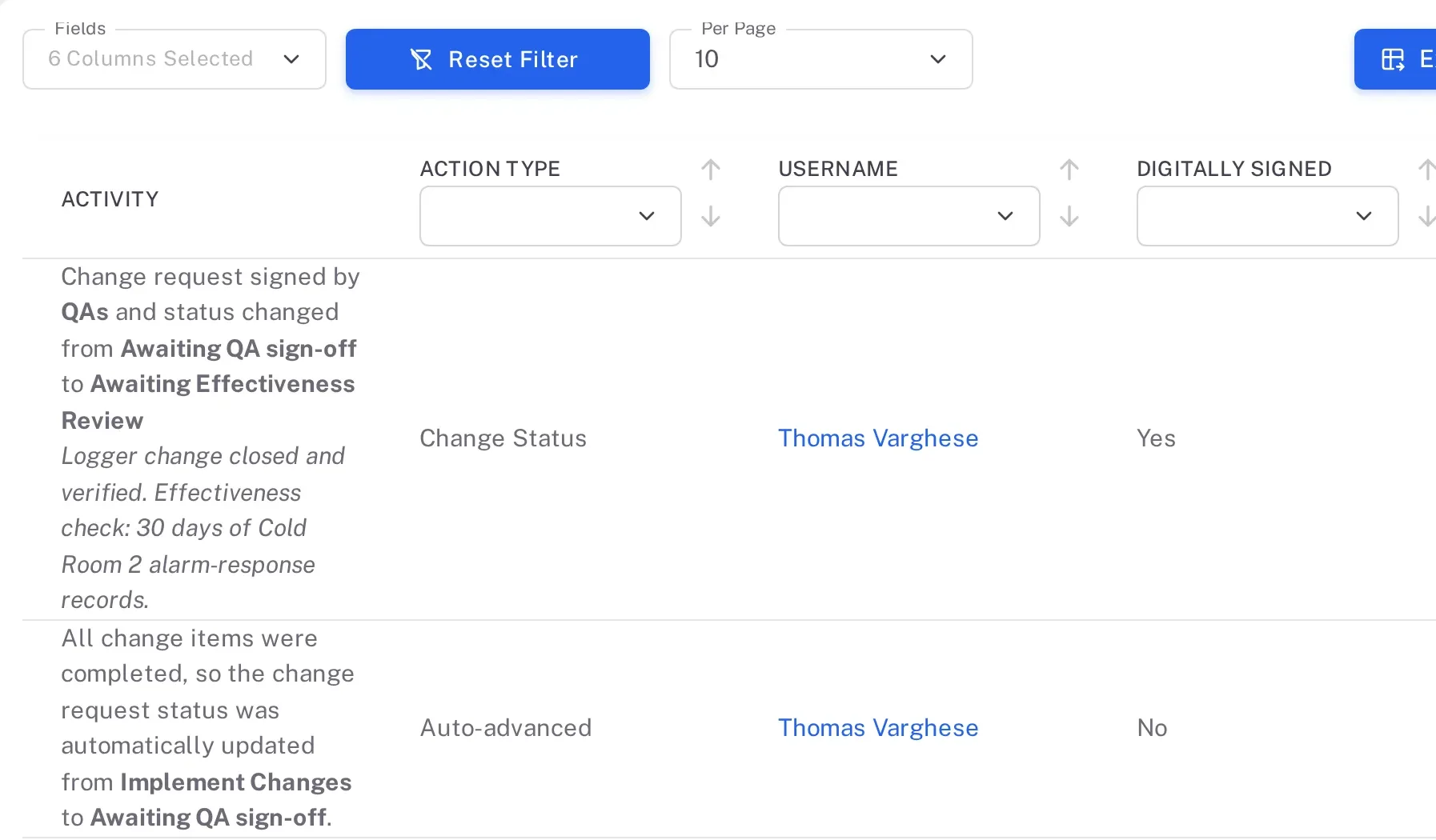
An entry can read No even when the action asked for your password: moving a leaver's open items to another user is one (see Transfer a user's open items).
If something is different
"These credentials do not match our records."
The password is wrong. Type the password you sign in to Complere with, and try again. Nothing was signed.
The status button shows a message instead of a signing form.
Hover over the status button. Its tooltip names what has to be done first, for example "Please complete the Effectiveness review form before proceeding." Do that, then select the status button again.
You do not get a signing form for an action you expected.
You are not named in the role that acts on the record in its current status, or your role does not allow the action. For documents, see I can't sign a document.