
Before you start
- Administrator, Supervisor and Regular User can create events; Read Only User cannot.
- Every event is created from an Event template. Event templates are under Quality Event Management › Event templates (in a Supervisor's menu, not in a Regular User's).
- Fields marked with a red asterisk (*) are required. The event template can add fields of its own.
Steps
Open Events from the menu and choose how much to fill in now.
Full
Select Full. The form opens at Basic Details, the first of its steps (Basic Details, Roles Configuration, Linked Items, Review and Submit). Follow the steps below.
Minimal
Select Minimal. A short form asks only for Groups, Event template, ID Prefix and Title, and shows the Tentative ID; select Submit. The event's page opens with the message "If the Event is marked as minimal, you must first fulfill the requirements before proceeding further."
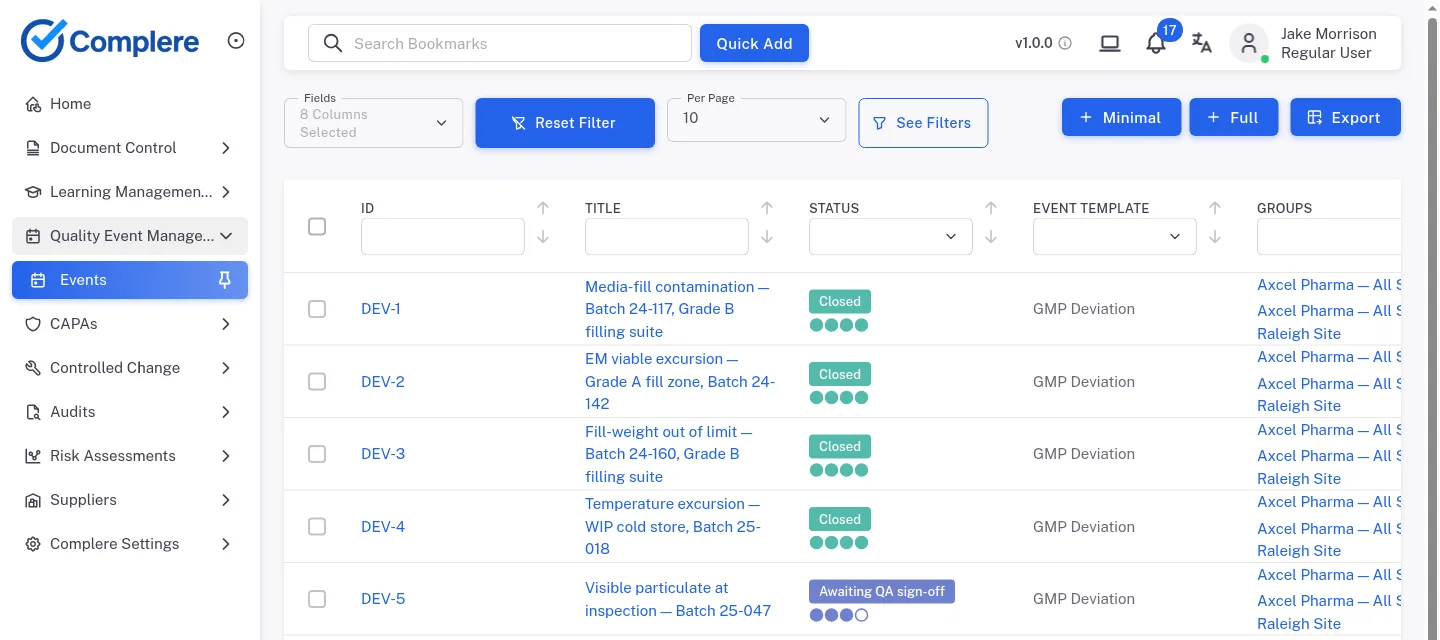
The Events list with the Minimal and Full buttons Select the Groups field. A Groups dialog opens: tick the groups the event belongs to and select Ok. Then choose the Event template. The template list stays disabled until you choose a group.
Choose the ID Prefix. Under Tentative ID the screen shows the ID the event will get, for example "Generated Event ID will be :DEV-12".
Type the Title. The template fills in some fields for you (for example Labels, Severity Level, which cannot be changed, Departments, Products and the Target resolution time). Change or add Labels, Contacts, Suppliers and Information if you need them.
Fill in the template's own fields, shown beside Basic Details. For example, a GMP Deviation template asks for a Batch Number and a Cleanroom Grade, both required.
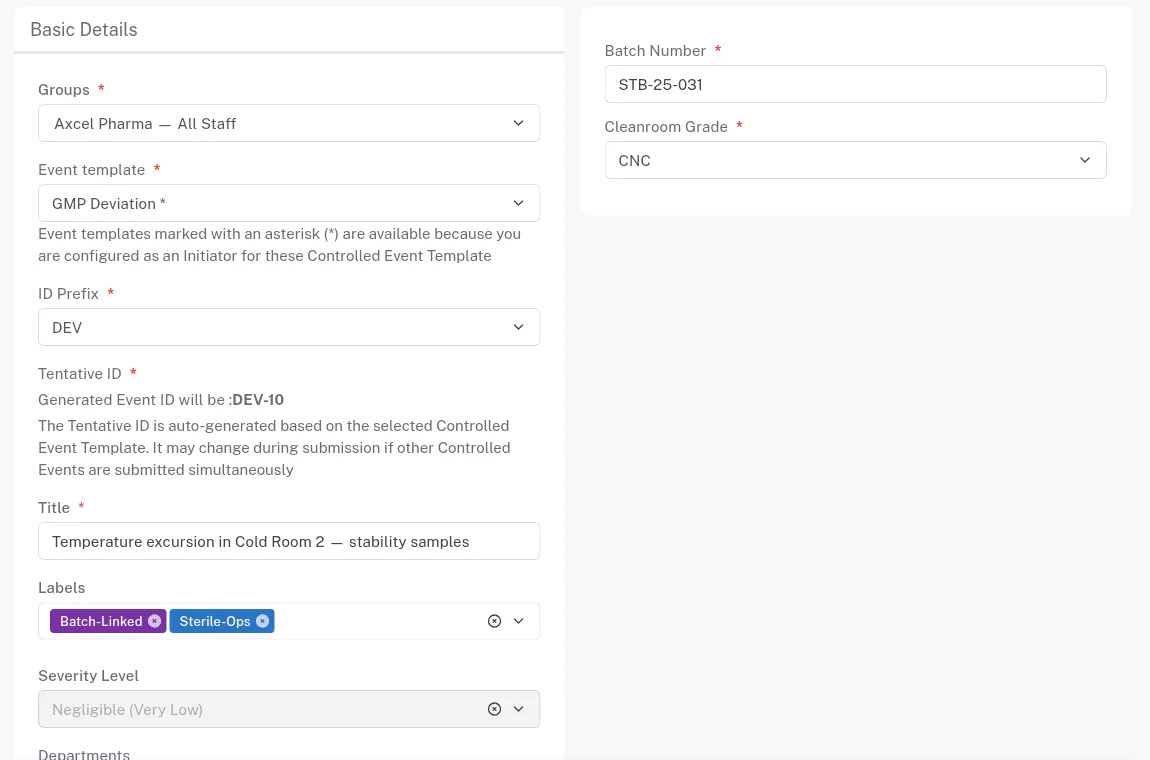
Step 5. The Basic Details step with Groups, Event template, ID Prefix, the Tentative ID, Title and Labels, and the template's Batch Number and Cleanroom Grade fields beside it Select Next. In Roles Configuration, choose the people in each role ("Users in roles will be populated from" the group you chose). You can also fill in Reported by, and turn on Enable External Notification Recipient ("…Maximum 5 users can be configured").
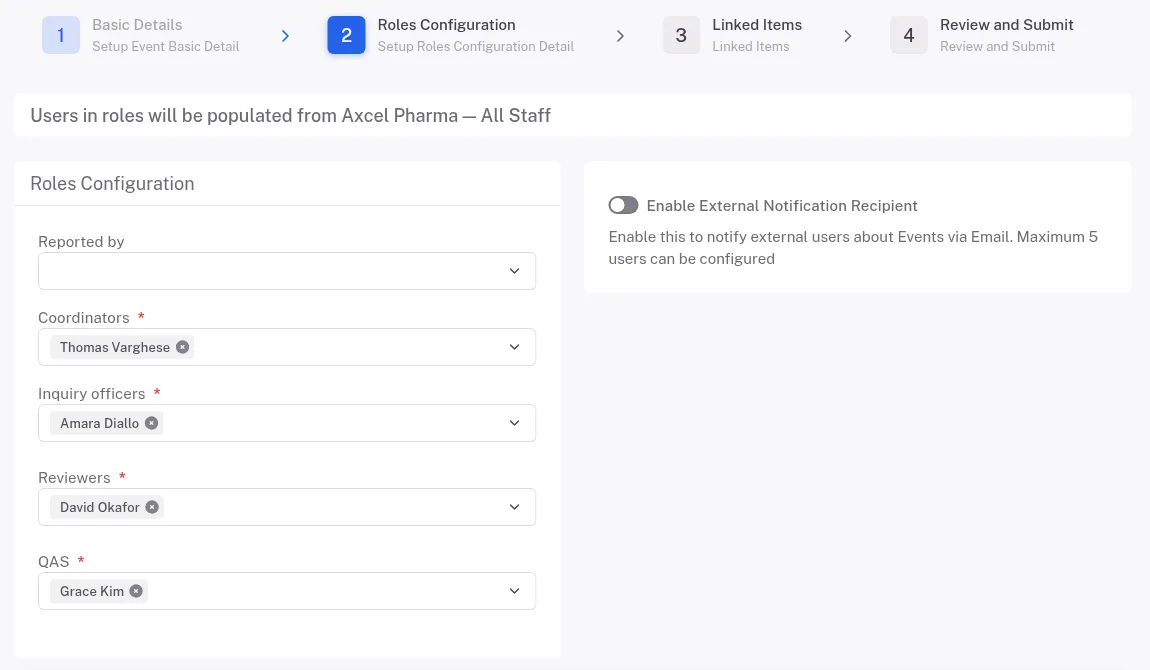
Step 6. The Roles Configuration step with Reported by, the required roles filled in and the Enable External Notification Recipient switch Role Required Acts in Coordinators Yes Created Inquiry officers Yes Under Inquiry Reviewers Yes Under Evaluation QAS Yes Awaiting QA sign-off Select Next. On Linked Items, add links to other records (Module, Relationship, Items, Remark) if you need them, then select Next.
On Review and Submit, check what you entered, then select Save. To finish it later, select Save As Draft: Complere shows "Event save draft" and lists the event without an ID. Edit on its row opens it again (Event › Update); select Next to Review and Submit and Save.
Result
- Complere confirms "Controlled Event … saved successfully" and opens the event in Created, with its ID. It appears in the Events list, and the event shows you as Created By.
- Next: a Coordinator signs to send it on; see How an event moves from Created to Closed.
If something is different
The Event template list is greyed out.
Choose the Groups first. The template list stays disabled until you choose a group.
You see no Minimal or Full button.
Your role does not allow you to create events. Ask your administrator. See Quality Event Management: who can do what.