
Before you start
- The event is in Under Inquiry.
- You are named in Inquiry officers on the event.
- You know your Complere password.
Steps
Open the event from Quality Event Management › Events, then open its Inquiry Form tab.
Choose the Event Cause, for example Material. It is required.
Under RCA Type, choose Open Text and write the root cause analysis in RCA.
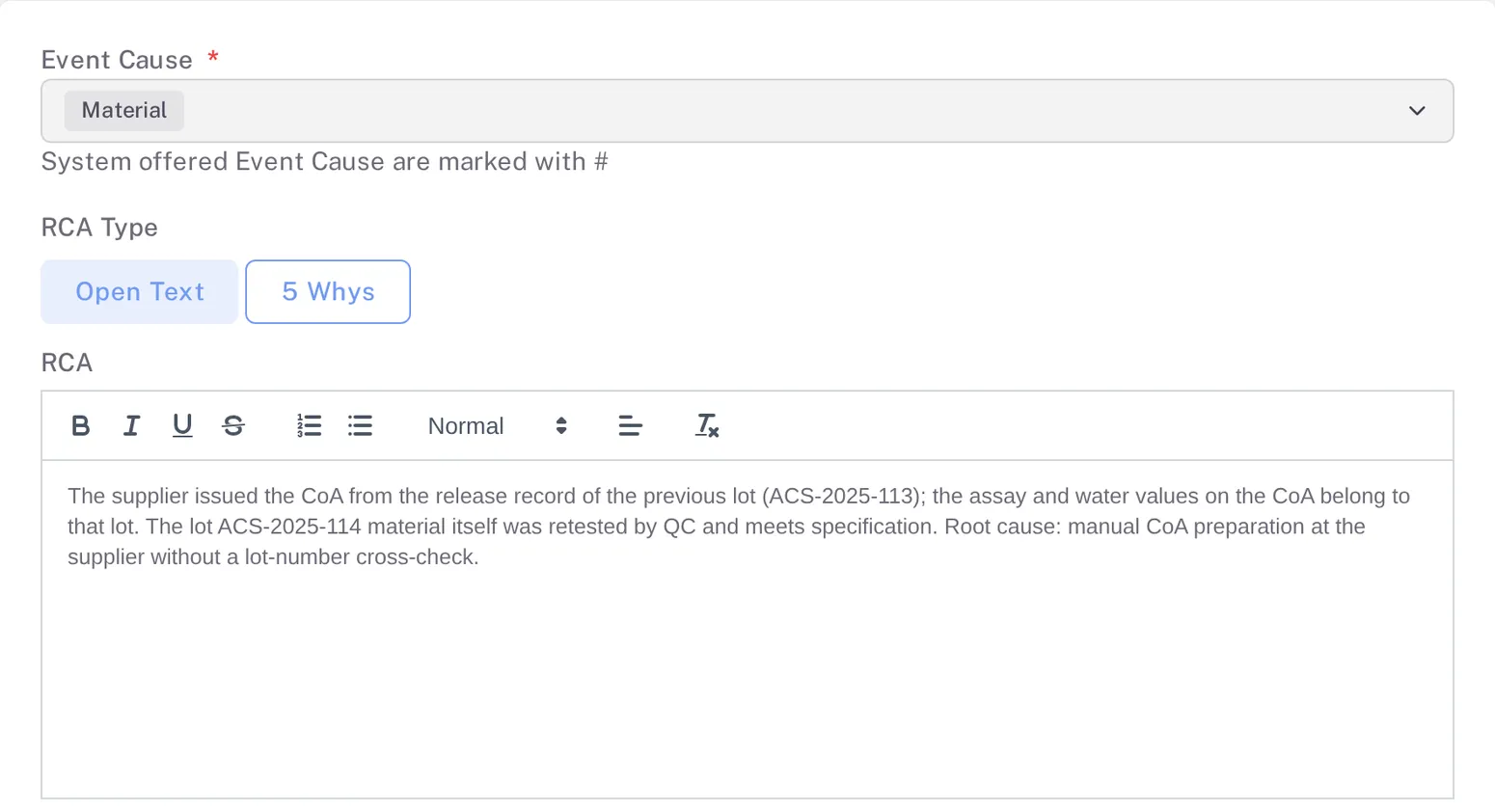
Step 3. The Inquiry Form with Event Cause set to Material, RCA Type Open Text and the root cause analysis in the RCA box Under Risk and impact assessment type, choose Open Text and write the assessment in Risk and impact assessment. Add Remarks if you need them, then select Save. The first save shows "Event Inquiry was created successfully".
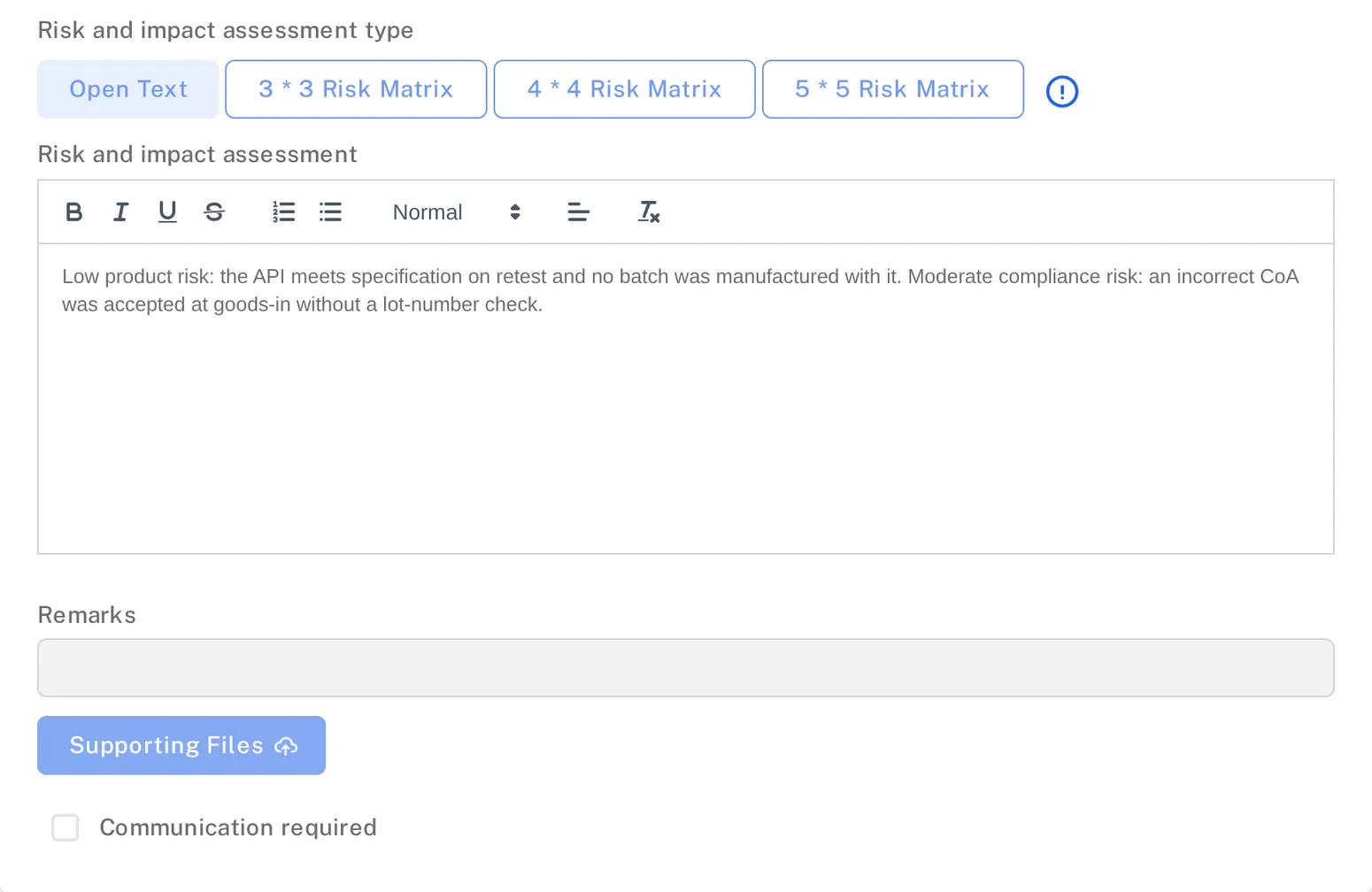
Step 4. The lower part of the Inquiry Form: the Risk and impact assessment type buttons, the assessment text, Remarks, Supporting Files, Communication required and Save Select the status button at the top of the page. The Escalate panel offers Escalate status to Under Evaluation and Escalate status back to Created. Select the arrow beside Escalate status to Under Evaluation, type your password and a Remark, then select Sign.
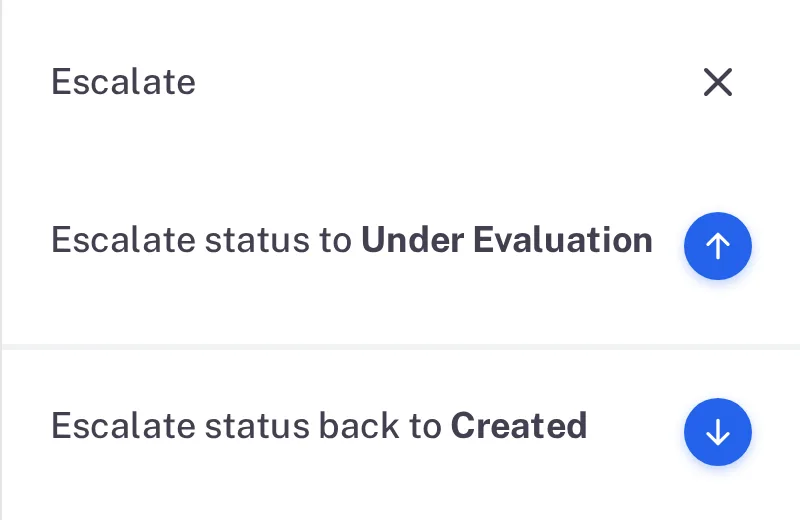
Step 5. The Escalate panel of an event in Under Inquiry with Escalate status to Under Evaluation and Escalate status back to Created
Result
The event is in Under Evaluation, where the Reviewers evaluate it. The Inquiry Form keeps what you saved.
Next: the Reviewers and then the QAS sign the event, see Sign an event as Reviewer or QA.
What gets recorded
Each entry appears on the event's Audit Trail tab.
What the audit trail records
You saved the Inquiry Form.
- Action Type
- Event Inquiry
- Username
- Your username
- Date Created
- Date and time of the action
- Activity
- "Event Inquiry save successfully"
You signed the event on.
- Action Type
- Change Status
- Username
- Your username
- Date Created
- Date and time of the action
- Activity
- Names your role and the move from Under Inquiry to Under Evaluation, followed by your remark.
If something is different
The status button is greyed out with "Please complete the Inquiry Form before proceeding."
Fill in at least the Event Cause and select Save on the Inquiry Form tab, then try again.
The event needs to go back to Created.
In the Escalate panel, select the arrow beside Escalate status back to Created. The form "Status reject to Created" asks for your password and a Reason, and has a Reset Inquiry Form option.