
Before you start
- Quality Event Management is in your menu, with Events under it, when the Events module is enabled for your company by Complere.
- Every event is created from an Event template. Templates are kept under Quality Event Management › Event templates. Event templates and Settings & Master are both in a Supervisor's menu; a Regular User's menu shows only Events.
How it works
An event passes through its statuses from Created to Closed. The Events module page shows them in order; select a status there to see who acts in it. The person who creates the event is shown on it as Created By. Each event names people in these roles:
| Role | What they do on the event |
|---|---|
| Coordinators | Send the event on from Created. |
| Inquiry officers | Fill in the Inquiry Form in Under Inquiry. |
| Reviewers | Sign in Under Evaluation. |
| QAS | Sign in Awaiting QA sign-off, which closes the event. |
A signature moves the event on. Only people named in the role acting in the current status can sign; the button is greyed for everyone else. The Workflows tab shows how many must sign in each status.
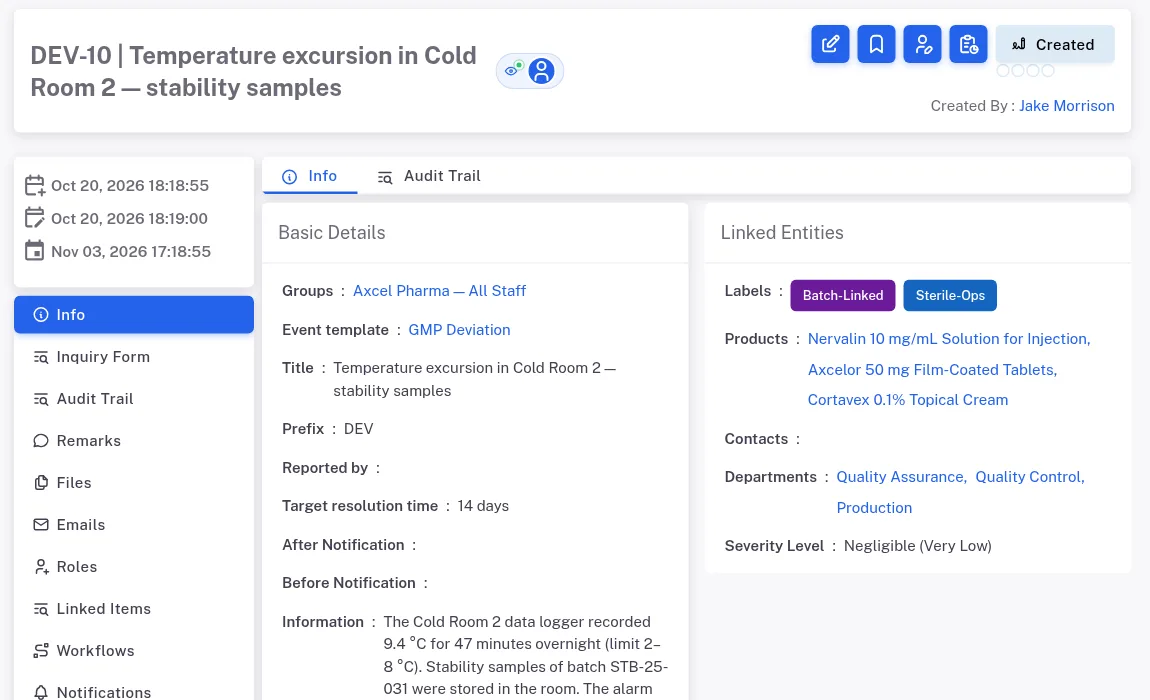
Step 1. An event in Created seen by its Coordinator: the Created status button with its empty dots at the top of the page, Created By, and the Info tab The Inquiry Form must be saved before the inquiry can end. Until the Inquiry officers save it, their status button is greyed. Then they sign the event on to Under Evaluation. See Fill in the Inquiry Form of an event.
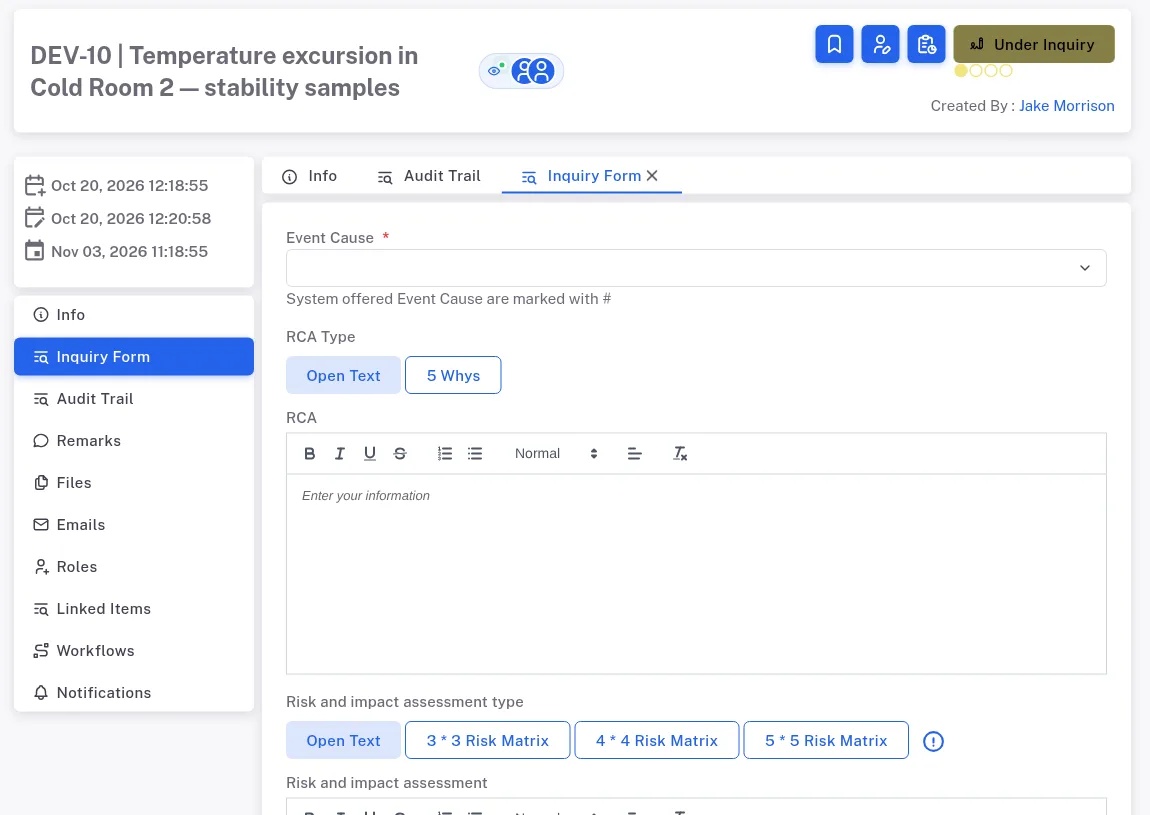
Step 2. The Inquiry Form tab of an event in Under Inquiry, with Event Cause, RCA Type, RCA and Risk and impact assessment type An event can be sent back. Inquiry officers can send it back to Created, with a Reason and the option to reset the Inquiry Form; Reviewers and the QAS, to Created or Under Inquiry.
The QAS sign to close it. "Escalate status to Closed". A closed event's status button is greyed. See Sign an event as Reviewer or QA.
Result
You can read where an event is and who acts next:
- The status button shows the current status; its dots show how far the event has come.
- The Roles tab shows who is named in each role. The Workflows tab shows the event's path, status by status: when it moved, who signed and when, how many sign-offs are needed and how long it was in that status.
- The Linked Items tab lists the records the event is linked to (Module, Relationship, Items, Remark): documents, trainings, events, CAPAs, change requests, audits and risk assessments. To follow an event up with a corrective or preventive action, create a CAPA and link the two. See Create a CAPA.
- Changes to the event are listed on its Audit Trail tab, which is shown to users who are allowed to see it. Each signature is listed as Change Status, for example "The event has been signed by the Coordinators and its status has been updated from Created to Under Inquiry", and the saved form as Event Inquiry. See Read the audit trail of a record or a module.
- Next: every action and the roles that can take it, status by status, in Quality Event Management: who can do what.
If something is different
- The status button is greyed. You are not named in the role that acts in this status. Open the Roles tab.
- The Inquiry officers' button is greyed with "Please complete the Inquiry Form before proceeding." The Inquiry Form must be saved first.
- A status on the Events module page never appears. A status marked Optional on the module page is not used on every record.