
Before you start
- The risk assessment is Under Assessment.
- You are named in Responsible Persons on the assessment.
- You know your Complere password.
Steps
Open the assessment from Risk Assessments › Risk Assessments and open its Risk Assessment tab, for example Risk Assessment (FMEA). Select Add New.
The form Add Risk Item opens. Fill in Process/Function, Failure Mode, Effects and Causes, which are required, and Existing Controls. Select Save. The risk appears in the list with its own ID, for example FMEA-7-1, in Draft.
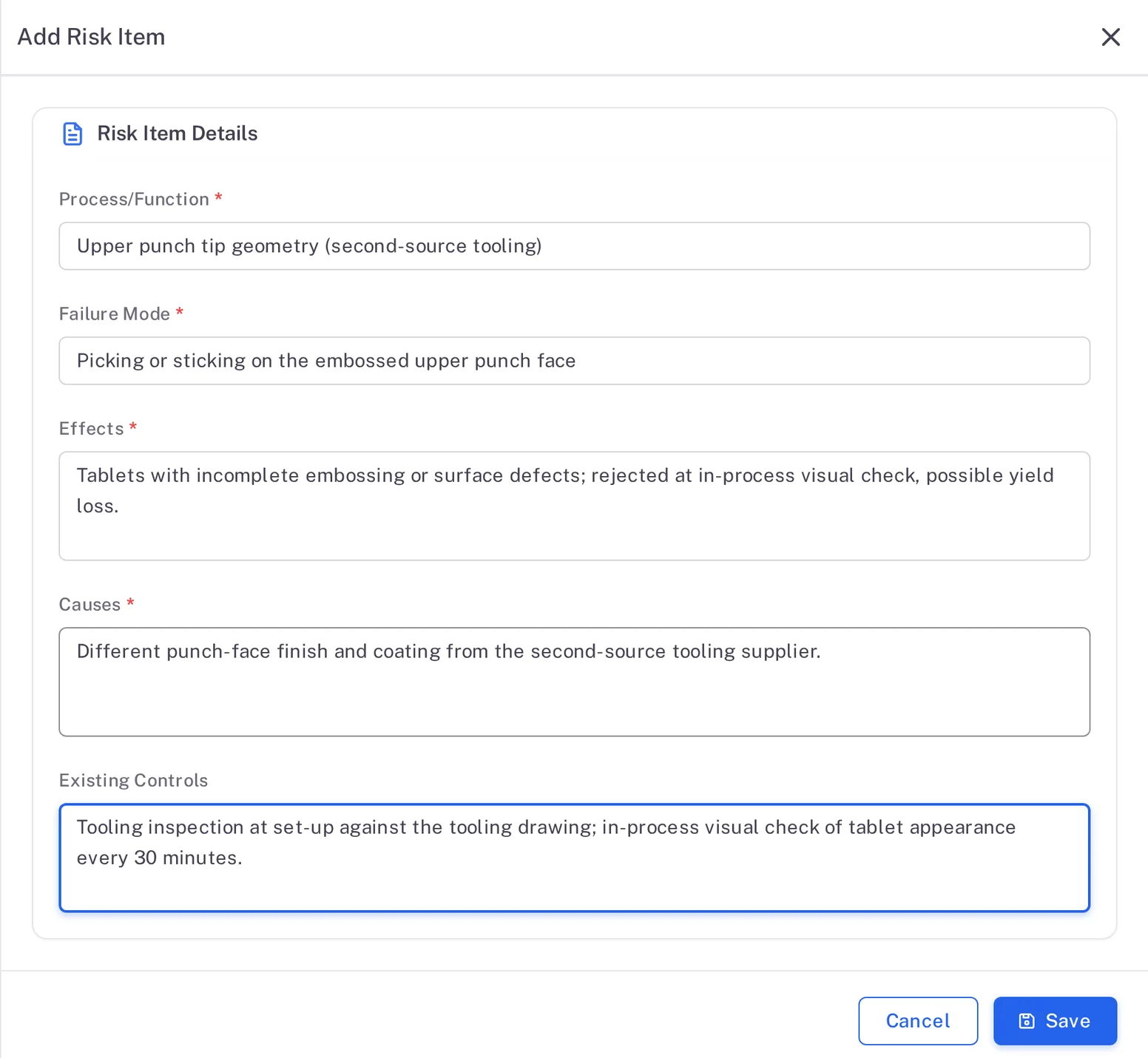
Step 2. The Add Risk Item form with Process/Function, Failure Mode, Effects, Causes and Existing Controls filled in In the risk's row, select Add Scoring. Enter Severity (S), Occurrence (O) and Detection (D), each from 1 to 5. Complere shows the RPN (Risk Priority Number) and the Risk Level: "RPN = Severity × Occurrence × Detection".
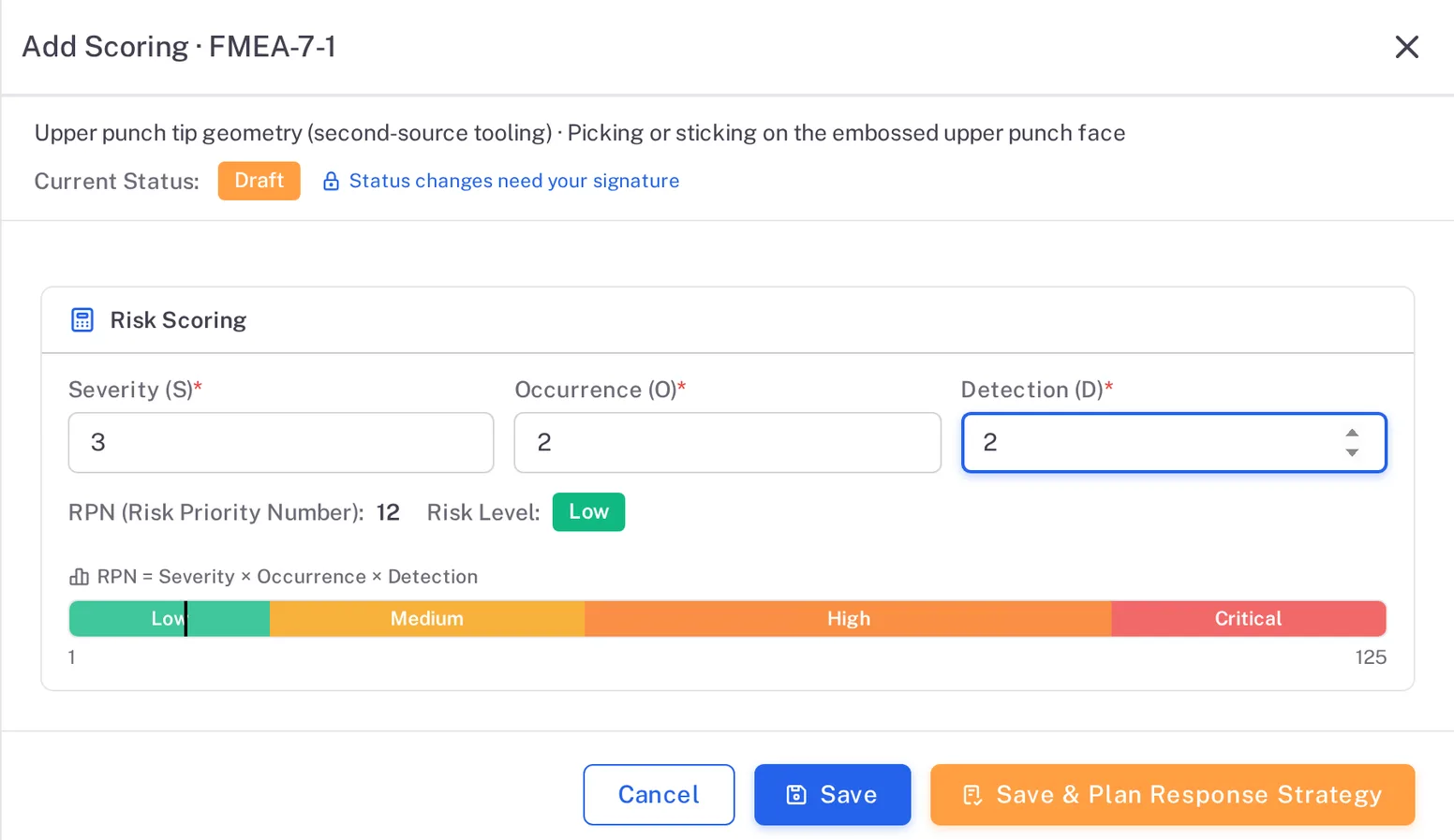
Step 3. The Add Scoring form with Severity 3, Occurrence 2 and Detection 2, an RPN of 12 and the risk level Low Select Save & Plan Response Strategy. The form reads, for example, "FMEA-7-1 is saved and moves from Draft to Active." Type your password and a Reason, which is required, then select Sign.
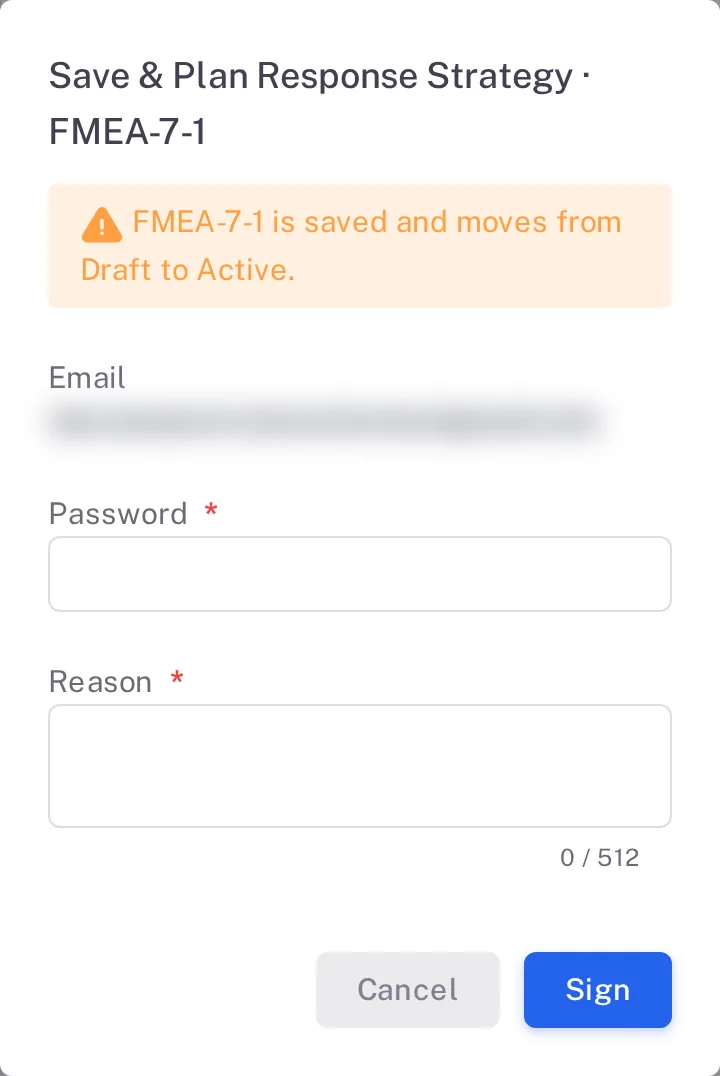
Step 4. The Save & Plan Response Strategy form: the risk is saved and moves from Draft to Active, with Email, Password and the required Reason
Result
The risk shows its three scores, its risk level and the status Active. The assessment stays Under Assessment.
Next: choose the risk's response and close it, see Close a risk by accepting it.
What gets recorded
Each entry appears on the risk assessment's Audit Trail tab.
What the audit trail records
You saved the new risk.
- Action Type
- Risk Item Created
- Username
- Your username
- Date Created
- Date and time of the action
- Activity
- "Risk Assessment Risk Item Created"
Your scores were saved.
- Action Type
- Risk Item Updated
- Username
- Your username
- Date Created
- Date and time of the action
- Activity
- "Risk Assessment Risk Item 'FMEA-7-1' updated", with the risk's own ID.
You signed the risk to Active.
- Action Type
- Risk Item status changed
- Username
- Your username
- Date Created
- Date and time of the action
- Activity
- "Risk Assessment Risk Item 'FMEA-7-1' status changed from Draft to Active", with the risk's own ID, followed by your reason.
If something is different
You do not see Add New.
Add New is shown to the Responsible Persons named on the assessment, and to an Administrator while the assessment is in Draft. Open the Roles tab to see who is named.