
Before you start
- The module is called Risk Assessments on screen. Its menu has Risk Assessments (the list of assessments). An Administrator also sees Risk Assessment Templates, Settings & Master and Audit Trail.
- Modules are enabled for your company by Complere.
- Users with the Administrator, Supervisor or Regular User role can create risk assessments. Read Only User can open them.
Every risk assessment starts from a template. The Risk Assessment Template you choose sets the assessment's Methodology and its scoring scales. A template's methodology is one of FMEA, HAZOP, What-If, PHA, HACCP or SWIFT. With FMEA, each risk is scored with a severity, an occurrence and a detection rating: "RPN = Severity × Occurrence × Detection", and the RPN gives the risk level (Low, Medium, High or Critical).
The people on a risk assessment are named on its Roles tab:
- Responsible Persons — add and assess the risks, and send the assessment on.
- Approvers — sign the assessment first.
- QAs — sign it last. Only users whose profile has Is QA? switched on can be named as QAs.
How it works
Open a risk assessment from Risk Assessments › Risk Assessments. The status button at the top of the page shows its current status.
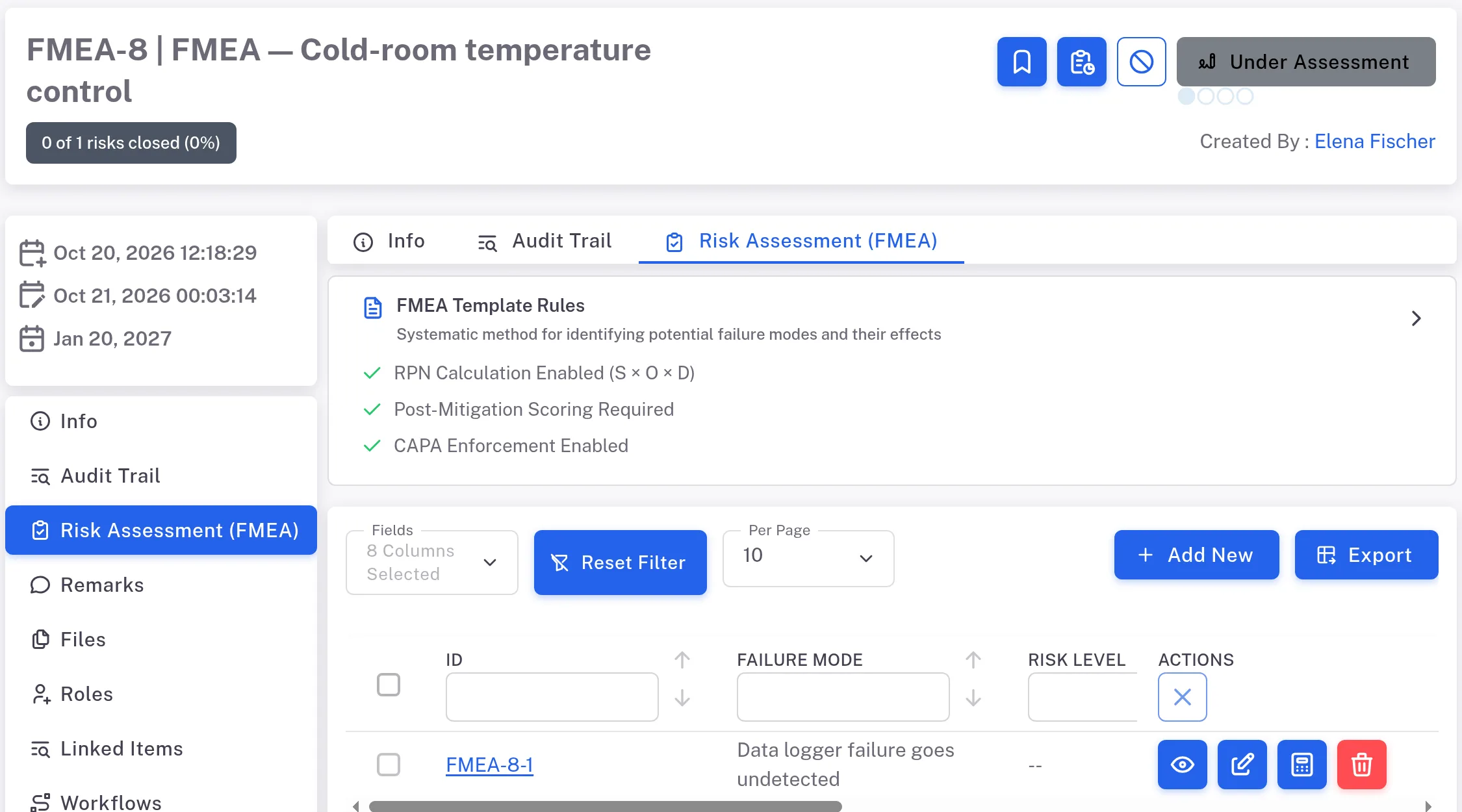
Step 1. A risk assessment in Under Assessment: the status button at the top, the Risk Assessment (FMEA) tab with Add New, and its first risk Read where it is in its lifecycle: Draft › Under Assessment › Under Signing by Approver › Under Signing by QA › Done. Select a status in the Risk Assessments lifecycle to see who acts there.
Open the Risk Assessment tab. Its name shows the methodology in brackets, for example Risk Assessment (FMEA). The Responsible Persons add risks here with Add New (the form is titled Add Risk Item). See Add a risk to a risk assessment.
Each risk has its own status. A new risk is in Draft. Once scored, it is signed to Active; when it is closed, it is signed to Closed. Both moves ask for a Reason. Adding, editing and scoring a risk are not signed.
A scored risk gets a response. Once the assessment is Under Assessment: Mitigate, Transfer, Accept or Avoid. With Accept it can be approved and closed straight away. See Close a risk by accepting it.
When the last open risk is closed, the assessment moves to Under Signing by Approver on its own. The move is not signed; the Audit Trail lists it as Change Status, in the name of whoever closed the risk.
Approvers, then QAs, sign it to Done (Sign a risk assessment as Approver or QA). An Approver can send it back instead, with a Reason. Back in Under Assessment with every risk Closed, a Responsible Person moves it on with a remark only.
Result
You can tell, for any risk assessment, which template and methodology it uses, who is named on it, which status it is in and who acts next. For every action and role in one table, see Risk Assessments: who can do what. Users who are allowed to see it can read the assessment's history on its Audit Trail tab.
If something is different
- The assessment does not go for signature. At least one risk is not Closed: the status button stays greyed while a risk is open. Close the open risks first.
- You cannot move the assessment to the next status. You are not named in the role that acts in the current status. Open the Roles tab to see who is named.
- The status button of a Done assessment is greyed. A Done assessment offers no further move.