
Before you start
- Your system role is Administrator, Supervisor or Regular User: these roles can create risk assessments.
- There is a Risk Assessment Template to start from. The template sets the methodology.
- You know which Groups the assessment belongs to. The people you can name on it are the users in those groups.
- You know who will be the Responsible Persons, the Approvers and the QAs. Only users whose profile has Is QA? switched on are offered as QAs.
Steps
In the menu, open Risk Assessments › Risk Assessments. Above the list, select Full. The form opens on its first step, Basic Details.
Fill in the required fields, marked with a red asterisk: Groups (tick the groups in the Groups dialog and select Ok), Risk Assessment Template (greyed until you have chosen a group), ID Prefix (filled in from the template), Title (each risk assessment needs its own title; choosing the template can fill it in with the template's name, so check it after you choose) and Due Date (pick a date, or select 1 Month, 2 Months, 3 Months or 6 Months). You can also fill in Description, Departments, Products and Contacts; the template fills in some of them, for example Departments and Products.
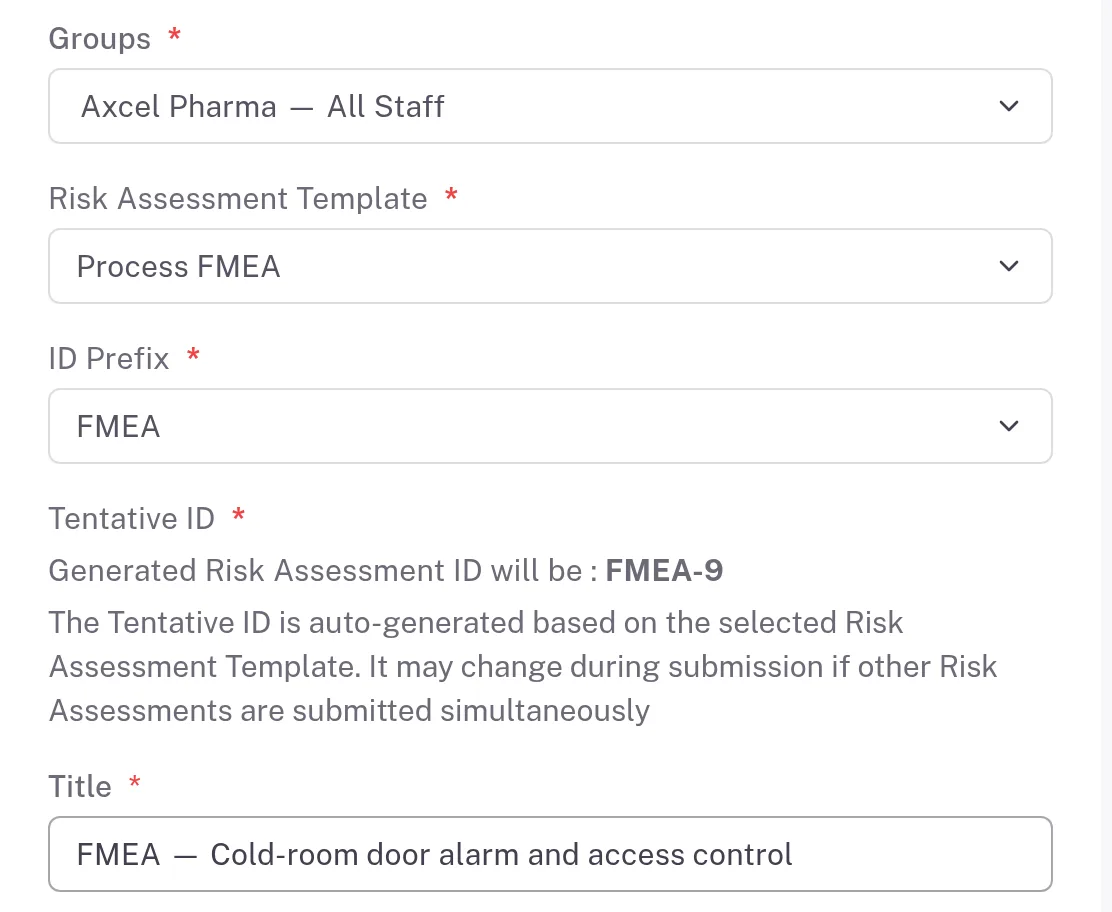
Step 2. The Basic Details step with Groups, Risk Assessment Template, ID Prefix, the Tentative ID and Title filled in Select Next. Methodology And Assessment shows the methodology from the template, for example "Methodology : FMEA". The methodology cannot be changed here. Below it are the template's settings for this assessment: the fields each risk has (for FMEA, FMEA Data Structure), the Scoring Scales (Reference), the RPN Threshold Configuration (the score ranges for Low, Medium, High and Critical) and Risk Treatment & Enforcement. They come from the template and can be adjusted for this assessment. Check them before you go on.
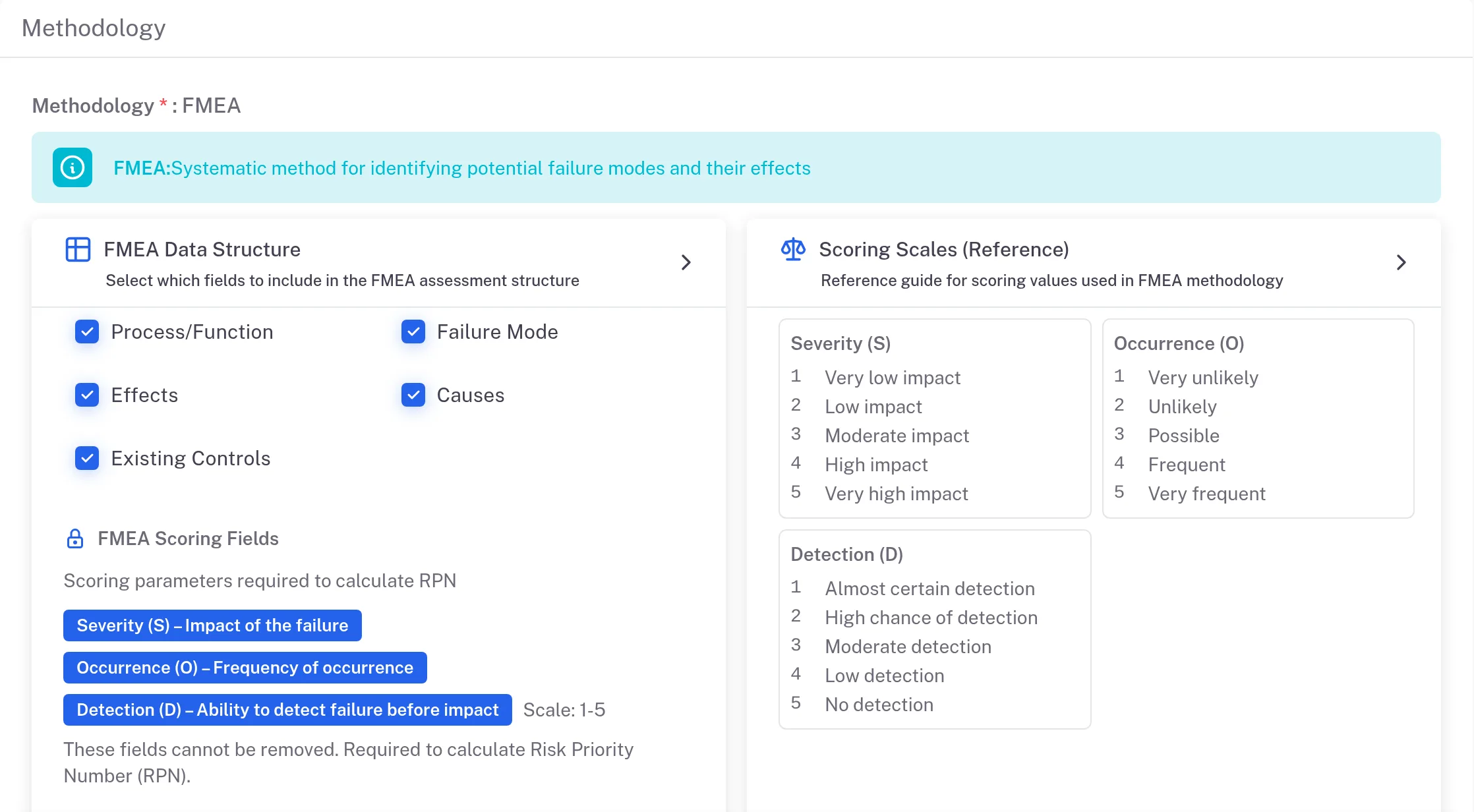
Step 3. The Methodology And Assessment step showing Methodology FMEA, the FMEA Data Structure fields and the Scoring Scales (Reference) Select Next. On Roles Configuration, name the Responsible Persons, the Approvers and the QAs — all three are required.
Select Next. On Linked Items, link other records if you need to, or select Next.
On Review and Submit, check what you entered. To change something, go back with Previous.
Select Save.
Result
- The risk assessment page opens. The assessment is in Draft, has its ID (for example FMEA-8) and shows "0 of 0 risks closed (0%)".
- The people you named appear on its Roles tab.
- Next: the Responsible Persons add risks with Add New on the Risk Assessment tab and take the assessment through its statuses; see How a risk assessment moves from Draft to Done.
What gets recorded
The entry appears on the risk assessment's Audit Trail tab.
What the audit trail records
You saved the new risk assessment.
- Action Type
- Created
- Digitally Signed
- No
- Username
- Your username
- Date Created
- Date and time of the action
- Activity
- Risk Assessment created
If something is different
- The Risk Assessment Template list is greyed out. Choose Groups first.
- You want to stop and save what you have. Select Save As Draft. Complere shows "Risk Assessment saved as draft." and returns you to the list, where the assessment is in Draft without an ID.
- A draft you saved shows no edit action. On the Risk Assessments list, a draft saved with Save As Draft offers a Regular User no edit action on its row. Contact Complere support (see Ask Complere support for help).
- The title is refused. When you select Next, the title is marked "Risk Assessment Title (…) was already exists": another risk assessment already has that title. Enter a different one.
- A name you expect is missing from a role list. That user is not in any of the assessment's Groups, or, for QAs, does not have Is QA? switched on. Ask your administrator.