
Before you start
- You are a Training Responsible User on the training.
- The trainee has not completed the training yet, for example No Progress.
- You know the date the trainee completed it, and your Complere password.
Steps
Open the training from Learning Management System › Trainings and open its Trainees tab.
Tick the trainee's row. Under the list, open Bulk Actions, choose Complete Training and select Apply.
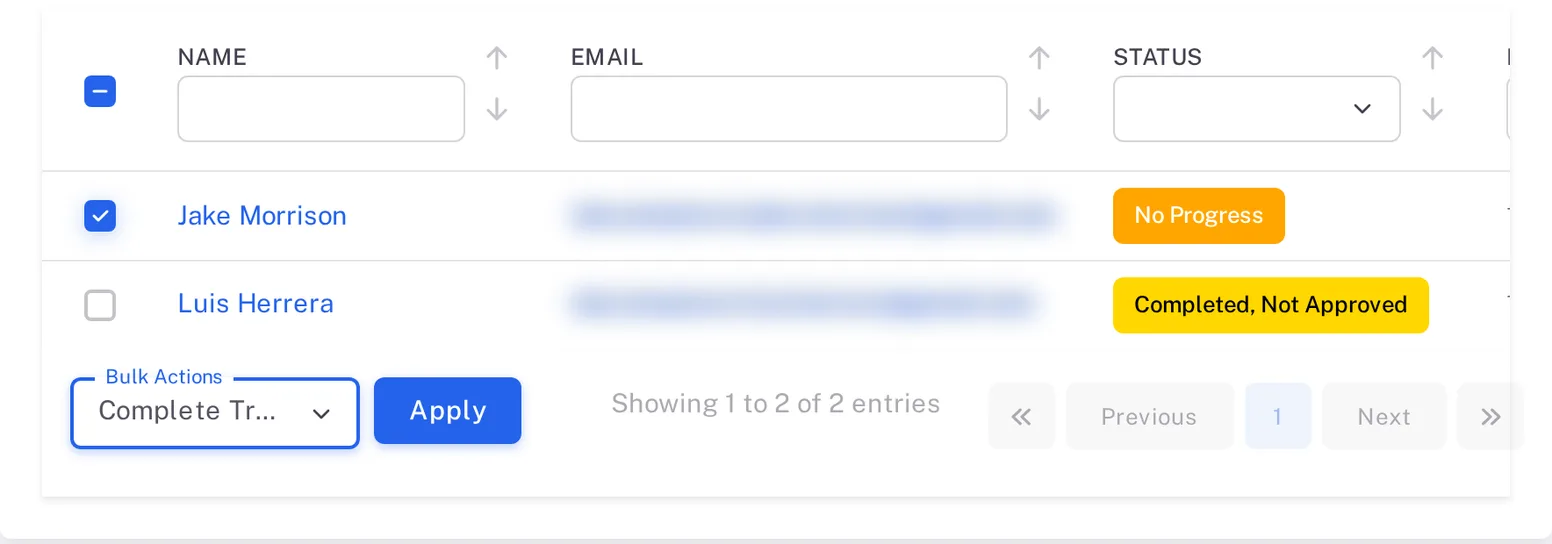
Step 2. The Trainees tab with one trainee ticked, Bulk Actions set to Complete Training and the Apply button The Training Signature Form - Complete Training opens. Type your password and a Reason, for example how the completion was checked. Leave All Materials on to mark every material completed. Choose the Completion Date with the calendar button beside the field.
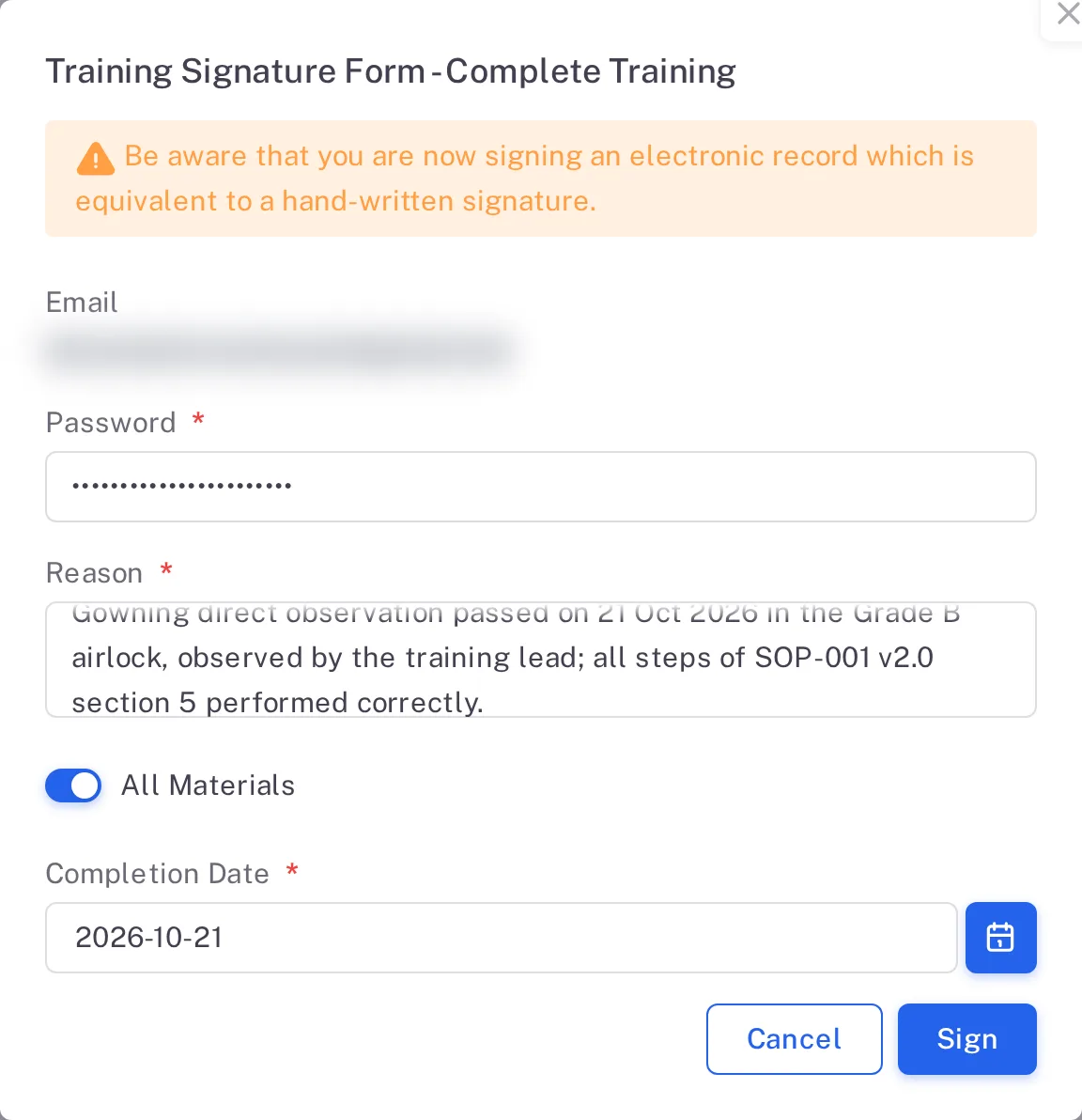
Step 3. The Complete Training signature form with Password, Reason, All Materials switched on and the Completion Date Select Sign.
Result
The trainee is Completed, at 100%, on the Trainees tab. No approval step follows.
What gets recorded
The entry appears on the training's Audit Trail tab.
What the audit trail records
You signed Complete Training.
- Action Type
- Training Completion Bulk Action
- Username
- Your username
- Date Created
- Date and time of the action
- Activity
- Names the materials, the completion date and the trainee: "Material(s) … marked completed with completion date … for trainee …", followed by your reason.
If something is different
The Completion Date field does not take typing.
Choose the date with the calendar button beside it.