
Before you start
- You are an Administrator, or you are a Training Coordinator, named under Learning Management System › Settings & Master › Training Coordinators: for all groups, or, with Group Wise Configuration set to Yes, for the groups named there.
- The documents, assessments, tasks and external materials you want to use already exist.
- Fields marked with a red asterisk (*) are required.
Steps
Open Learning Management System › Trainings and select Add New. The Create Training form opens at the Configuration step.
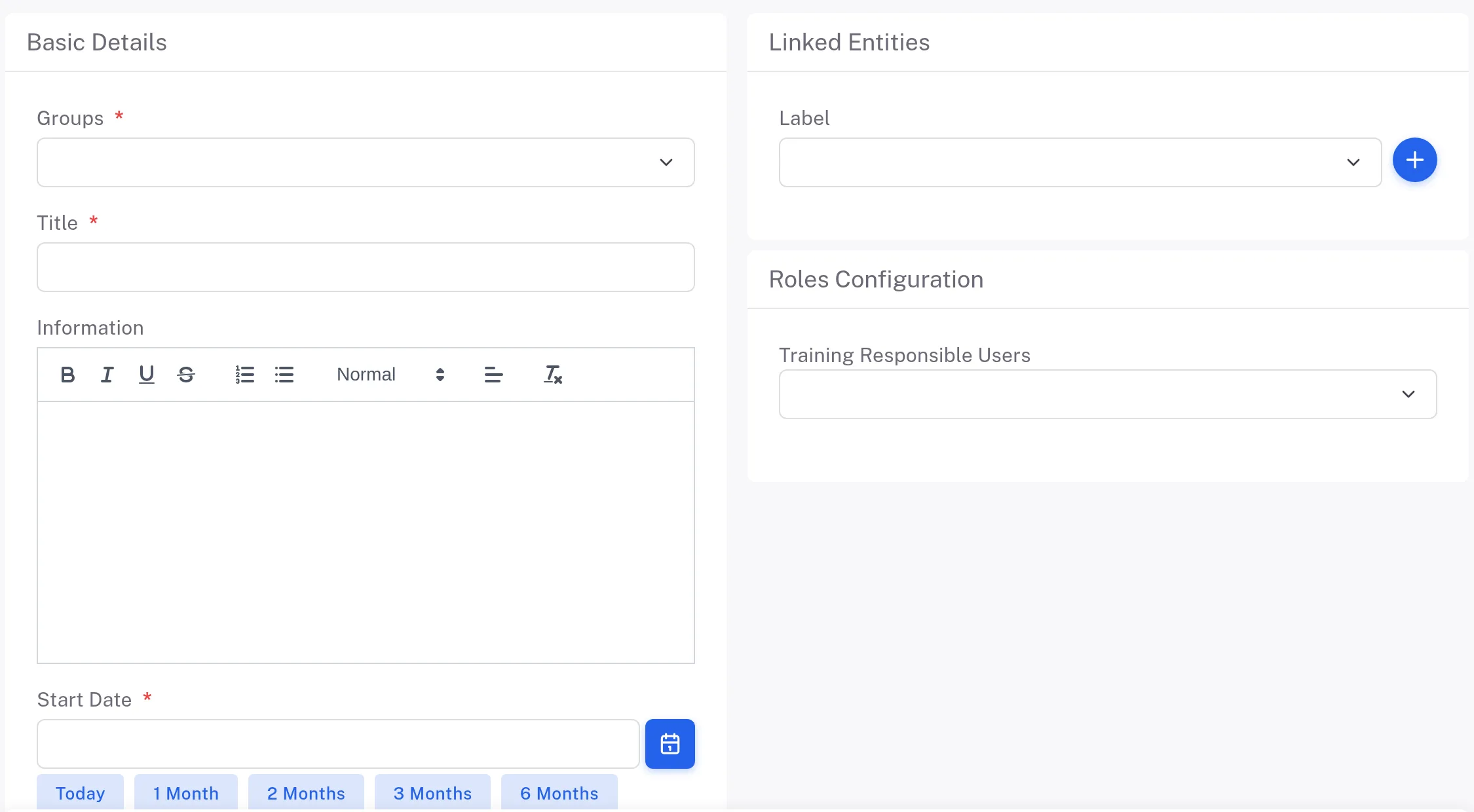
Step 1. The Configuration step of the Create Training form: Basic Details with Groups, Title and Information, Linked Entities and Roles Configuration Under Basic Details, choose the Groups (tick the groups in the list that opens, then select Ok), type the Title and pick the Start Date (or select Today, 1 Month … 6 Months). Add Information if you need it. Under Linked Entities you can add a Label.
Under Roles Configuration, choose the Training Responsible Users.
Select Next. On Training Materials, open a panel (Documents, Assessments, Tasks, External Materials), select a material and then the + in the panel's header to add it. It appears under Active Materials, where you can set its Duration (for example No Limit) and Retraining After (for example Never); the counters at the top read "Total 1 materials assigned." and count each kind of material. Then choose the Material closure scheme: Random or Linear.
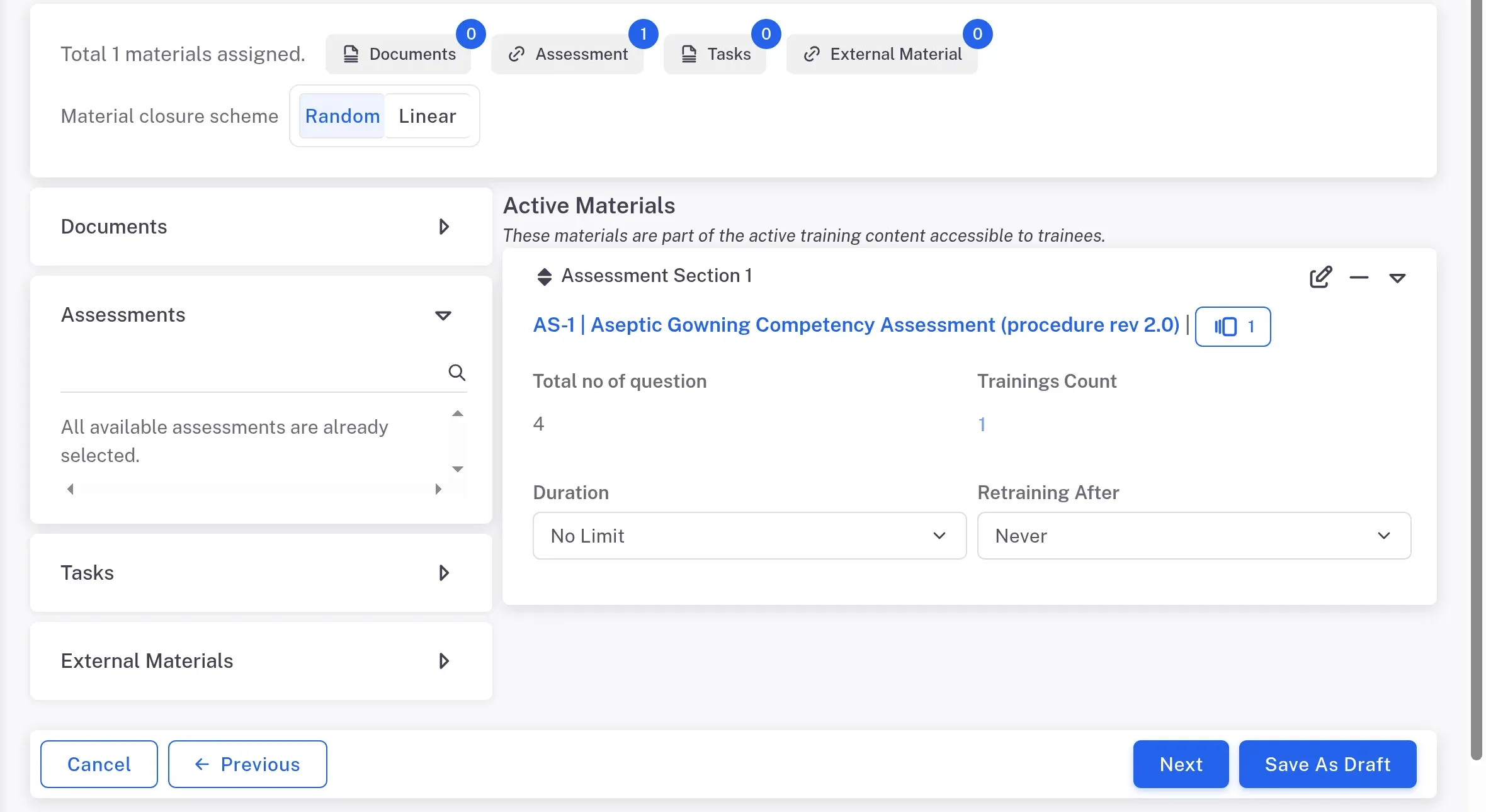
Step 4. The Training Materials step: the counters for the four kinds of material, the Material closure scheme, the material panels, and an assessment added under Active Materials Material Where it comes from Documents Controlled documents, each shown with its status and version. Assessment An assessment from Assessments. Tasks A task from Tasks. External Materials A material from External Material. Select Next. On Trainees, choose who takes the training. You can pick by Departments, Job Descriptions, Locations, by name under Users, or under Offline Users: select the person, then the + in the panel's header. The screen shows "Total … Users Assigned", split into System Users and Non System Users.
System Users
People with a Complere login.
Non System Users
Offline Users: people without a Complere login, kept under Offline Users.
Select Next. On Review and Submit, check what you entered, then select Save. No signature is asked. The step also offers Save & New and Save As Draft.
Result
- "Training created successfully": the new training opens with its number (for example TR-9) and its tabs, and it appears in the Trainings list. The list shows Id and Title by default; add Start Date, Trainees completion percentage, Overdue trainees and other columns under Fields.
- Its trainees are listed on the Trainees tab with their status, for example Not Started. What the statuses mean: How a training works.
- Next: what each role can do on a training — see Learning Management System: who can do what.
What gets recorded
Each entry appears on the training's Audit Trail tab.
What the audit trail records
You saved the training.
- Action Type
- Created
- Digitally Signed
- No
- Username
- Your username
- Date Created
- Date and time of the action
- Activity
- "Training Created"
At the same time, for its materials.
- Action Type
- Materials updated
- Digitally Signed
- No
- Username
- Your username
- Date Created
- Date and time of the action
- Activity
- "Training materials updated"
At the same time, for its trainees.
- Action Type
- Trainees updated
- Digitally Signed
- No
- Username
- Your username
- Date Created
- Date and time of the action
- Activity
- "Training trainees updated"
If something is different
You cannot open the Create Training form.
You are neither an Administrator nor a Training Coordinator. Ask your administrator. See Learning Management System: who can do what.