
Before you start
- You are a Training Responsible User on the training.
- The trainee's status is Completed, Not Approved.
- You know your Complere password.
Steps
Open the training from Learning Management System › Trainings, then open its Trainees tab. The trainee's row shows Completed, Not Approved, with an Approve button and a Reject button under Actions.
Approve or reject the completion.
Approve
Select Approve. The Approve Training form opens with your Email and a Password box. Type your password and select Sign.
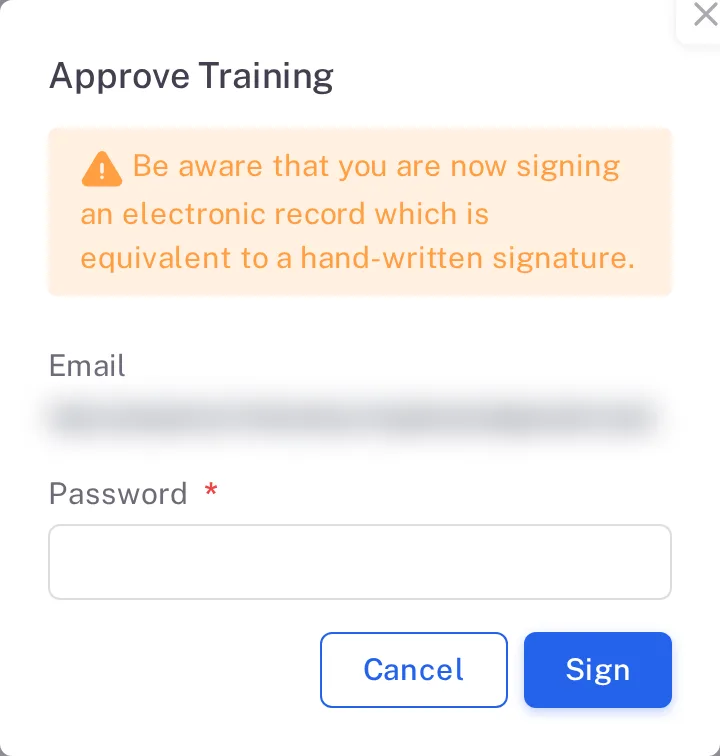
The Approve Training form with the signature warning, Email, Password and the Cancel and Sign buttons Reject
Select Reject. The Reject Training form opens. Type your password and a Reason, which is required, and leave All Materials switched on. Select Sign.
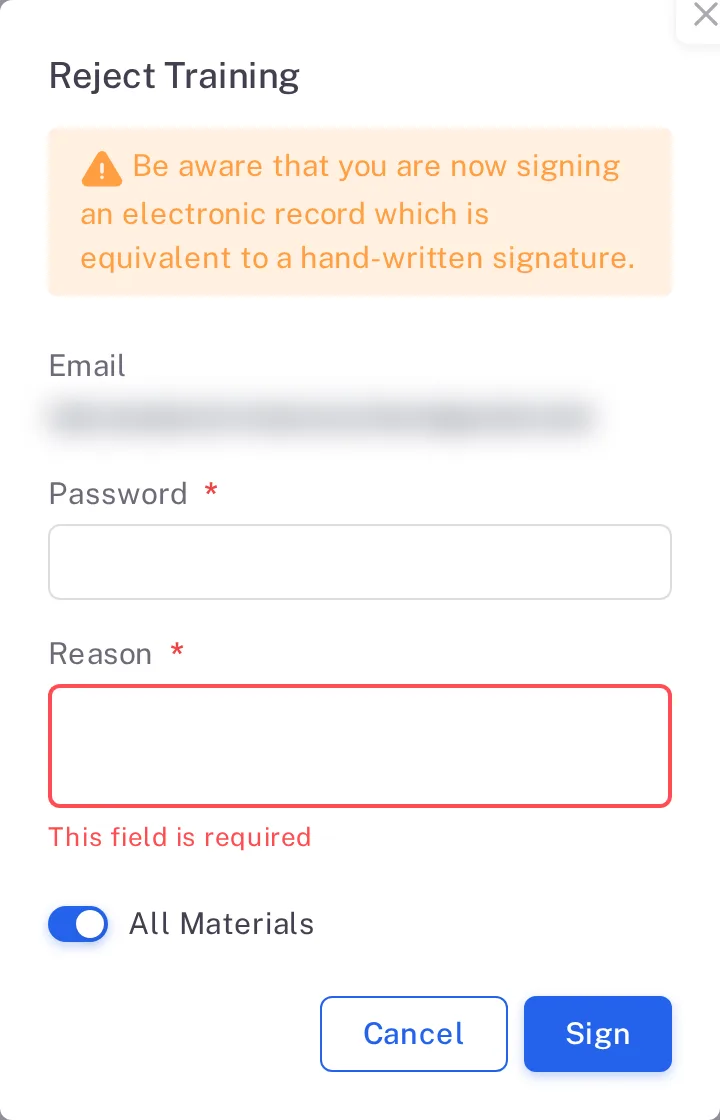
The Reject Training form with Email, Password, the required Reason box and the All Materials switch turned on
Result
- After Approve, Complere shows "Training approved successfully" and the trainee's status is Completed.
- After Reject, Complere shows "Training rejected successfully". The trainee's status goes back to No Progress, with no material completed, so they complete it again.
What gets recorded
Each entry appears on the training's Audit Trail tab.
What the audit trail records
You approved a completion.
- Action Type
- Training Approved
- Username
- Your username
- Date Created
- Date and time of the action
- Activity
- Names the trainee, for example "Training approved for trainee 'Grace Kim'."
You rejected a completion.
- Action Type
- Training Rejected
- Username
- Your username
- Date Created
- Date and time of the action
- Activity
- Names the trainee and the rejected materials, followed by your reason.
If something is different
The trainee's row has no Approve or Reject button.
The trainee is not in Completed, Not Approved, or you are not a Training Responsible User on this training. See Learning Management System: who can do what.