
Before you start
- The module is called Learning Management System in your menu (this help calls it Training). Modules are enabled for your company by Complere.
- Under it you find Trainings, Assessments, Tasks, External Material and Offline Users, and, for users whose role allows it, Settings & Master and Audit Trail.
How it works
Each trainee on a training has a status of their own. The Training module page lists the statuses; select a status there to see who acts in it. These are the people involved:
| Who | What they do |
|---|---|
| Training Coordinators | Set up under Settings & Master › Training Coordinators, for all groups or, with Group Wise Configuration, per group. Create trainings. |
| Training Responsible Users | Named on the training. |
| Trainee Users | The people who take the training: system users, or Offline Users without a Complere login. |
A training is a set of materials. Its Training Materials can be Documents, Assessment, Tasks and External Material. The Material closure scheme is Random or Linear.
Each trainee has a status. The Trainees tab shows it for every trainee, for example Not Started; No Progress; Completed, Not Approved; or Completed. It also shows the trainee's Due Date and how many materials they have completed.
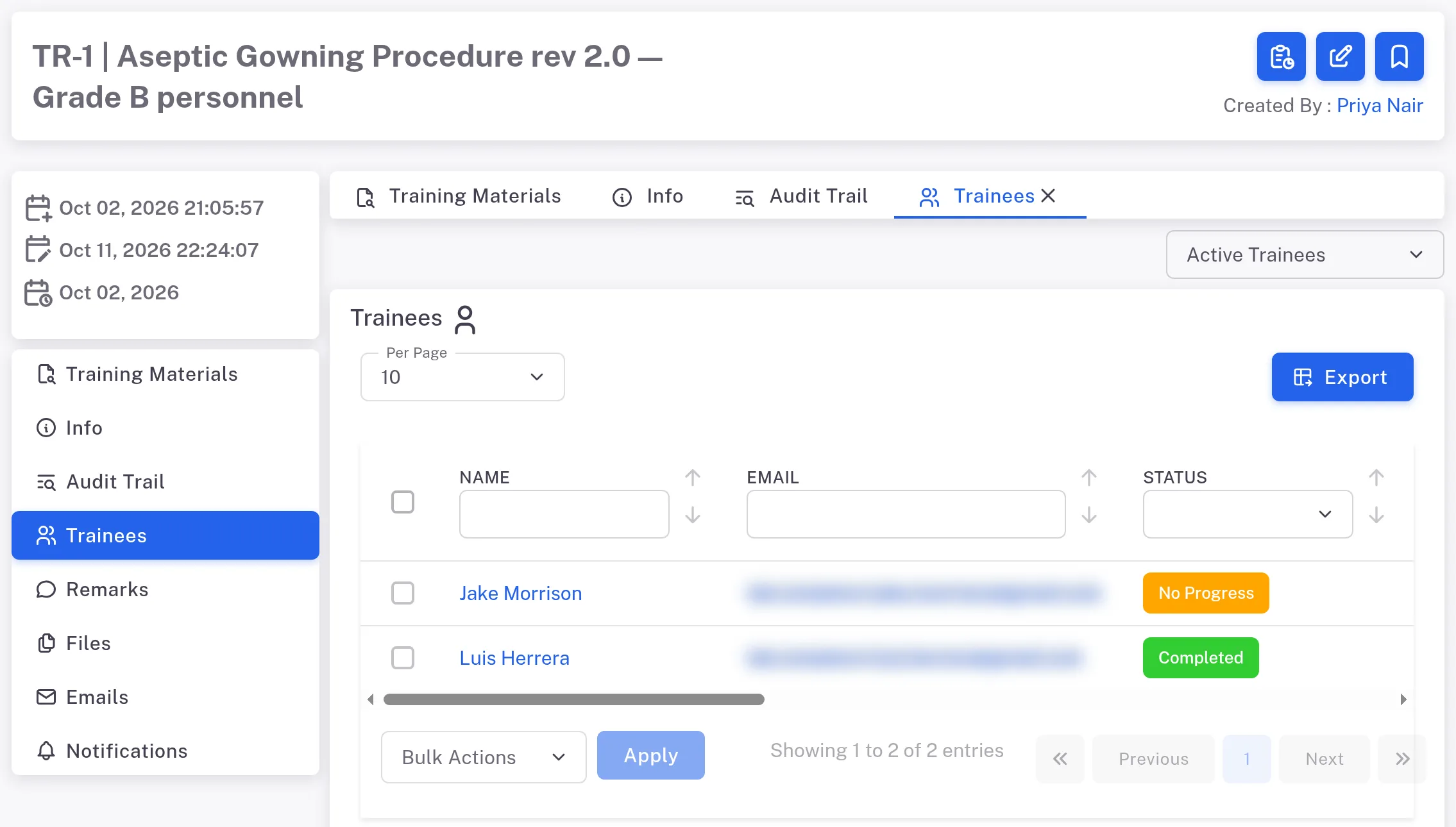
Step 2. The Trainees tab of training TR-1, Aseptic Gowning Procedure rev 2.0 — Grade B personnel, with one trainee in No Progress and one in Completed (e-mail addresses blurred) The Trainees tab has Bulk Actions. Its list has Approve Training, Reject Training, Retrain and Complete Training, next to an Apply button. To record a trainee's completion yourself, see Record a trainee's completion (Complete Training). A trainee in Completed, Not Approved has an Approve button (a tick) and a Reject button (a cross) on their row.
Result
You know where each part of training lives:
- Trainings lists every training you can see. It shows Id and Title by default; under Fields you can add its Start Date, how far the materials and trainees have got (Completed Material Count, Trainees completion percentage) and Overdue trainees.
- A training's page lists its tabs at the side: Training Materials, Info, Audit Trail, Trainees, Remarks, Files, Emails and Notifications.
- The Trainees tab has a list of Trainees (system users, with Status, Due Date, Completed At) and a list of Offline Trainees; the filter at the top reads Active Trainees.
- Every action and the roles that can take it: Learning Management System: who can do what.
If something is different
- You cannot create a training. Add New on the Trainings list is shown to a Training Coordinator, not to a Regular User who is not one. On the Permissions page, Add is ticked for Administrators and Training Coordinators. Ask your administrator.