
When a training is assigned to you, it shows on your Home page with its status, for example No Progress, and its due date. This article covers a training whose material is a document.
Before you start
- You are a trainee on the training.
- You know your Complere password.
Steps
Open the training from your Home page, or from Learning Management System › Trainings. The Training Materials tab lists your materials.
Find the document. The Mark Complete button at the end of its row is greyed out. Its tooltip reads "Material needs to get viewed at least once before marking it complete."

Step 2. A training material row: the document SOP-002 Environmental Monitoring of Aseptic Processing Areas, Published, version 2.0, with the Download, View and greyed Mark Complete buttons Select Download and read the document. Mark Complete becomes active.
Select Mark Complete. The Training Document Signature Form opens with your Email, a Password box and the Document Version. Type your password and select Sign.
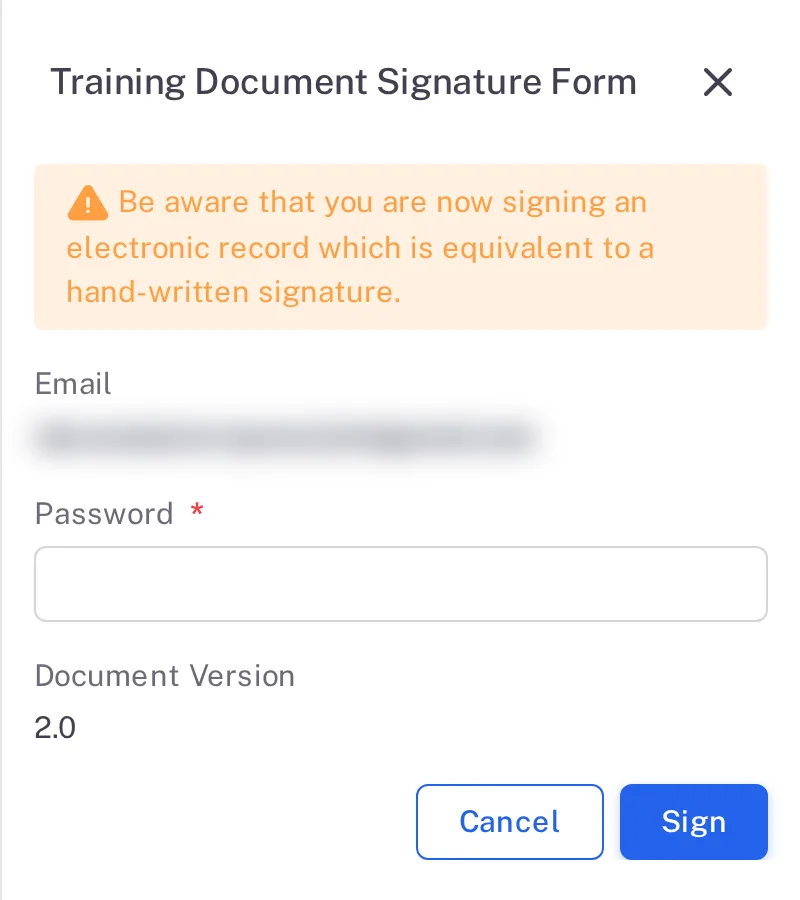
Step 4. The Training Document Signature Form with the signature warning, Email, Password, Document Version 2.0 and the Cancel and Sign buttons
Result
Complere shows "Document marked read and understood successfully". With your material marked complete, the training shows Completed, Not Approved and the date you completed it.

Next: a Training Responsible User approves or rejects your completion — see Approve or reject a training completion.
What gets recorded
Each entry appears on the training's Audit Trail tab.
What the audit trail records
You marked a document material complete.
- Action Type
- Material Completed
- Username
- Your username
- Date Created
- Date and time of the action
- Activity
- Names you and the document, for example "Trainee 'Grace Kim' marked material document 'Environmental Monitoring of Aseptic Processing Areas (v2.0)' completed."
If something is different
Mark Complete is greyed out.
Select Download first, then try again.
Your status went back to No Progress.
A Training Responsible User rejected your completion. Open the training and complete the material again.