
How it works
Actions leave entries. When someone creates, edits or signs a record, or exports or prints its audit trail, Complere adds entries to that record's audit trail. The newest entry is at the top. Each row answers who, what, when — and why, when the person gave a reason:
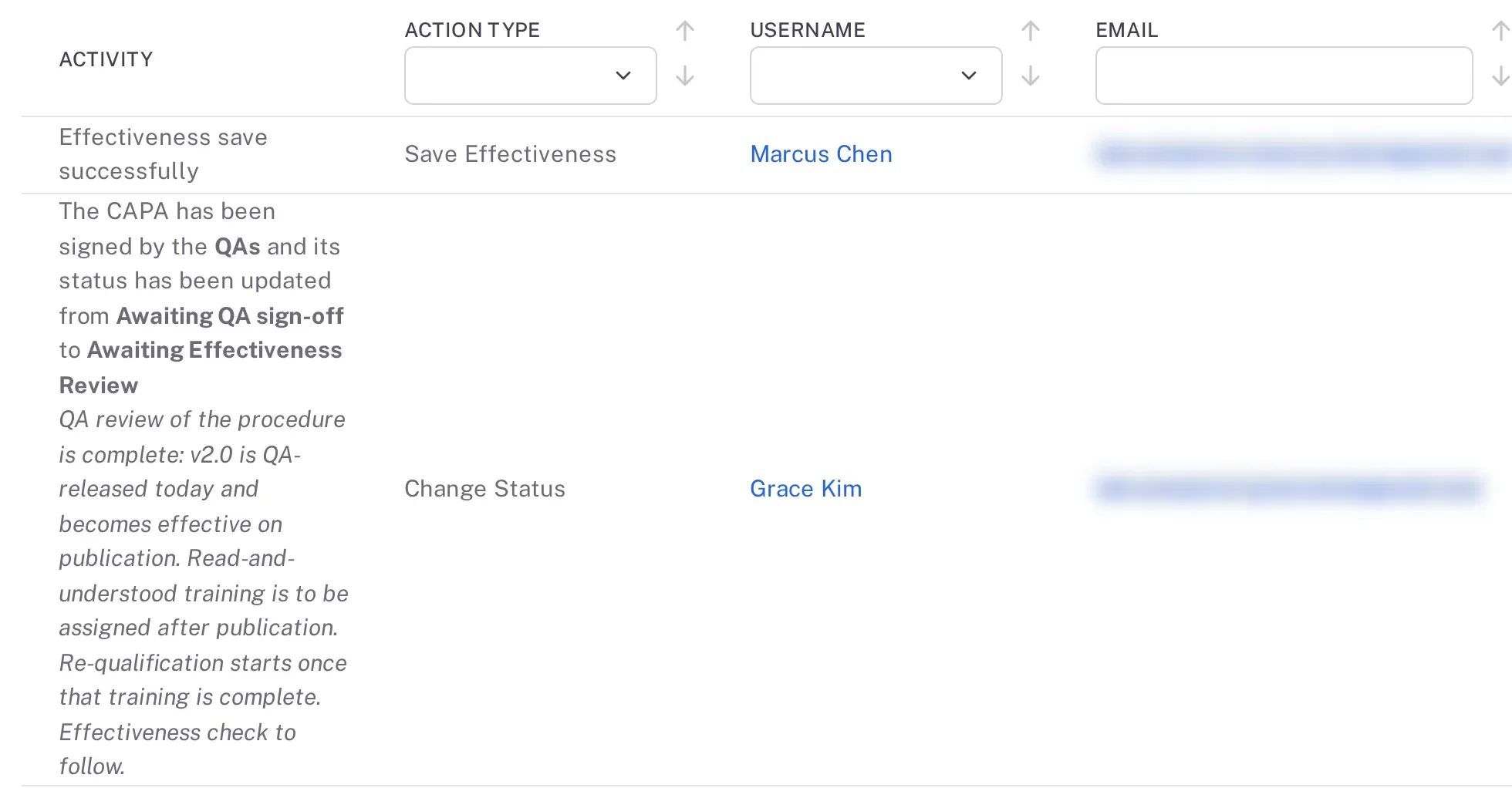
Step 1. Audit Trail entries of a CAPA with the columns Activity, Action Type, Username and Email (blurred); the QA's reason for signing is in italics under the activity Column What it tells you Activity What happened, in a sentence, for example "The CAPA has been signed by the QAs and its status has been updated from Awaiting QA sign-off to Awaiting Effectiveness Review". When the person gave a reason or a remark, it is shown in italics under the sentence. Action Type The kind of action, for example Created, Change Status, Signed in current status, Activity Exported or Auto-advanced. Username The person who did it. Email That person's e-mail address. Date Created When it happened, shown in your own time zone. Two colleagues in different time zones see different clock times for the same entry. Actions An eye button (View) on entries that recorded field values. It opens the values before and after. When a record moves to its next status by itself — a CAPA when its last action is closed, a change request when its last change is closed, a risk assessment when its last risk is closed — that move has its own entry. Its Action Type depends on the module: Status auto-advanced on a CAPA, Auto-advanced on a change request, Change Status on a risk assessment.
Digitally Signed is there, but not shown at first. Open Fields above the list, choose Digitally Signed, and select the tick button beside Fields. A signature on a record, for example a QA moving a change request on, reads Yes, and so does disabling a user. A move to the next status that Complere makes by itself reads No. An entry can read No even when the action asked for a password: moving a leaver's open items to another user is one (see Transfer a user's open items). Complere remembers your column choice for that list.
Entries cannot be edited or deleted. The list has no edit or delete button. Audit records cannot be modified or deleted, enforced by database-level constraints.
There are two places to read it.
- On a record — the record's Audit Trail tab. Whether your role shows the tab depends on the module: for example, a Read Only User sees it on a risk assessment and a training, but not on a document, CAPA, event, change request, audit or supplier.
- For a whole module — the Audit Trail item in that module's menu, for example Controlled Change › Audit Trail, lists the entries of every record in the module, with a Title and a Scope column. Complere Settings › Audit Trail covers users, departments and your company's other settings. Only the Administrator and Supervisor roles see these pages.
To keep a copy of either list, see Export or print an audit trail.
If something is different
There is no Digitally Signed column.
It is not shown at first. Open Fields, choose Digitally Signed, and select the tick button beside Fields.
There is no Audit Trail item in your module menu.
Only the Administrator and Supervisor roles have it. Open the record and use its Audit Trail tab instead, or ask an administrator.
The record has no Audit Trail tab.
Your role does not show it for this module (a Read Only User, for example, does not see it on a document). Ask your administrator.