
Before you start
- You are an Administrator.
- The groups the person belongs in must exist. To make one, see Create a group.
- Have ready: the person's e-mail address, first and last name, country, the Permission Role they need, their groups and the modules they will use.
Steps
Open Complere Settings › Users and select Add New. The page Users › Create opens on Primary Information.
Under Personal Information, fill Email, First Name, Last Name and Country. Timezone and Language are already filled in: change Timezone to the person's own.
Under Permission, choose the Permission Role. Tick Is QA? if the person signs as QA, and Allowed to be training Coordinator if they will coordinate training.
Under Accessibility, tick the person's groups under Groups and choose their Modules. If you like, also choose their Reporting Manager, Departments, Location and Job Descriptions.
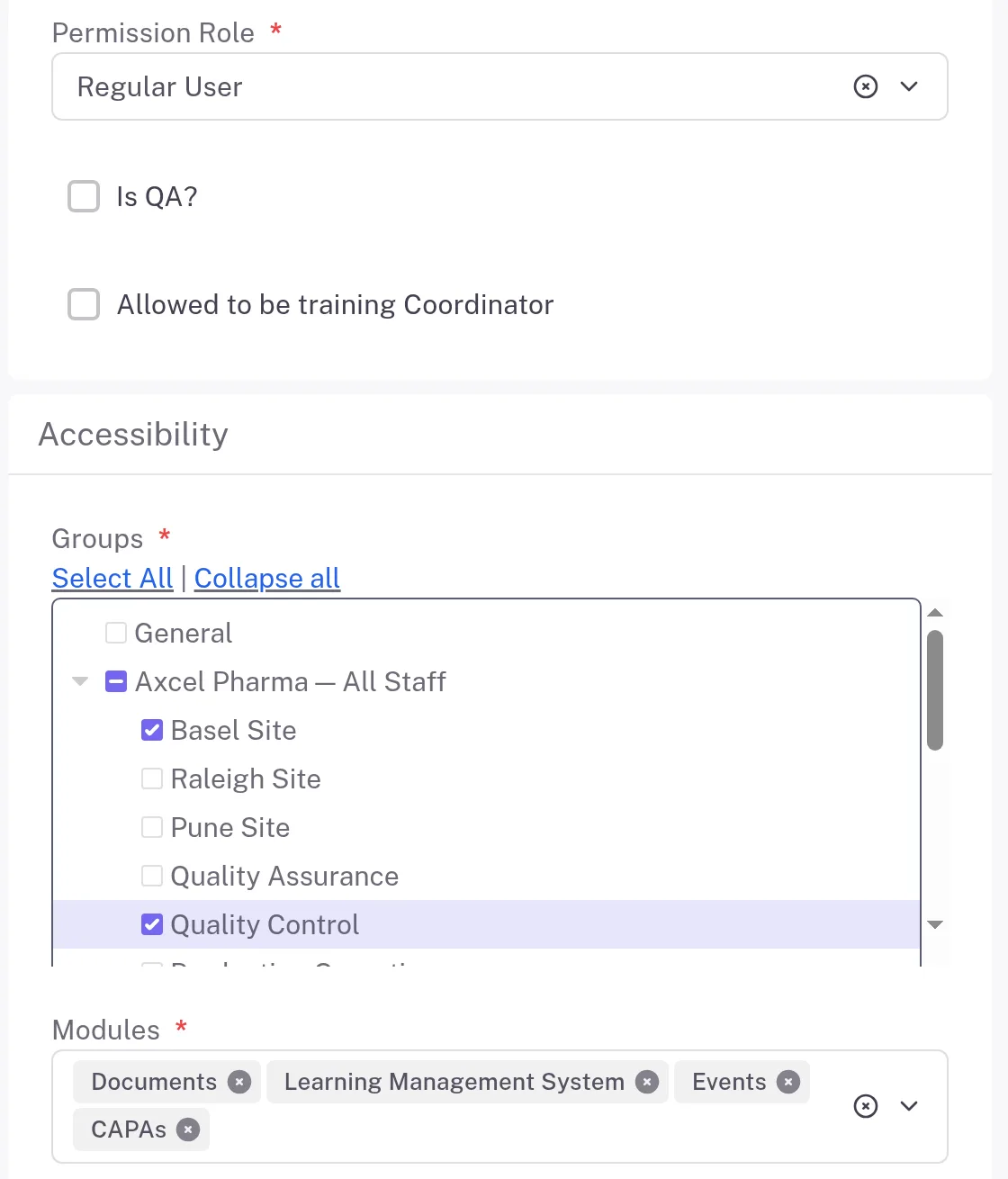
Step 4. The Permission and Accessibility part of the new-user form: Permission Role set to Regular User, the Basel Site and Quality Control groups ticked, and four modules chosen Select Next. When Learning Management System is one of the modules, the Training Info step comes first: choose how training starts under Training Commencement and select Next. On Additional Information, fill Telephone, Mobile and the address if you have them, and select Next.
On Review and Submit, check the details and select Save. To add another person straight away, select Save & New instead.
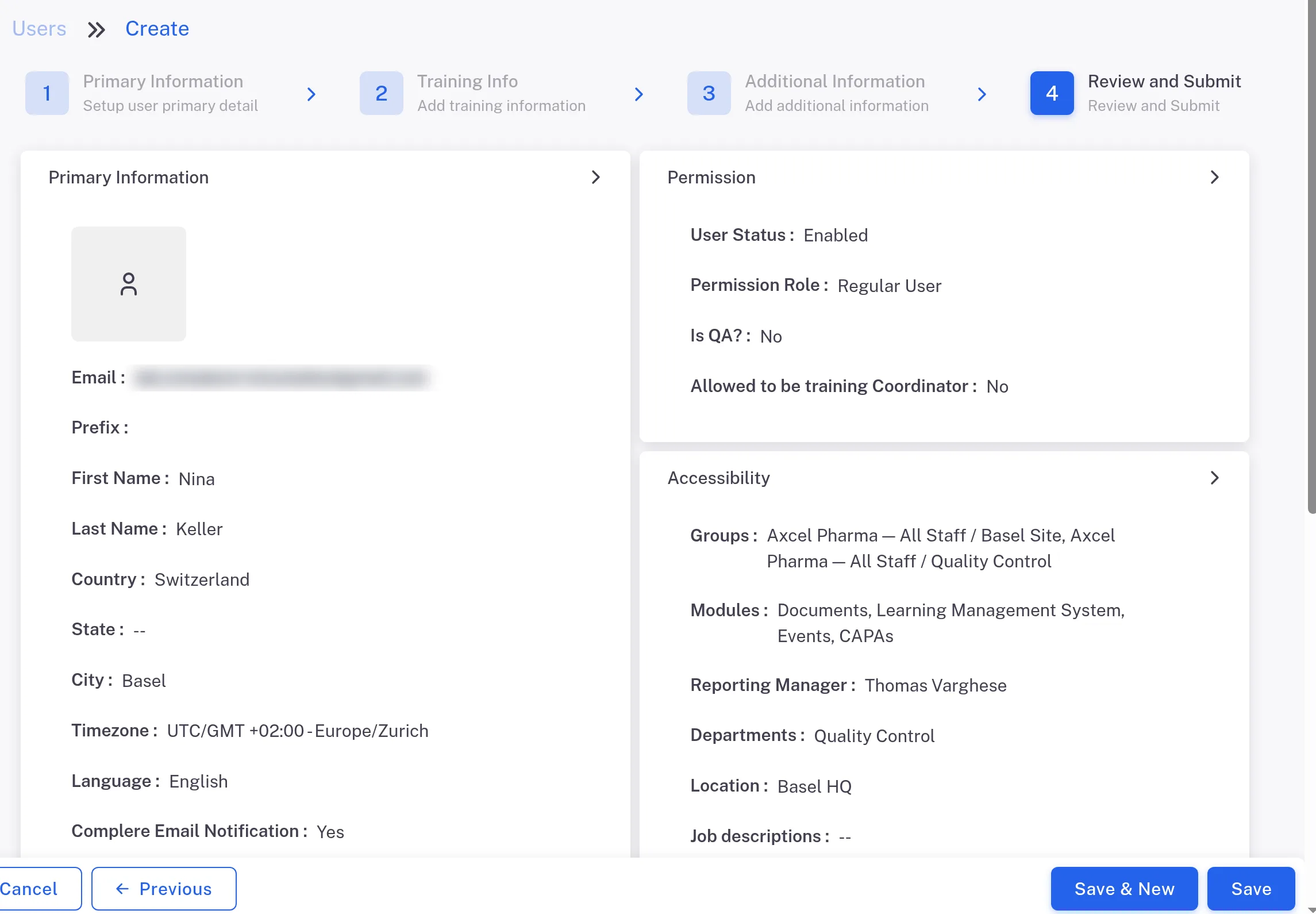
Step 6. The Review and Submit step of the new-user form with Primary Information, Permission and Accessibility, and the Save & New and Save buttons
Result
The message reads "User name was created successfully" and the page Profile of name opens, showing the person's role and Not Logged In. In Users, their Status is Enabled.
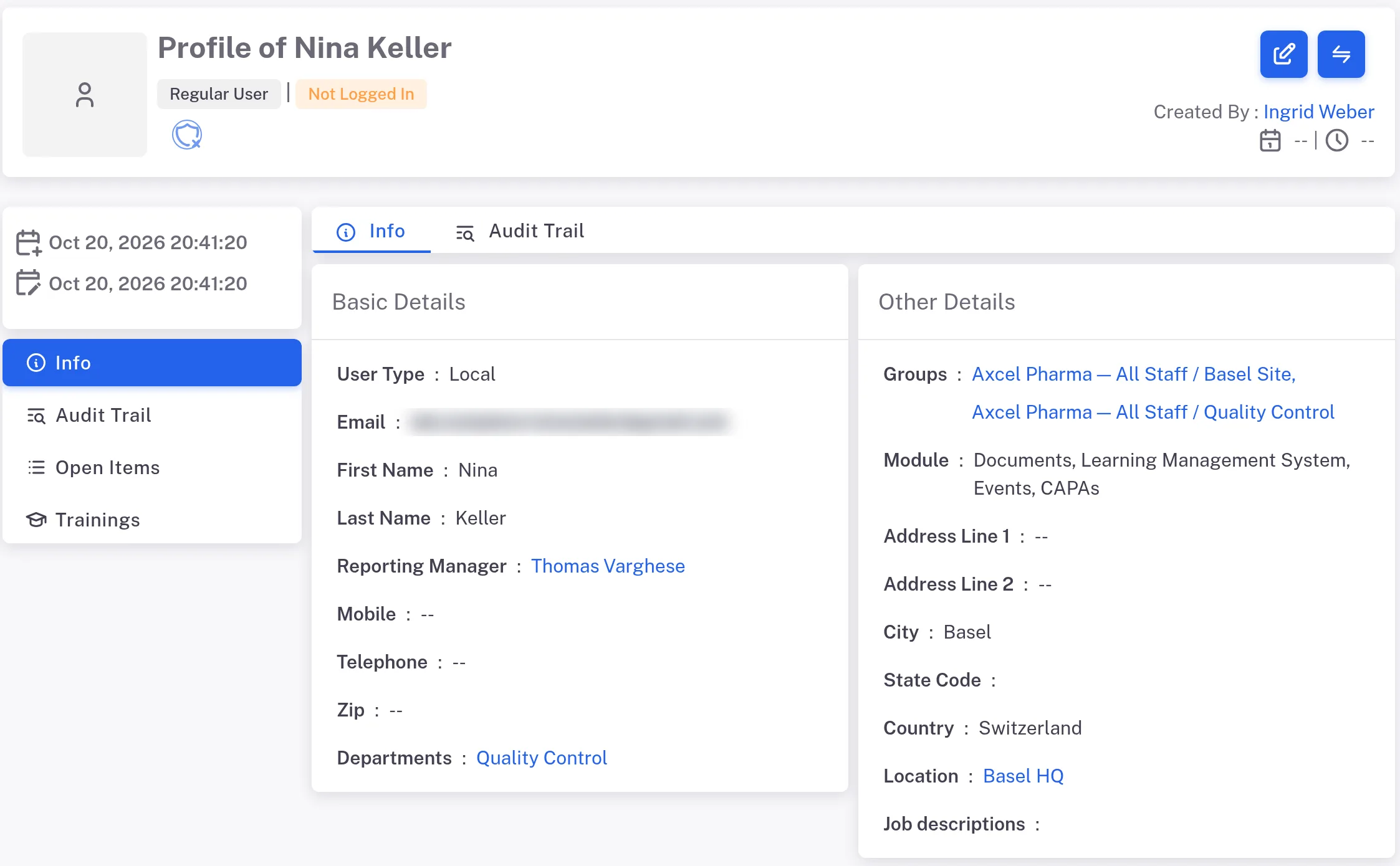
Because "Send login credentials to this user by email." is set under Email Notification, Complere e-mails the person their login details.
What gets recorded
The entry is on the new user's Audit Trail tab, with its name in the Action Type column. If the Digitally Signed column is not shown, add it from Fields.
What the audit trail records
You saved the new user. The entry is on the new user's Audit Trail tab.
- Action Type
- Created
- Digitally Signed
- No
- Username
- Your username
- Date Created
- Date and time of the action
- Activity
- The person's name and "user created.", for example "name user created."
If something is different
You ticked one group and others were ticked with it.
Ticking a group ticks every group under it. Clear the ones the person should not be in.