
Before you start
- Your Home page is the first page after you sign in, and the first entry in the main menu.
- It lists your open records from several modules in one place, for example change requests, audits and audit findings — the answer to "what are my tasks today?"
How it works
Three counts sort your work
The large panel on the left starts with three chips, each with a count:
- Ongoing — the open records on your Home page. It is selected when the page opens.
- Action Required — the records waiting for you to act now.
- Over Due — the records whose due date has passed.
Selecting a chip lists its records as cards. The page greets you with "Welcome Back," and your name.
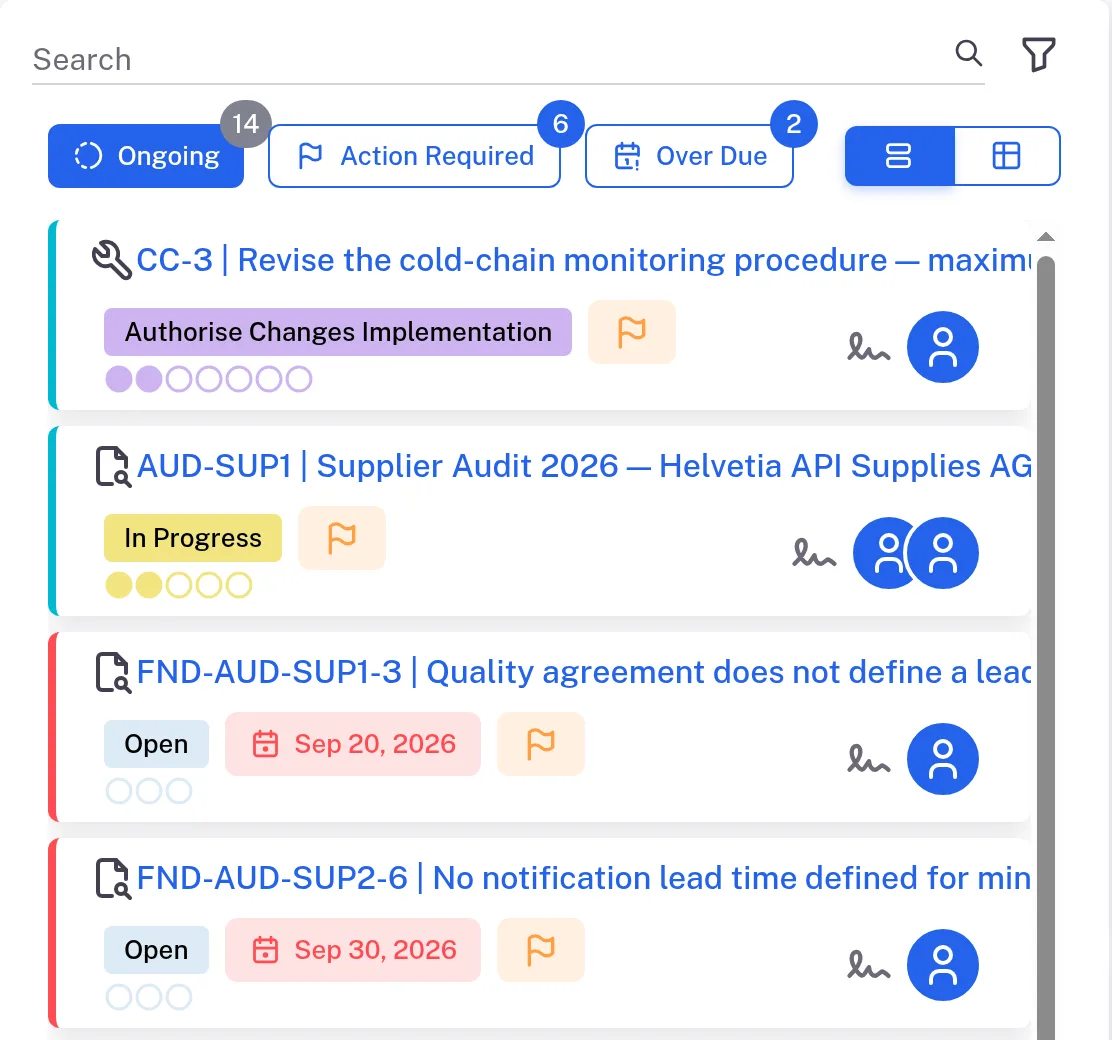
A card tells you where a record stands
Each card shows the record's ID and title with its module's icon, and its status. Under the status, a row of dots has one dot for each status the record goes through, and the statuses it has passed are filled: a change request at Authorise Changes Implementation shows two of its seven dots filled. Point to a mark to read what it is:
- A flag (Action Required) — the record waits for you.
- A date with a calendar icon (Due Date) — when the record is due. When the date has passed, the date turns red and the card has a red edge.
- The signature icon and a picture (Immediate Signee) — the person who signs next. Hover over the picture to see their name.
Select the record's ID and title to open it.
You can narrow the list or show it as a table
Search above the chips narrows the cards, and the counts on the chips, to the records whose title holds what you type. It searches only the records on your Home page: to find any other record, use its module's list (see Find a record). The filter icon opens Filters: choose one of your Modules first — the Status list stays greyed out until you do — then statuses and a Date range, and select Apply; Reset clears them. The two buttons beside the chips switch between cards (List) and rows (Table).
The other panels look back and ahead
- User Performance compares your late items (User late items) with the Company average trend, per module.
- Tentative Upcoming Action Items shows a flag and a count.
- Recent Visits lists the records you opened most recently.
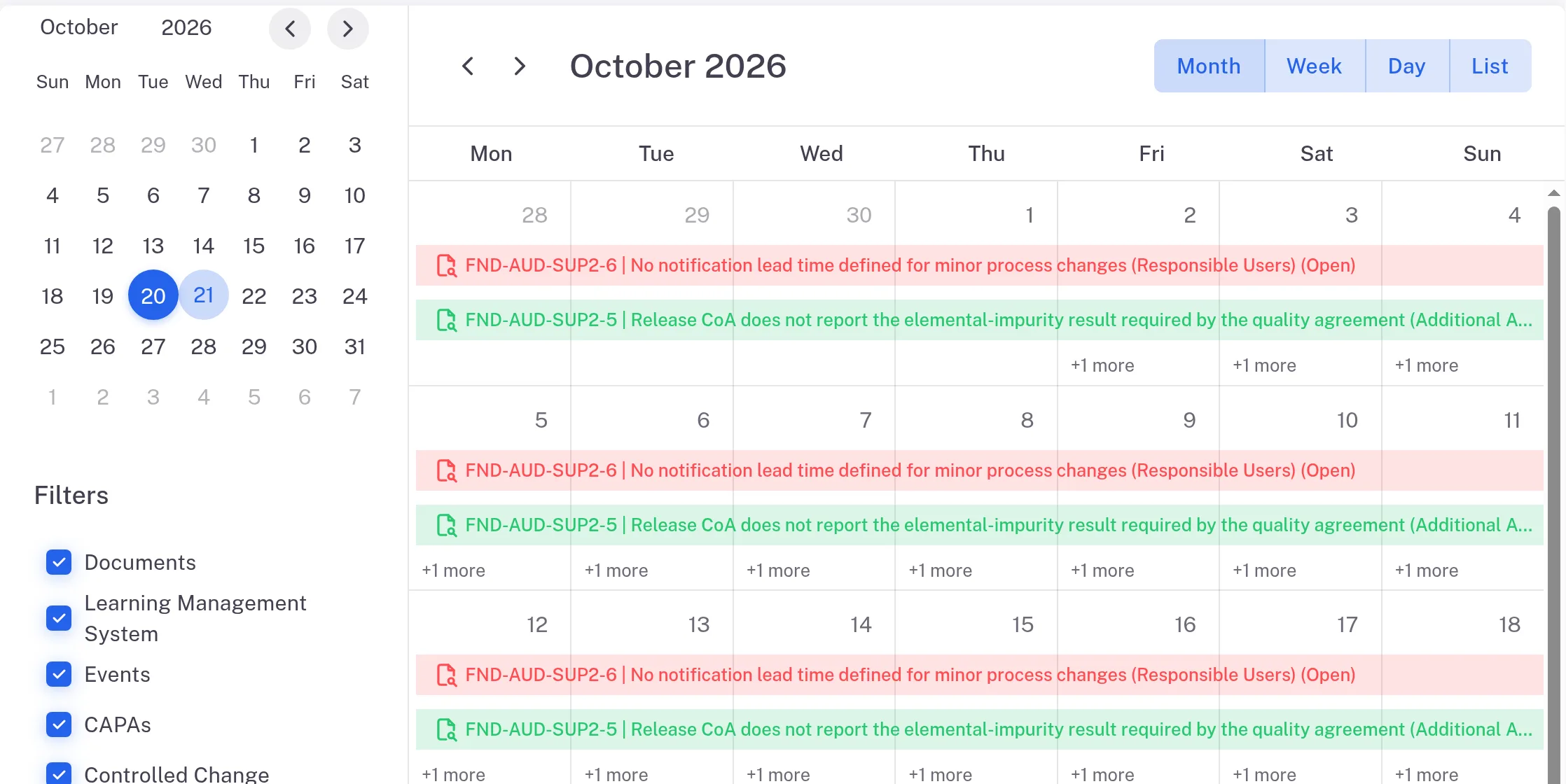
The calendar shows the same records by date
The calendar icon at the top right (Calendar) shows your records on a calendar. It opens on the current month, with a small month calendar beside it; Month, Week, Day and List above it change the view, and the Filters list has a tick box for each module. Overdue records show in red. The other icon (Default) brings back the cards.
If something is different
A record you work on is in Ongoing but not in Action Required.
Hover over the picture under Immediate Signee to see the name of the person who signs next.
There is a box with a person's name under the greeting.
The box is shown to an Administrator. Choose a person in it to see their Home page: the chips, cards and panels change to theirs, and the greeting still names you.