
Before you start
- You have the web address your company uses for Complere.
- You have your e-mail address and password. When your administrator created your account, Complere sent you an e-mail, "[Complere] Welcome to Complere eQMS — your account is ready", with your e-mail address and a temporary password.
- If you have set up two-factor authentication, have your phone with the authenticator app.
Steps
Open your company's Complere address. The sign-in page reads "Welcome to Complere!" and shows Email, Password, Forgot Password? and Login.
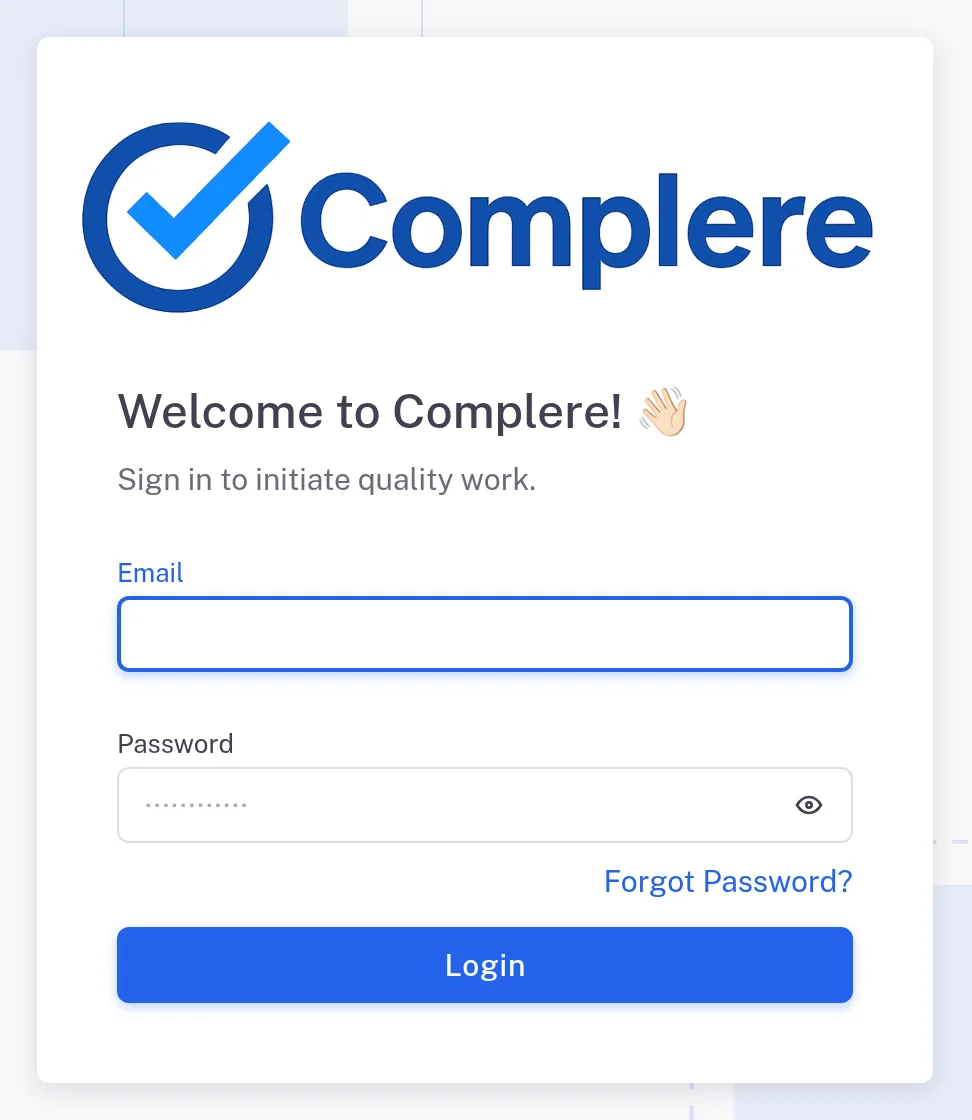
Step 1. The sign-in page with the Email and Password fields, the Forgot Password? link and the Login button Type your Email and Password and select Login.
The first time you sign in with a password, Complere opens Reset Password so that you replace the temporary password:
- type a New Password that follows the rule on the page: "Enter at least 8 characters. Must include uppercase and lowercase letters, at least one number and at least one special character.";
- type it again in Confirm Password. A bar under the fields rates the password;
- select Set New Password.
You return to the sign-in page. Sign in again with your new password.
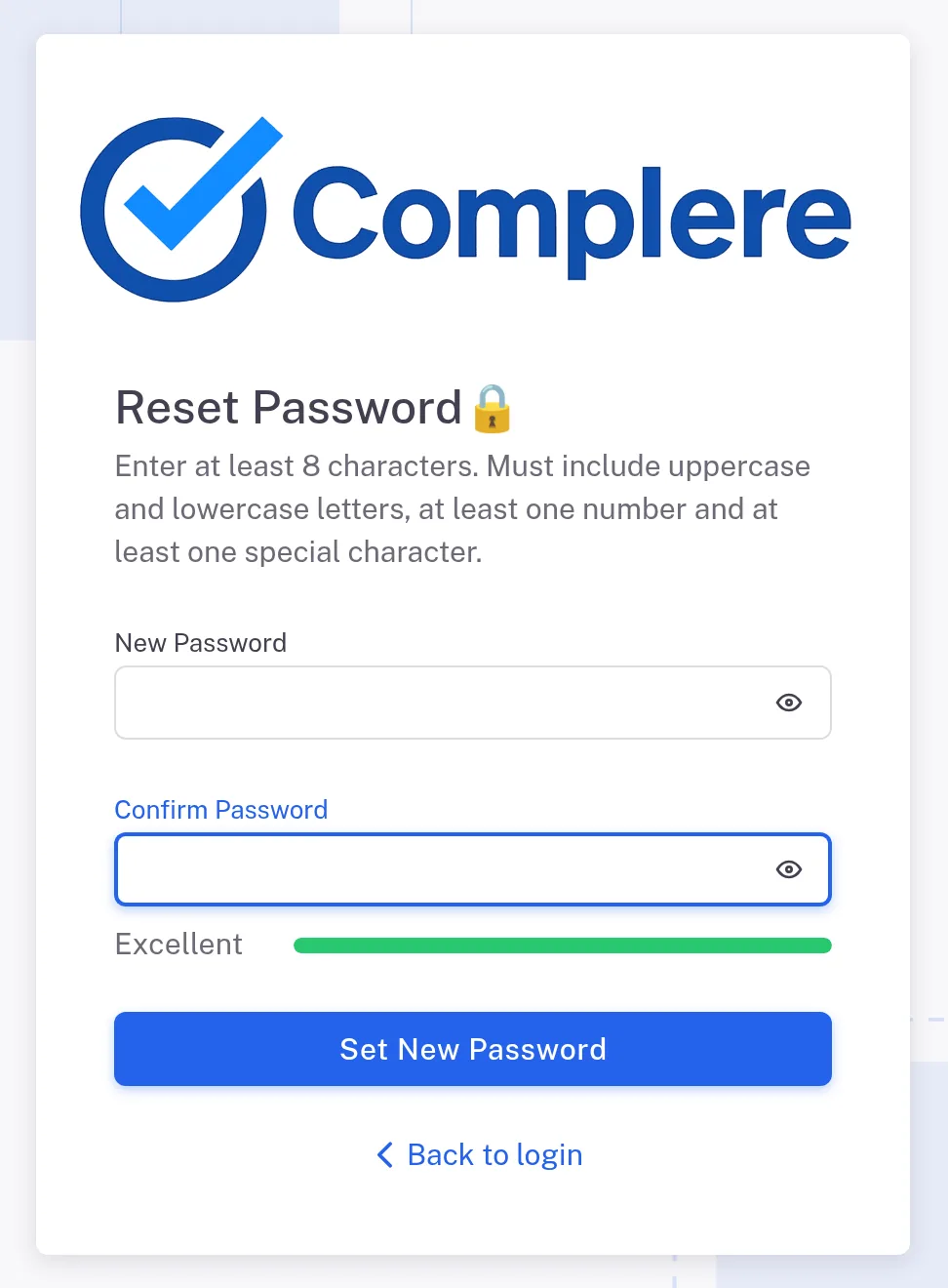
Step 3. The Reset Password page at first sign-in, with the password rule, the New Password and Confirm Password fields and the Set New Password button The first time you sign in, Complere shows its Terms & Conditions. Read them, tick "I accept the above given Terms and Conditions." and select Accept (it stays greyed out until you tick the box). To read them again later, select your name at the top of the page, then Terms & Conditions.
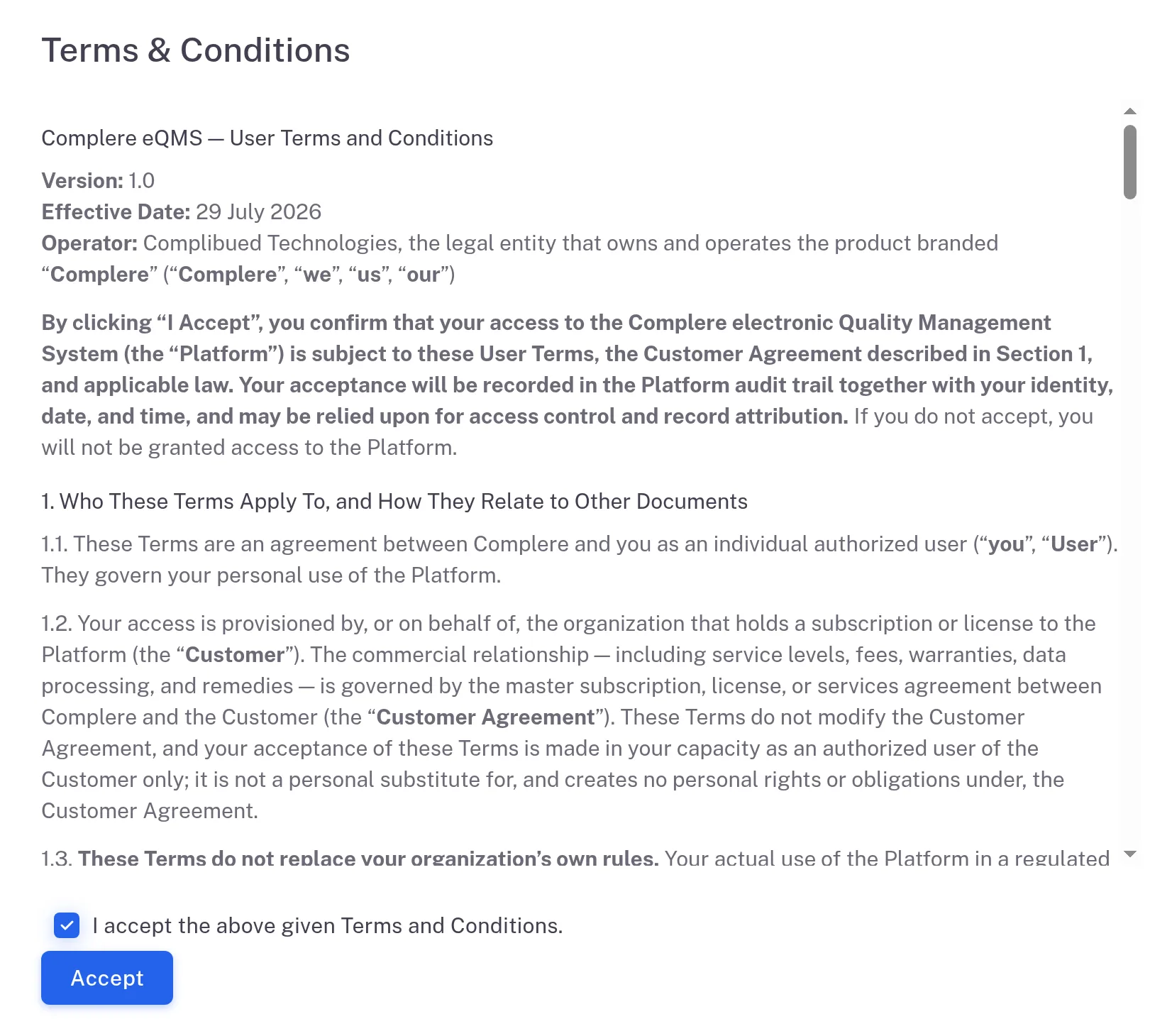
Step 4. The Terms & Conditions page with the tick box I accept the above given Terms and Conditions and the Accept button If you have set up two-factor authentication, the page shows Two Factor Authentication and "Enter the code generated within the Authenticator application to proceed with your login". Open your authenticator app and type the six-digit code it shows for Complere. There is no button to press: Complere checks the code as soon as you type the sixth digit.
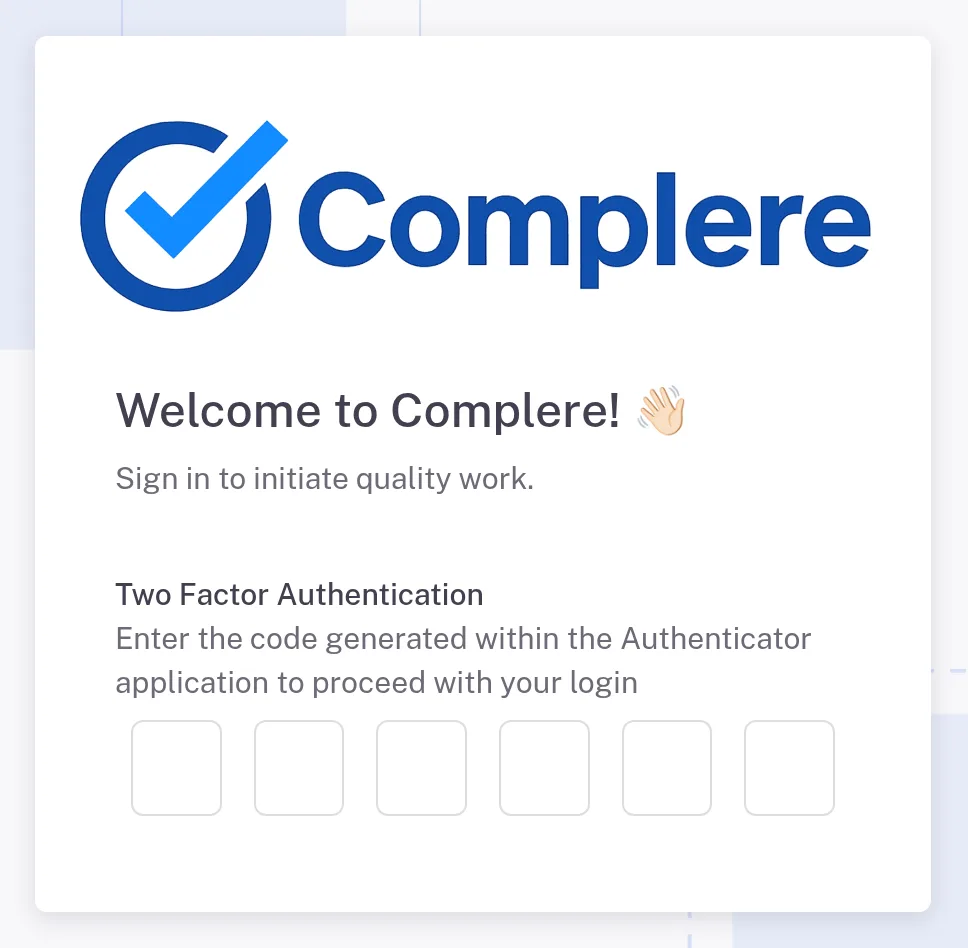
Step 5. The Two Factor Authentication step of the sign-in page, with six boxes for the code
Result
Your Home page opens and greets you with "Welcome Back," and your name. Next: see what your Home page shows in How your Home page works.
If something is different
You want Complere to ask for a code from your phone each time you sign in.
Set up two-factor authentication on your account: see Set up two-factor authentication on your account.
"The provided two factor authentication code was invalid."
Select Ok and type the code your app shows now.
Complere refuses your password, or says your account is blocked or disabled.
Look up the message in Can't sign in. If you have forgotten your password, see Reset a forgotten password.