
After the last QA signature a document waits in Approved Not Published. Publishing it makes that version the one in effect.
Before you start
- The document is in Approved Not Published, and its version is a whole number, for example 1.0.
- You are named on the document (as an author, reviewer, approver or QA), or you are an Administrator.
Steps
Open the document from Document Control › Documents. The status button shows Approved Not Published.
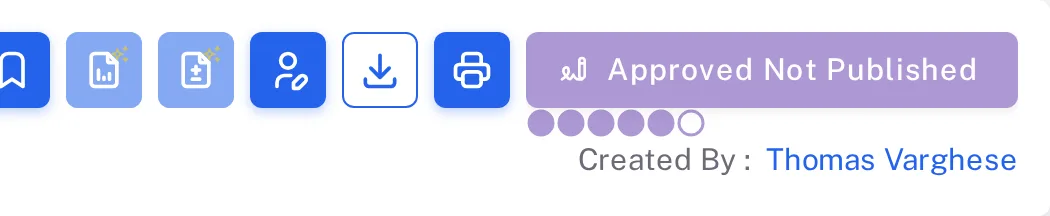
Step 1. The Approved Not Published status button at the top of the document page, next to the Download and Print buttons If the status button is greyed out, select Download first. Its tooltip then reads "You must open or download this version of the document before you can sign it."
Select the status button. The form Escalate status to Published opens. It does not ask for your password.
Leave Publish Now switched on. Under Role, choose the role you publish in, for example Authors. Type a Remark if you want one, then select Save.
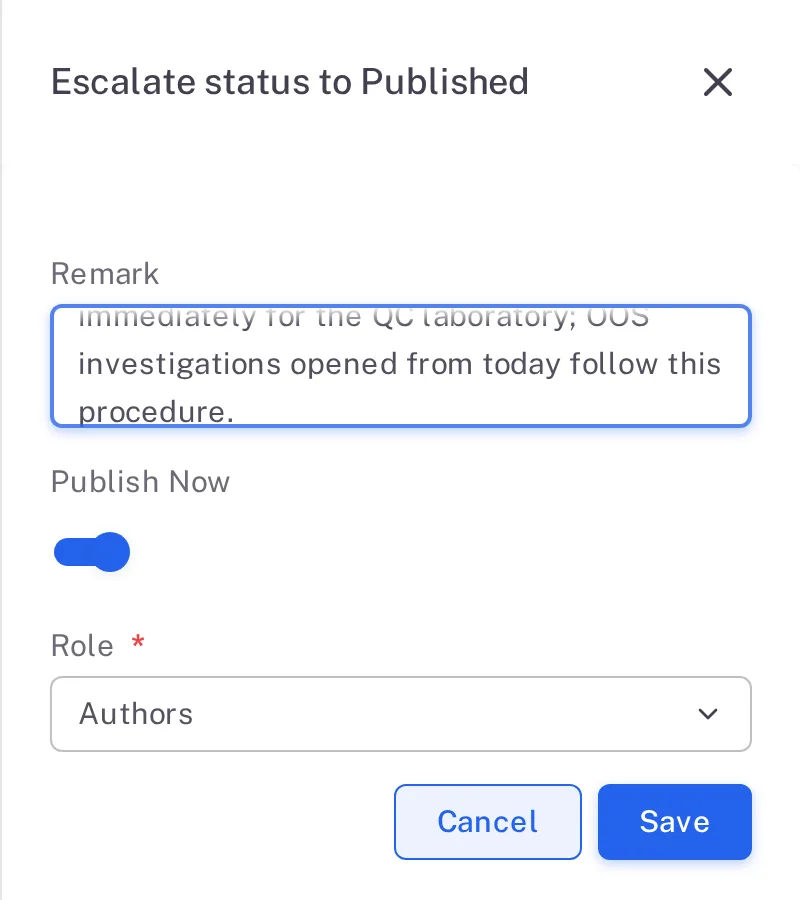
Step 4. The Escalate status to Published form with a remark, Publish Now switched on, Role set to Authors, and the Cancel and Save buttons
Result
Complere shows "Document status changed to Published". The status button now reads Published, the version stays 1.0, and the Versions tab lists that version as Published.

Next: to change a published document, start a new version — see Start a new version of a document (Force Review).
What gets recorded
Each entry appears on the document's Audit Trail tab.
What the audit trail records
You published the document.
- Action Type
- Published
- Username
- Your username
- Date Created
- Date and time of the action
- Activity
- Names your role and the move, for example "The document has been published by the Authors and its status has been updated from Approved Not Published to Published", followed by your remark.
If something is different
The status button is greyed out.
Select Download, then try again. If it stays greyed out, read its tooltip and see I can't sign a document.
You switched Publish Now off.
The form then shows a Publication Date field. Switch Publish Now back on to publish now.