
Before you start
- On screen the module is called Document Control. A Regular User sees Documents under it. A Supervisor or Administrator also sees Document Templates, Controlled Prints, Settings & Master and Audit Trail.
- If a document is missing from your list, see I can't see a document.
How it works
A document goes through these stages. When it is created, only Authors must be named; Reviewers, Approvers and QAs are optional on the Roles step.
- Write. A new document starts in Created, with no file yet. An author uploads the file and the document moves to Draft. See Create a document from a template.
- Send it on. The Authors sign the draft, and the document moves to Under Review. See Send a document for review.
- Review and sign. The Reviewers sign in Under Review, the Approvers in Under Signing By Approver, and the QAs in Under Signing By QA. See Review and approve a document. A reviewer can send the document back to Draft with a reason instead: see Send a document back to Draft. Approvers and QAs see the same line, Escalate status back to Draft, in their own status.
- Approve. After the last QA signature the document is Approved Not Published, and its version becomes a whole number, for example 1.0. Then it is published: see Publish a document. Publishing does not ask for a signature.
- Revise. On a Published document, the status button opens the Force Review form: see Start a new version of a document (Force Review). While a newer version is in Draft, a Regular User who is not named on the document sees the published version. When a newer version is published, the earlier one is shown as Published & Substituted.
Result
You can see where any document is from its page. Open it from Document Control › Documents: the header shows its ID, its version and its title, and the status button at the top right shows the current status.

| Tab | What it shows |
|---|---|
| Workflows | For each version, every status the document went through, when it moved on, the minimum number of sign-offs each role needs, and who signed. |
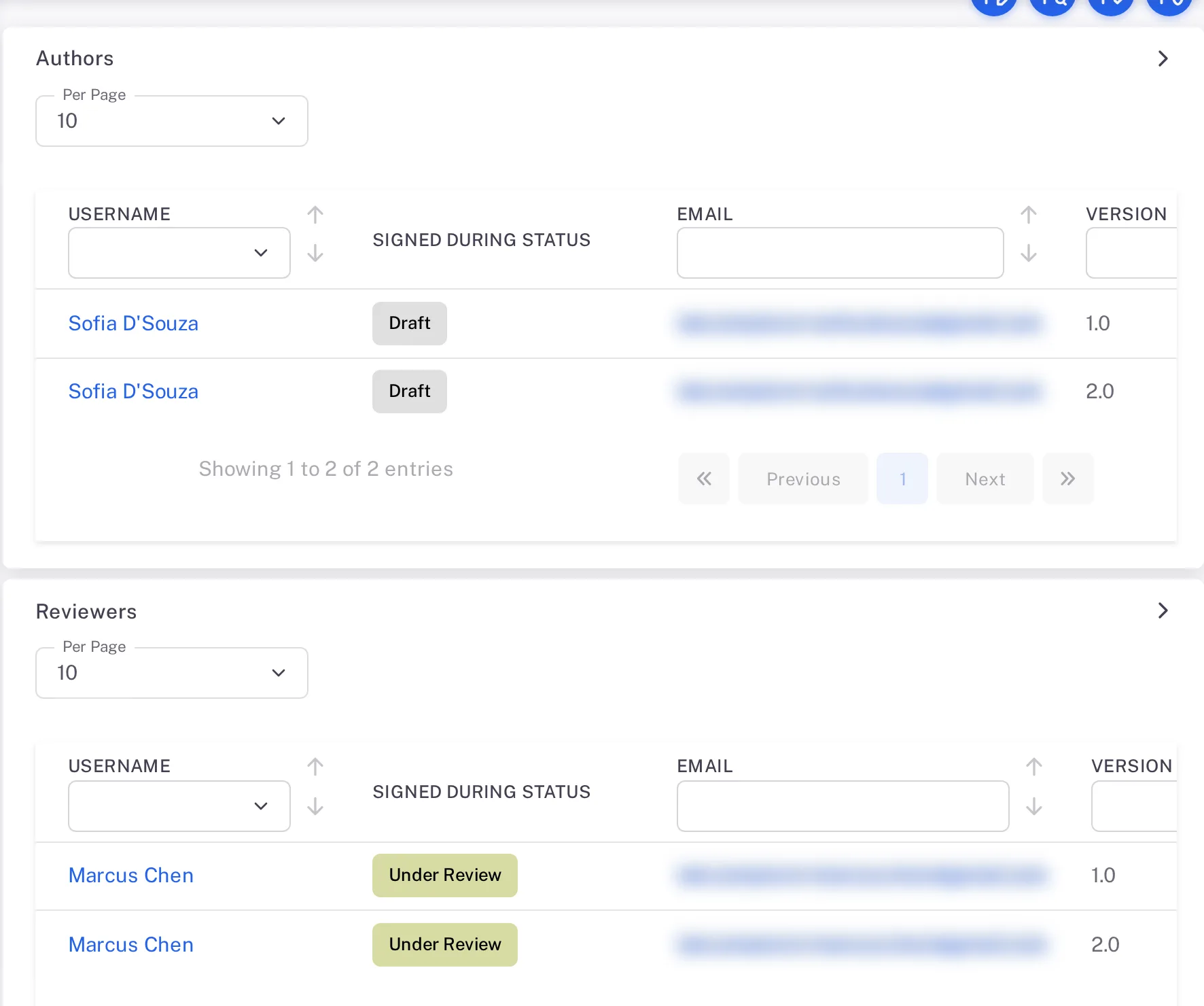
| Roles | One table per role: each person named, the status they signed in, the version and Signed On. |
| Versions | The versions with their status, for example 1.0 shown as Published & Substituted after 2.0 was published. |
Next: create a document — see Create a document from a template.
If something is different
You see the published version, not the version being revised.
A Regular User who is not named on the document sees its last published version in the Documents list until the new version is published.