
Before you start
- You are an Administrator, or you are named in QAs on the document. The Obsolete this Controlled Document button was not shown to Authors or Reviewers who are Supervisors or Regular Users, or to a Regular User who is not named on the document.
- You know why the document is withdrawn. You must type it in Remarks.
- You know your Complere password.
Steps
Open the document from Document Control › Documents.
Select Obsolete this Controlled Document (the icon at the top of the page). The form opens.
Your Email is shown. Type your Password, and in Remarks why the document is withdrawn.
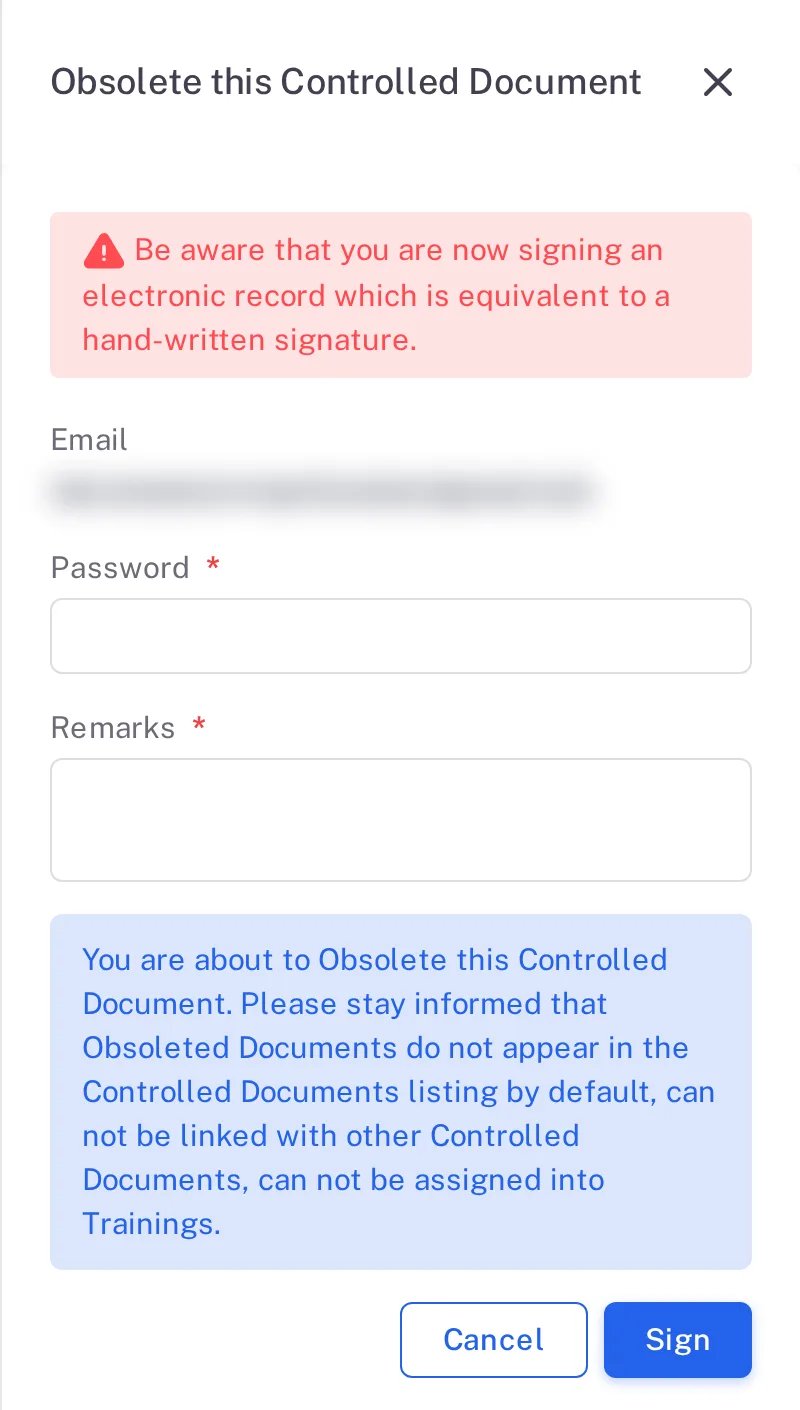
Step 3. The Obsolete this Controlled Document form with the signature warning, Email, Password, Remarks, the note about obsoleted documents and the Sign button Select Sign. To stop without signing, select Cancel.
Result
A red Obsolete label shows beside the status at the top of the document page, and the document no longer appears in the Documents list.

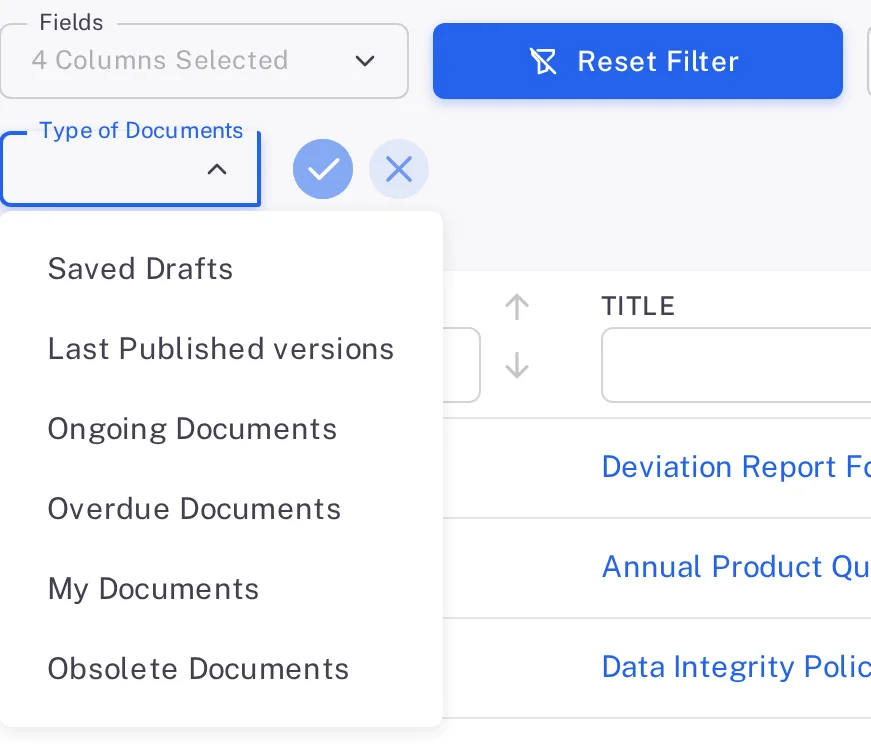
To find it again, select See Filters in the Documents list, choose Obsolete Documents under Type of Documents, and select the tick beside it.
What gets recorded
The entry appears on the document's Audit Trail tab and is digitally signed.
What the audit trail records
You signed the form.
- Action Type
- Mark obsolete
- Digitally Signed
- Yes
- Username
- Your username
- Date Created
- Date and time of the action
- Activity
- The document's title and "Document Obsoleted successfully.", with your Remarks under it.
If something is different
You do not see the Obsolete this Controlled Document button.
You are not an Administrator and not named in QAs on this document. Ask one of its QAs or an administrator.
A new version was in Draft.
The document is made obsolete with it. Its status button then reads Draft, greyed, beside the Obsolete label, and the Obsolete Documents list shows the status Draft.