
Before you start
- The document is in Under Review, and you are named in Reviewers. The Roles tab of the document shows who is named.
- You have not signed in this status yet. Once you have, the status button is greyed out for you, for example "Already signed as Reviewers for Under Review status".
- You know your Complere password.
- Approvers in Under Signing By Approver and QAs in Under Signing By QA see the same line, Escalate status back to Draft, in their Escalate panel. The steps below show a reviewer.
- You know what the authors must change. You write it in the Reason, and it is kept with the audit trail entry.
Steps
Open the document from Document Control › Documents.
Select Download (the download icon at the top of the page). Until you have opened or downloaded this version, the status button is greyed out.
Select the status button at the top of the page. It shows Under Review. The Escalate panel opens.
Find the line Escalate status back to Draft and select its arrow. The form Status reject to Draft opens.
Read the warning at the top of the form. Your Email is shown. Type your Password.
Type a Reason: what the authors must change before they send the document on again.
Select Save. To stop without sending the document back, select Cancel.
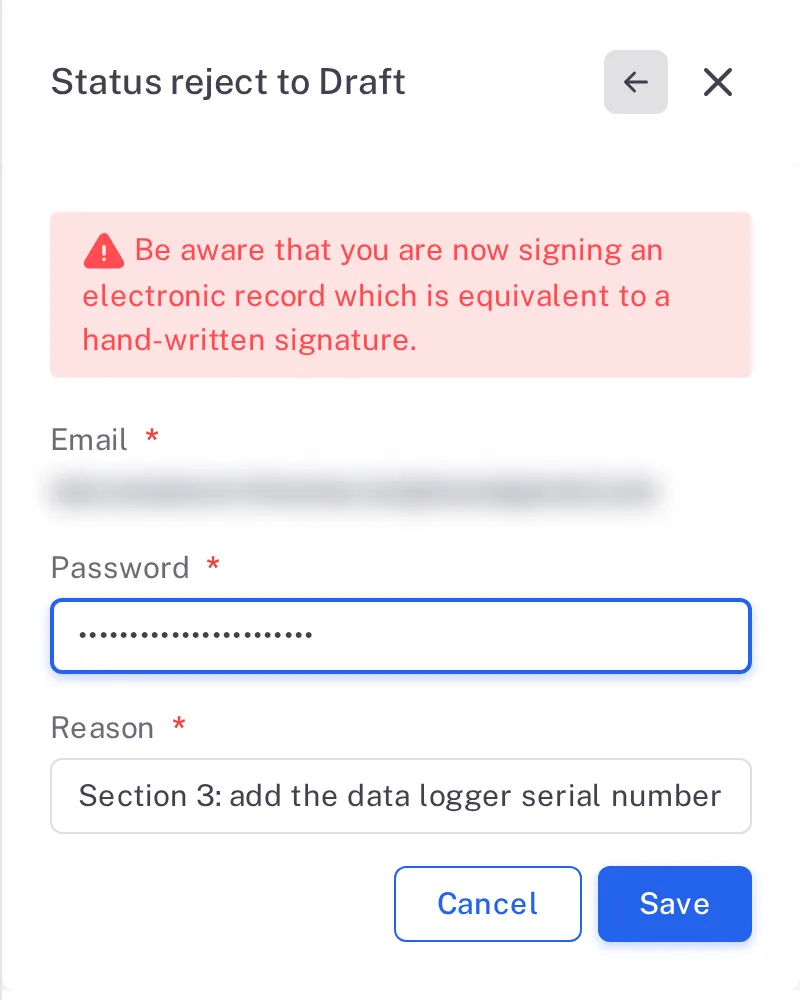
Step 7. The Status reject to Draft form with the signature warning, Email, Password, Reason and the Save button
Result
- The document is back in Draft, at the same version, for example 0.1.
- The Authors see it on their Home page under Action Required. They sign again to send it on, and every reviewer, approver and QA signs again.
Next: the Authors send the document on again — see Send a document for review.
What gets recorded
The entry appears on the document's Audit Trail tab.
What the audit trail records
You sent the document back.
- Action Type
- Status Rejected
- Username
- Your username
- Date Created
- Date and time of the action
- Activity
- "Document reject by Reviewers and status changed to Draft", with the Reason you typed in italics under it.
If something is different
There is no line Escalate status back to Draft.
The line is offered to the Reviewers in Under Review, the Approvers in Under Signing By Approver and the QAs in Under Signing By QA, before they sign. An author in Draft gets only the form Escalate status to Under Review. A Published document offers only Force Review: to change it, start a new version as described in Start a new version of a document (Force Review). If the status button itself is greyed out, see I can't sign a document.
The message reads "These credentials do not match our records."
The password is not the one you sign in to Complere with. The form keeps your Reason. Type the password again and select Save.
You filter the Audit Trail tab on Status Rejected and no entries show.
The Status Rejected filter shows no entries on a document's Audit Trail tab, even after a send-back. Select Reset Filter, then sort the Action Type column with the arrows beside its heading, or read the Activity of each entry. Contact Complere support (see Ask Complere support for help).