
Before you start
- Your system role is Administrator, Supervisor or Regular User.
- The document is not in Under Review, Under Signing By Approver or Under Signing By QA: in those statuses the Supervisors and Regular Users named on it do not see Update Roles.
Steps
Open the document from Document Control › Documents and select Update Roles, the button at the top of the document page.
The form Update Roles shows the document's Groups and the people named as Authors (required), Reviewers, Approvers and QAs. To add someone, open the role's list and choose the name.
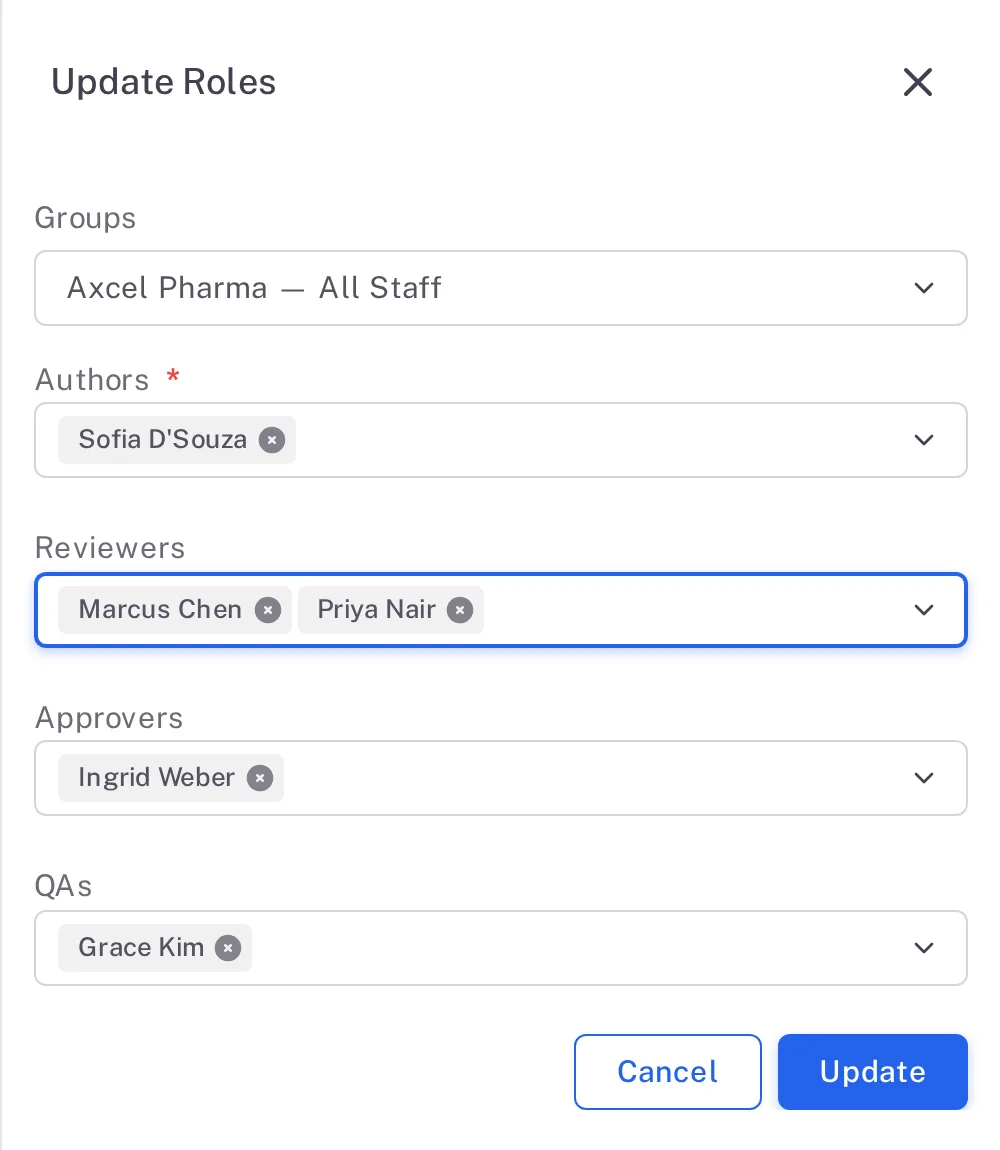
Step 2. The Update Roles form with the Groups, one Author, two Reviewers, one Approver and one QA Select Update. No signature is asked for.
Result
The people you named are listed on the document's Roles tab, for the current version. They act on the document when it reaches the status of their role; see Document Control: who can do what.
What gets recorded
The entry appears on the document's Audit Trail tab.
What the audit trail records
You selected Update.
- Action Type
- Updated
- Username
- Your username
- Date Created
- Date and time of the action
- Activity
- "Document updated"
If something is different
A name you expect is missing from a role list.
That user is not in any of the document's Groups, or, for QAs, does not have Is QA? switched on in their profile. Ask your administrator.