
Before you start
- The document is Published. If you cannot find it, see I can't see a document.
Steps
Select Document Control › Documents. Type the document's ID in the box under ID.
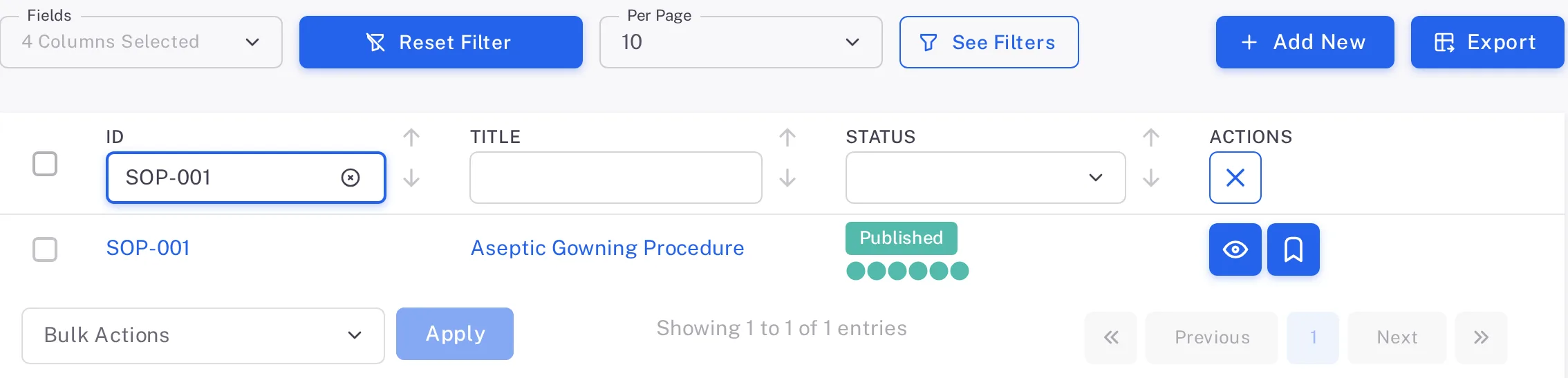
Step 1. The Documents list filtered to SOP-001 Aseptic Gowning Procedure, Published, with the View and Bookmark buttons on its row Select the View button (the eye) on the document's row. The document opens on the Viewer tab, which shows the published version.
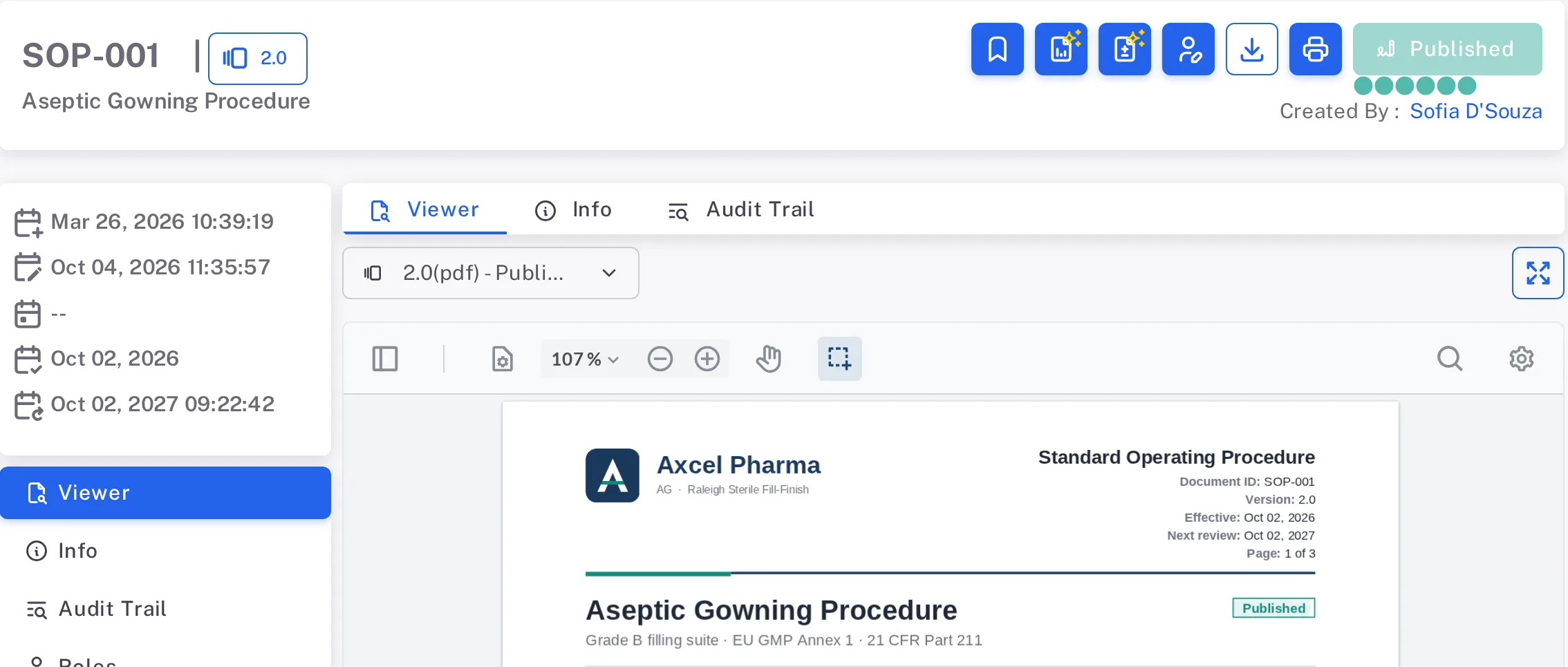
Step 2. SOP-001 open on the Viewer tab: the buttons at the top of the page, the version 2.0 PDF and the menu with Info, Audit Trail, Roles and Versions To keep a copy, select Download (the download icon at the top of the page). The PDF downloads at once, named after the document and its version, for example "SOP-001-v2.0.pdf".
Result
You have read the document in the Viewer, or you have its PDF.
What gets recorded
Reading the document in the Viewer adds no entry. A download adds one to the document's Audit Trail tab:
What the audit trail records
You downloaded the file.
- Action Type
- File download
- Username
- Your username
- Date Created
- Date and time of the action
- Activity
- "Document file: … downloaded", with the name the file is stored under.
If something is different
The document is not in the list.
A Regular User who is not named on a document does not see it in the list before it has been published. See I can't see a document.