
Before you start
- Your role lets you add documents: you see Add New on Document Control › Documents. A Read Only User does not.
- You know who will write, review, approve and sign the document. You name them while you create it.
Steps
Select Document Control › Documents, then select Add New. The Create Document page opens with four steps across the top: Basic Details, Roles, Linked Items and Review and Submit.
On Basic Details, fill in the System fields:
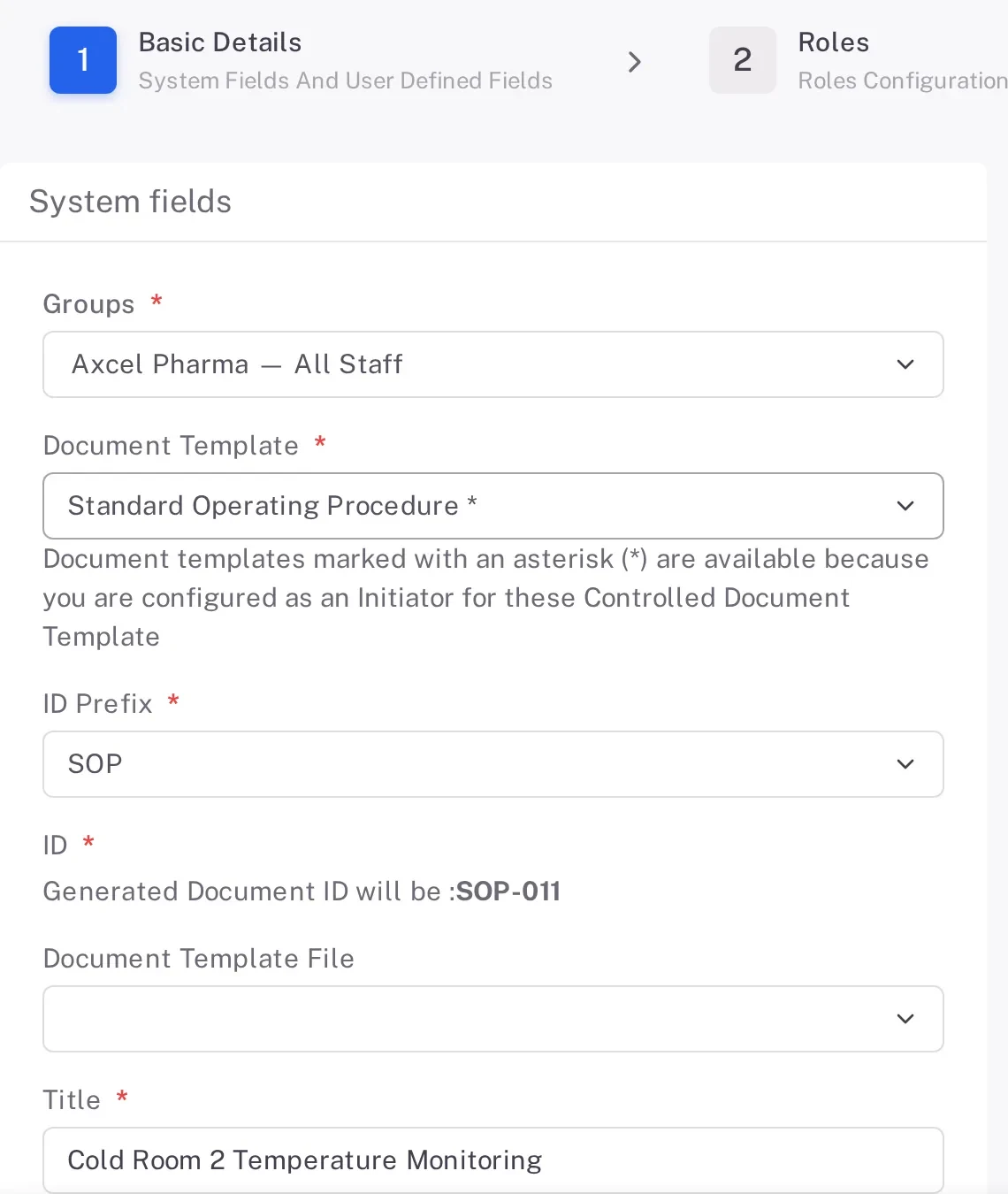
Step 2. The Basic Details step of Create Document with Groups, Document Template, ID Prefix, the generated ID SOP-011, Document Template File and Title Field What to enter Groups Select the field: the Groups dialog opens. Tick the groups the document belongs to, and select Ok. The dialog lists only the groups you are a member of. Document Template The template. A template marked with an asterisk (*) is there because you are configured as an Initiator for it. ID Prefix The prefix. The page then shows the ID the document will get, for example "Generated Document ID will be :SOP-011". Title The document's title. If the template fills in a title, replace it. Folder The folder the document is filed in. The template also fills in Folder, Periodic Review, Labels and Department. Change them if this document needs other values, and add Information about its purpose.
Select Next. On Roles, under Roles Configuration, name the Authors. They are required. Name the Reviewers, Approvers and QAs too: each field lists the people you can choose.
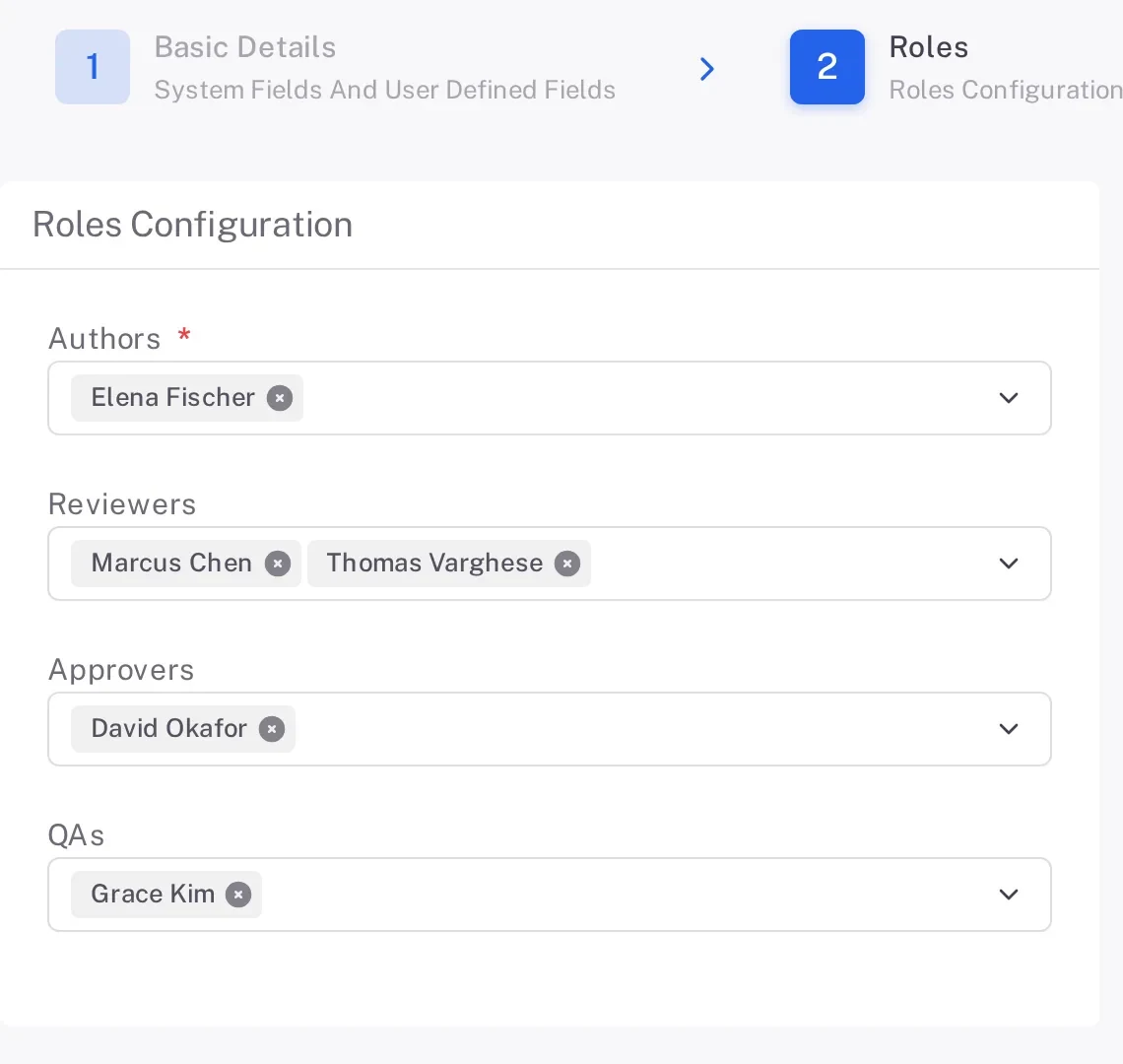
Step 3. The Roles step with Authors, Reviewers, Approvers and QAs filled in Select Next to go to Linked Items, then Next again.
On Review and Submit, check what you entered. Use Previous to go back and correct a step.
Select Save. The document's page opens in Created. The Viewer reads "File not uploaded yet.", and the status button's tooltip reads "Please upload file first!".
Select Upload (the upload icon at the top of the page). In Upload File, select Browse Files, choose the file and select Submit. The window lists the file types it accepts (doc, docx, ppt, pptx, xls, xlsx, pdf) and the largest size, 50 MB.
Result
The document is in Draft at version 0.1.
Next: the Authors send the draft on, as described in Send a document for review.
If something is different
You want to finish later.
Save As Draft saves the form and returns you to the Documents list. See Filters › Type of Documents › Saved Drafts then lists nothing. Complete the four steps and select Save instead. Contact Complere support (see Ask Complere support for help).