
Before you start
- You are named on the document in the role that signs its current status: Reviewers while the document is in Under Review, Approvers while it is in Under Signing By Approver, QAs while it is in Under Signing By QA. The Roles tab of the document shows who is named.
- You can open the document. If you cannot, see I can't see a document. If you cannot sign it, see I can't sign a document.
- You know your Complere password.
Steps
Open the document from Document Control › Documents.
Select Download (the download icon at the top of the page) and read the document.
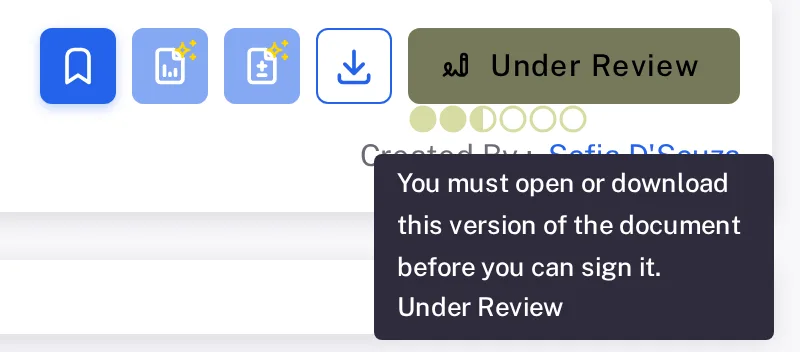
Step 2. The greyed-out Under Review status button with its tooltip: You must open or download this version of the document before you can sign it Select the status button. It shows the current status, for example Under Review. The Escalate panel opens.
Find Escalate status to the next status — for example Escalate status to Under Signing By Approver — and select its arrow.
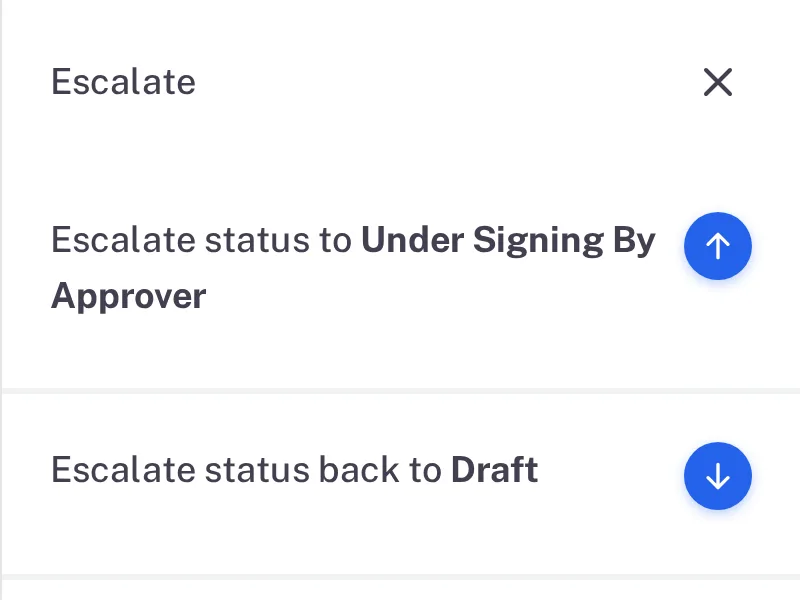
Step 4. The Escalate panel with the lines Escalate status to Under Signing By Approver and Escalate status back to Draft Read the warning at the top of the form. Your Email is shown. Type your Password.
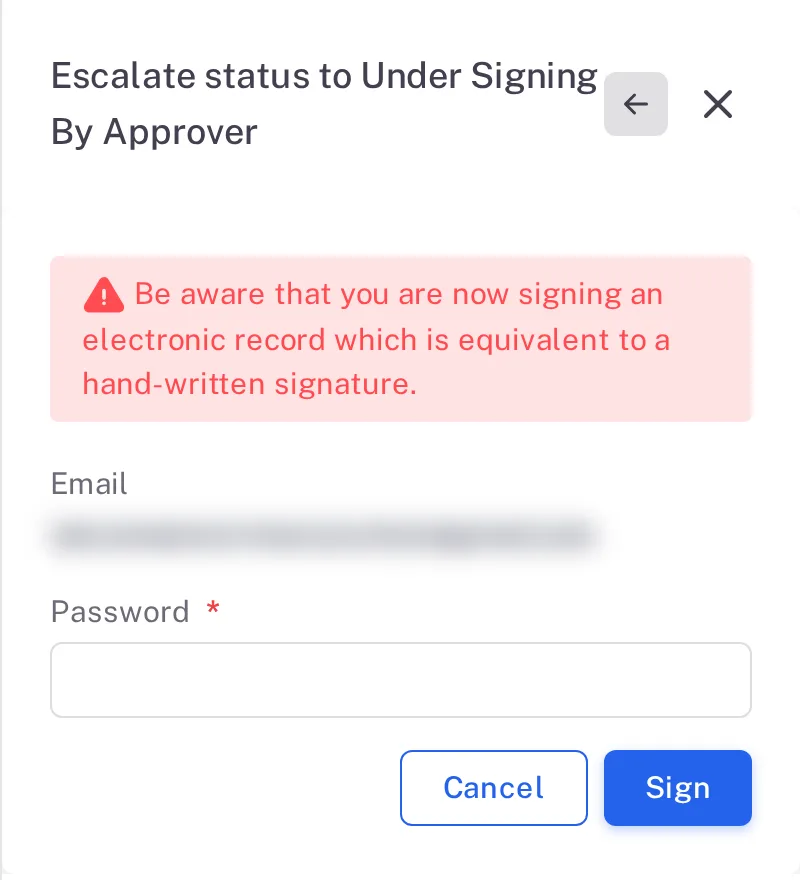
Step 5. The Escalate status to Under Signing By Approver form with the warning, Email, Password and the Sign button Select Sign. To stop without signing, select Cancel.
Result
- If others in your role still have to sign, the status stays the same. The status button is greyed out for you, and its tooltip reads, for example, "Already signed as Reviewers for Under Review status".
- When the last person in your role signs, the document moves on: from Under Review to Under Signing By Approver, then to Under Signing By QA. After the QA signature its version becomes a whole number, for example 1.0.
The document is Approved Not Published.
What gets recorded
Each entry appears on the document's Audit Trail tab.
What the audit trail records
You signed, and the status did not move yet.
- Action Type
- Signed in current status
- Username
- Your username
- Date Created
- Date and time of the action
- Activity
- Names the role you signed in, for example "Document signed by Reviewers".
Your signature was the last one needed, so the document moved on.
- Action Type
- Change Status
- Username
- Your username
- Date Created
- Date and time of the action
- Activity
- Names the role and the move, for example "The document has been signed by the Reviewers and its status has been updated from Under Review to Under Signing By Approver".
If something is different
The status button is greyed out.
Hover over it and read the tooltip. If it reads "You must open or download this version of the document before you can sign it." — select Download, then try again. More tooltips, and what to do about each, are in I can't sign a document.
The document needs changes before you can sign it.
Send it back to its authors with a reason instead of signing. See Send a document back to Draft.