
Before you start
- You are an Administrator. Which roles can open a module's settings is in Complere Settings: who can do what.
- Reading the page changes nothing.
Steps
Open the module in the menu, then Settings & Master › Permissions. For documents: Document Control › Settings & Master › Permissions.
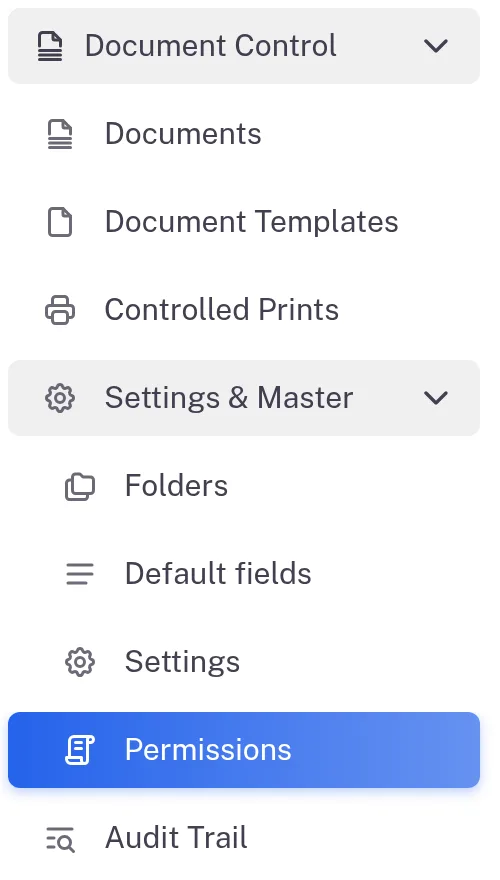
Step 1. The Document Control menu open on Settings & Master with Permissions selected Read the table. It has one row per action and one column per status. Each cell lists, with a green tick, the roles that may do that action in that status. "N/A" means no role may do it in that status. A note above the table names the roles that may create records, for example "Note:- Administrator, Supervisor, Regular User are eligible to create documents."
The roles you hold are underlined: the tooltip of the information button beside Export reads "The roles highlighted in the matrix are the ones assigned to you." An information button beside a role in a cell explains a limit, for example "The document can be view only after the cycle is completed."
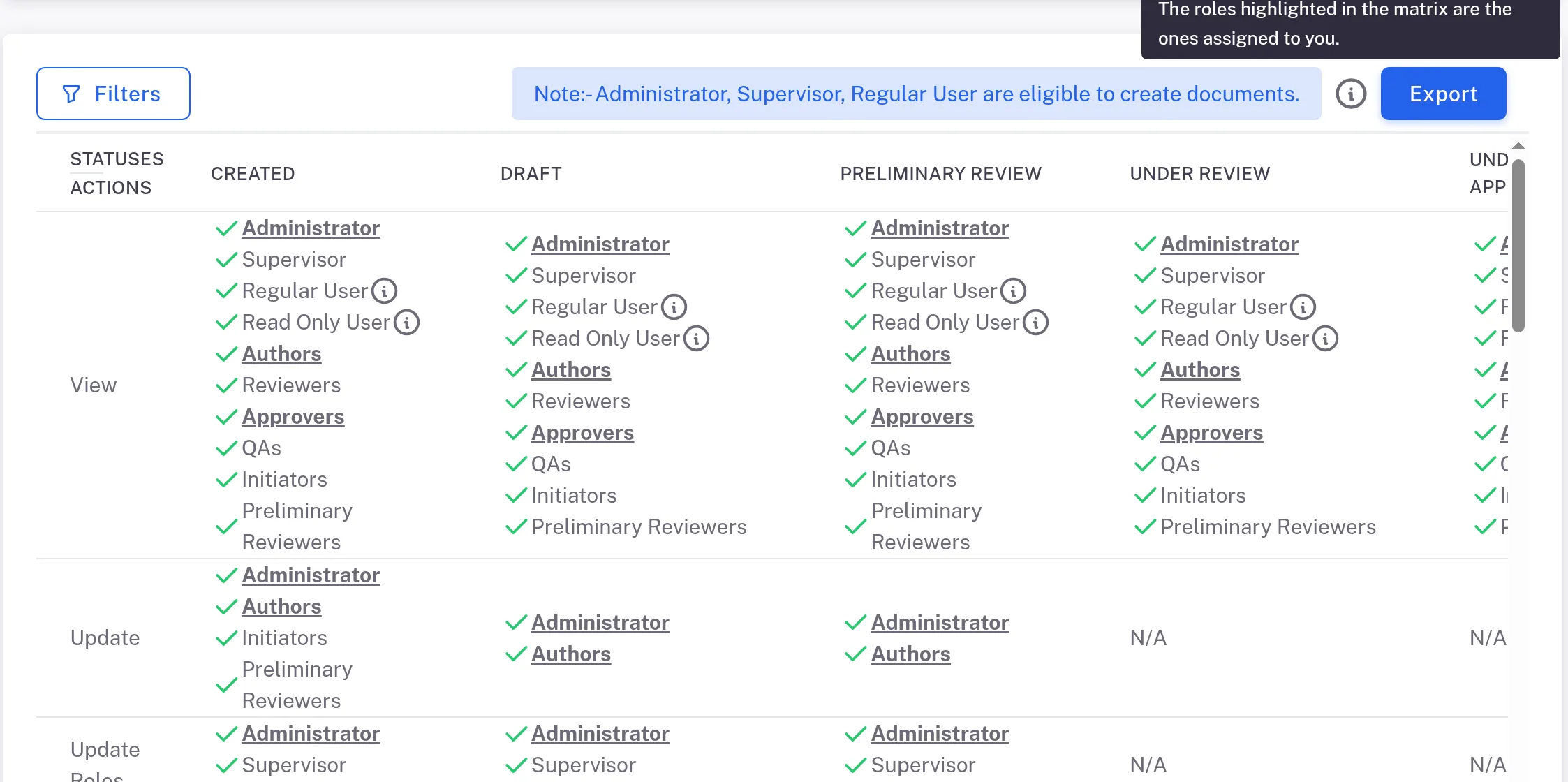
Step 2. The top of a module's Permissions page with Filters, the note on who may create documents, the information tooltip, and roles ticked per status To look at one action, select Filters and choose it in Actions. In the Change Statuses row, each role is followed by the statuses it can move the record to: a green arrow pointing right (tooltip Escalated to) or left (tooltip Rejected to).
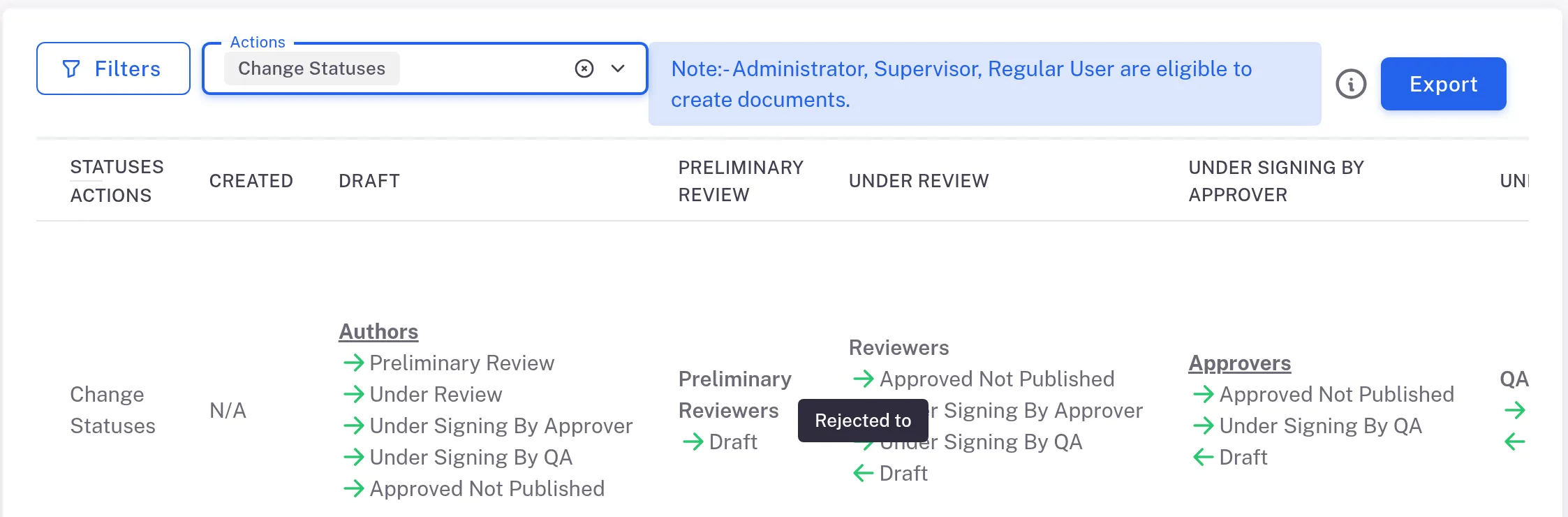
Step 3. The Permissions page filtered to Change Statuses, with each role followed by the statuses it can move a document to and the Rejected to tooltip To keep a copy, select Export. A PDF of the table downloads at once.
Result
You know which roles may do the action in each status, and which of those roles are yours.
If something is different
The table is too wide to read.
Use Filters to show one or a few actions, and scroll the table sideways for the later statuses.
Your role is ticked but you still cannot act on a record.
The page shows roles. Some actions also need you to be named on the record (for documents, as Authors, Reviewers, Approvers or QAs). See How permissions work.