
Before you start
- Know which module keeps the record, for example Document Control for an SOP: you find a record in its own module's list. How Complere's modules connect says which module keeps what. The Search on your Home page looks only through the records on your Home page (see How your Home page works).
- A list shows only the records you are allowed to see.
Steps
Open the module's list from the main menu, for example Document Control › Documents.
Under a column's name, type part of the value you are looking for, for example "Aseptic" under Title. The list updates and shows how many records match ("Showing 1 to 3 of 3 entries"). You can search on several columns at once, for example "SOP-005" under ID as well. The cross under Actions (Clear All Filter) clears the searches.
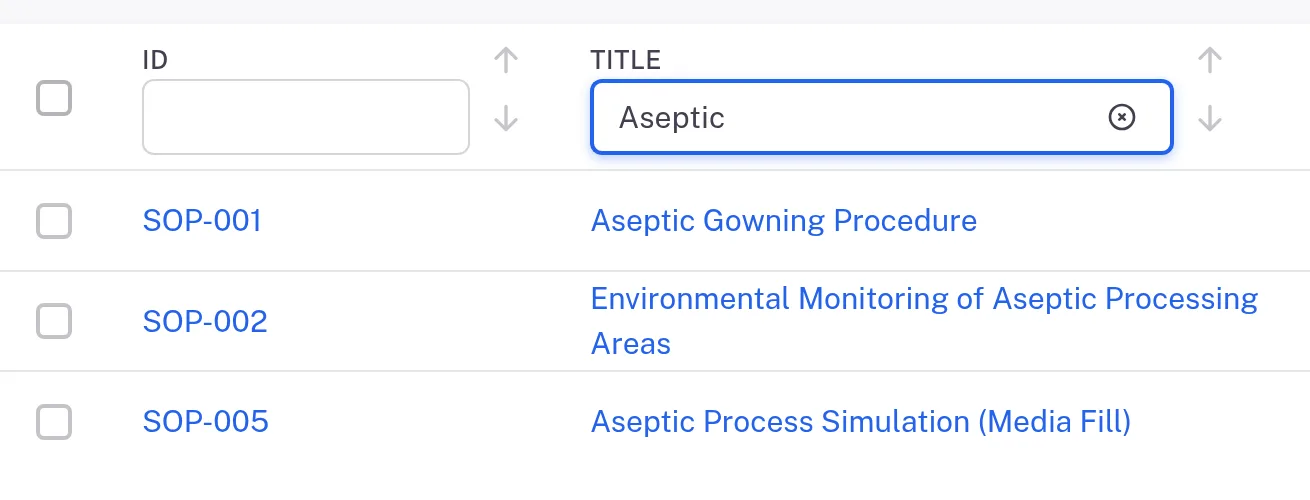
Step 2. The Documents list with Aseptic typed under Title and the three matching documents On the Documents list, you can find records by label. Show the Labels column: open the Fields drop-down at the top of the list (it reads, for example, "4 Columns Selected"), select Labels, close the drop-down and select the tick button that appears next to it. Then choose a label under Labels, for example Annex-1: the list keeps the records that carry it.
On the Documents list, select See Filters for more filters. A row opens under the buttons — Type of Documents, with choices such as Saved Drafts, Ongoing Documents, Overdue Documents, My Documents and Obsolete Documents. Choose a value and select the tick (Apply Filters, greyed out until you choose); the button then reads, for example, 1 Active Filters. The cross next to the tick (Clear All Filters) clears them.

Step 4. The buttons above the Documents list with the See Filters row open: Type of Documents, the tick and the cross Open the document: select its ID or Title, or the eye button (View) on its row.
Result
The record's page is open. On the Documents list, Complere keeps the column searches and the columns you chose, so they are still set when you come back. Reset Filter clears the column searches and puts the columns back to the list's default; a filter set under See Filters stays until you clear it with the cross in its row. Next: keep the record one click away with a bookmark (Bookmark a record).
If something is different
A record you expect is not in the list.
On the Documents list, a search or filter from an earlier visit stays set until you clear it: select Reset Filter, and if the button reads 1 Active Filters (or more), open it and select the cross in its row. If a document is still missing, see I can't see a document.
The search box at the top of the page finds nothing for a record you know exists.
That box searches only your bookmarks. Search in the module's list instead, or bookmark the record (Bookmark a record).
You opened the record recently and cannot remember where.
Your Home page lists it under Recent Visits.