
Before you start
- You are an Administrator.
- The group must exist (see Create a group). Groups are changed on the person's user record, not on the group.
Steps
Open Complere Settings › Users. Type the person's name in the box under Username, and select the Edit button on their row.
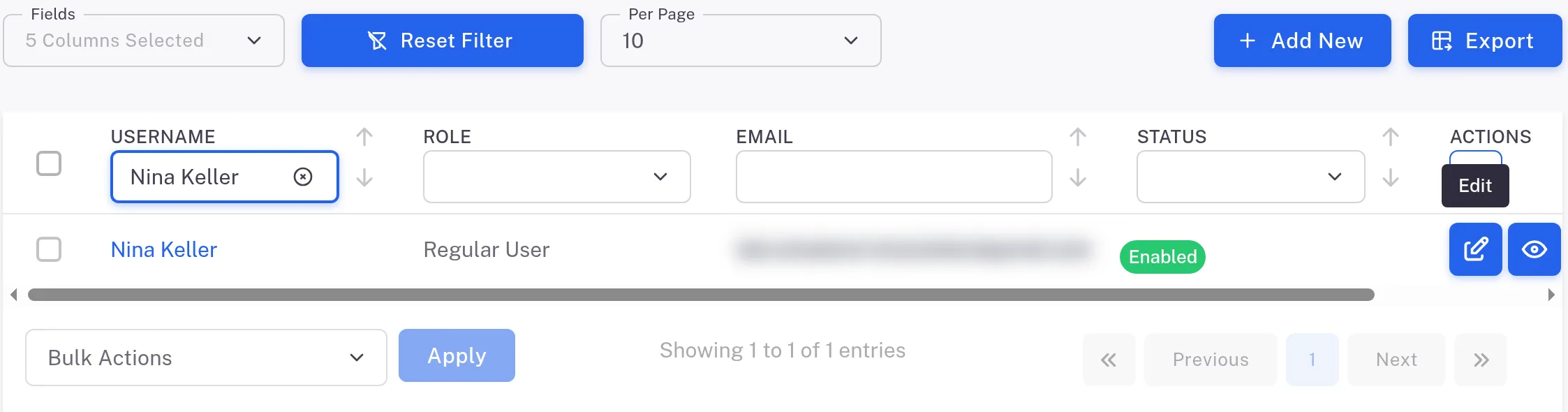
Step 1. The Users list filtered to one user, with the Edit tooltip on the edit button in the Actions column The form Users › Update opens. Under Accessibility, change Groups:
Add to a group
Tick the group. If it has groups under it, they are ticked too.
Take out of a group
Clear the group's tick.
A group shown with a dash (–) is not ticked itself: only some of the groups under it are.
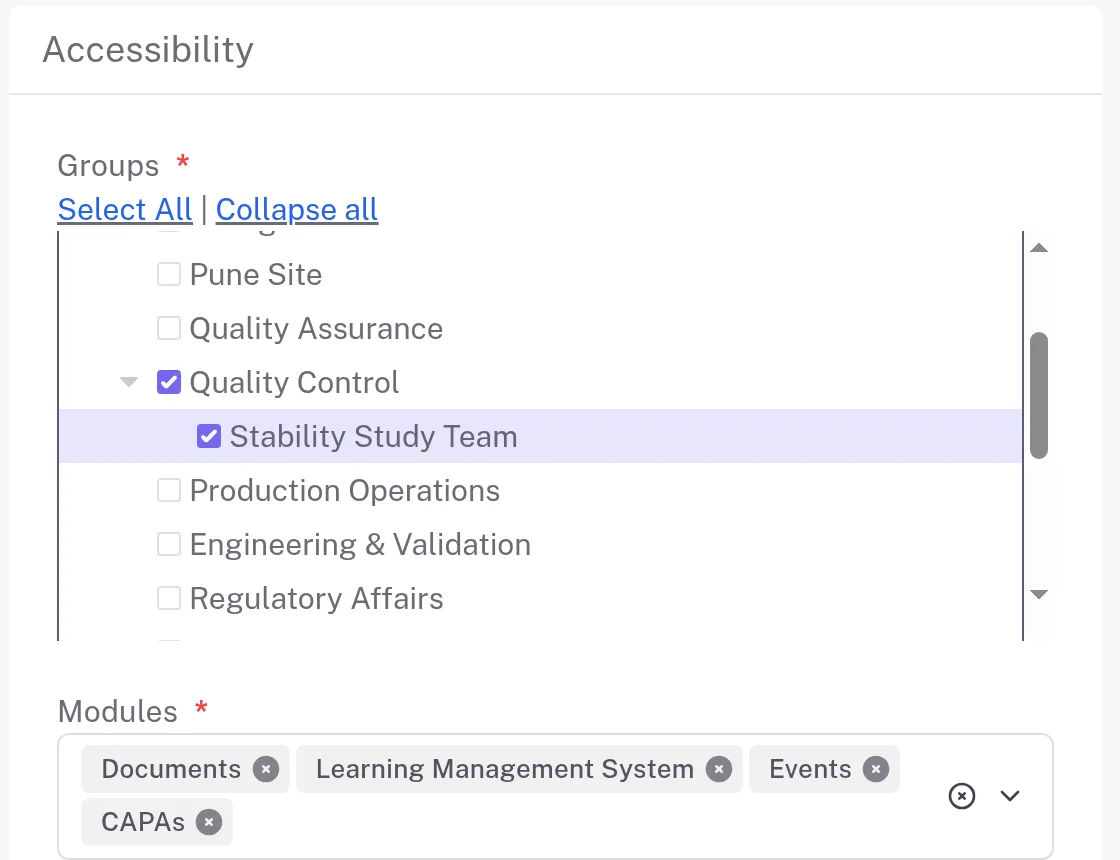
The Groups tree on a user's form with Quality Control and its sub group Stability Study Team ticked Select Update. It is on every step of the form, so you do not need to go on to Review and Submit.
Result
The message reads "User name was updated successfully" and the person's profile opens. Their Groups on the Info tab show the change.
What gets recorded
What the audit trail records
You saved the person's user record with a change of groups. The entry is on that user's Audit Trail tab.
- Action Type
- Updated
- Digitally Signed
- No
- Username
- Your username
- Date Created
- Date and time of the action
- Activity
- "User updated." Select the eye button (View) on the entry: the window "Updated by your name on date" lists Groups with the Previous Value and the Current Value.
If something is different
Taking someone out of a sub group also took them out of the group above it.
Clearing a sub group can clear the group above it too. Ticking the sub group again ticks the group above it again. Check Groups on the Review and Submit step before you select Update.
A group shows a lock and its box is greyed.
You cannot change it on this person: they are named on records that carry the group. Select the eye button on that group (tooltip View group entities) to open the Assigned Entities List of those records.
The person still cannot see a record after you added them to its group.
Groups are one of three checks. See How permissions work.