
Before you start
- You are an Administrator. For who else can, see Complere Settings: who can do what.
Steps
Open the group:
- A group listed in Groups: open Complere Settings › Groups and select the Edit button on its row. Go on at step 3.
- A group under another group, for example "Axcel Pharma — All Staff / Quality Control / Stability Study Team": Groups lists only the top-level groups, and its search does not find the others. Open Complere Settings › Users, open the page of someone in the group, and select the group's name under Groups.
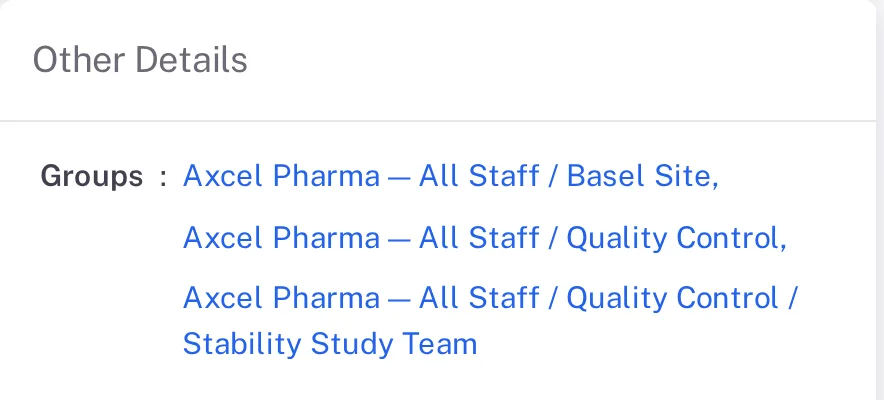
Step 1. A user's profile with their groups as links, among them Axcel Pharma — All Staff / Quality Control / Stability Study Team On the group's page, select the edit button at the top right (its tooltip reads "Edit" and the group's name).
The page Update Group for name opens, with Name, Parent Group and Description. Change the Description.
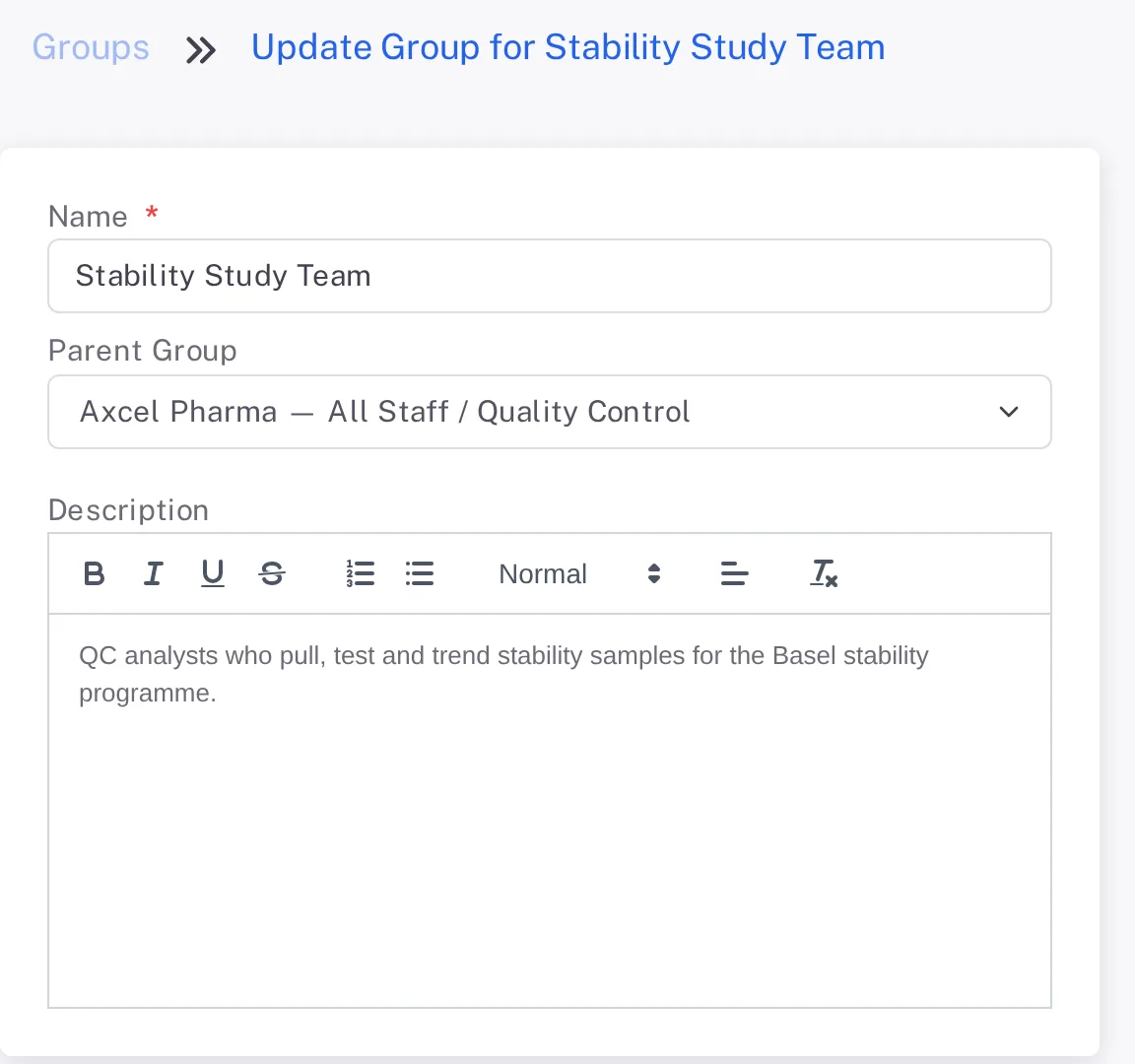
Step 3. The Update Group page with Name, Parent Group and Description Select Update at the bottom right.
Result
The group's page opens with the new details. To change who is in the group, see Add a user to a group, or take them out.
What gets recorded
The entry appears on the group's Audit Trail tab.
What the audit trail records
You selected Update.
- Action Type
- Updated
- Digitally Signed
- No
- Username
- Your username
- Date Created
- Date and time of the action
- Activity
- "Group updated."
If something is different
You cannot find a group in Groups.
It sits under another group. Open it from the profile of one of its members, as in step 1. If nobody is in it yet, contact Complere support: see Ask Complere support for help.