
Before you start
- You can see the record in its module's list, or you have its page open. See Find a record to find it.
Steps
Select the bookmark button on the record's row in its list, or at the top of the record's page. Hover over it first: it reads Bookmark. When you select it, the icon fills in and now reads Remove Bookmark.

Step 1. The Aseptic Gowning Procedure row of the Documents list with its bookmark filled in and the Remove Bookmark tooltip To go back to a bookmarked record from any page, select the Search Bookmarks box at the top of the page. The Bookmarks tab lists your bookmarks with their ID, Title, Type and Status (scroll the list sideways for the last columns). The Modules panel beside it shows how many bookmarks you have in each module.
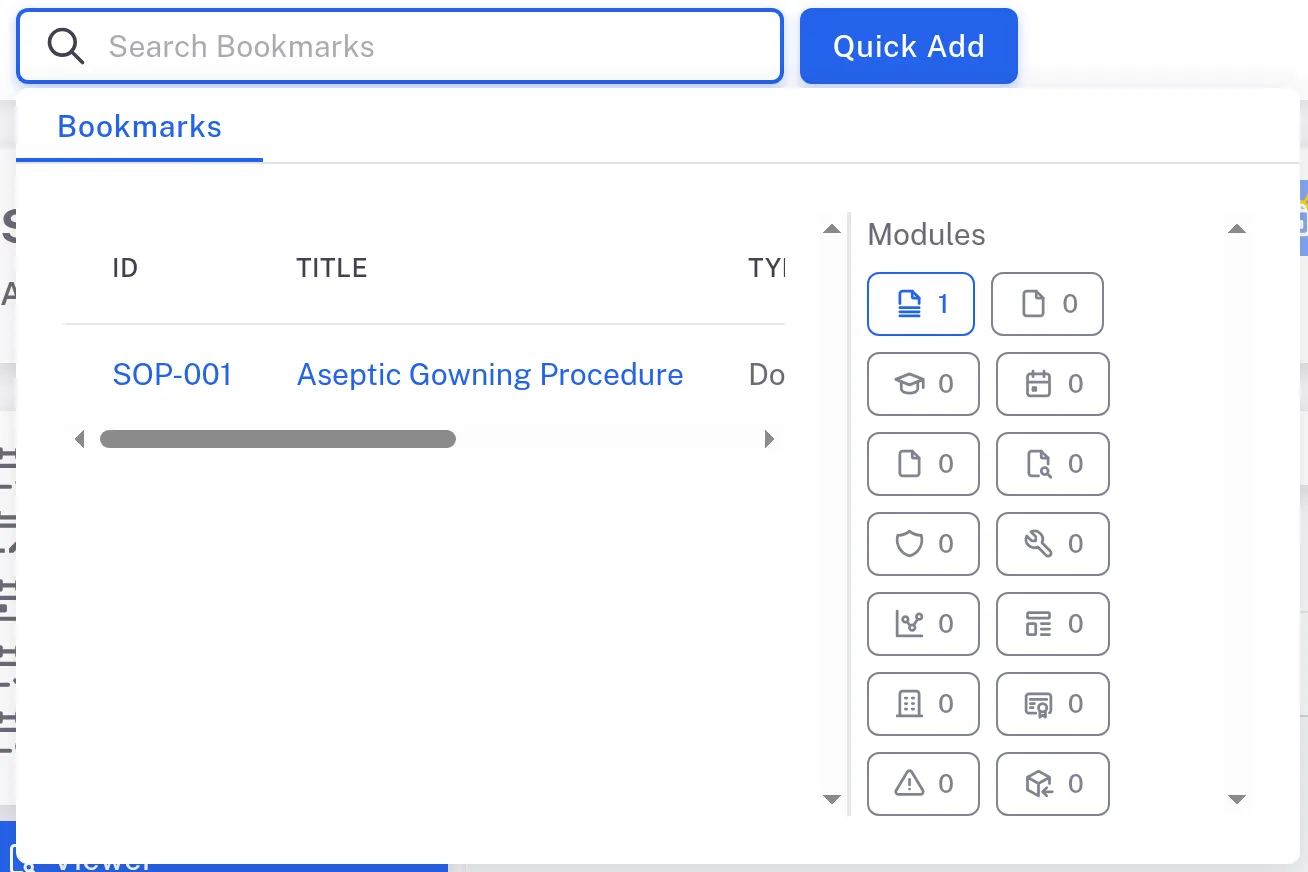
Step 2. The Search Bookmarks box opened on the Bookmarks tab, listing SOP-001 Aseptic Gowning Procedure, with the Modules panel beside it Type part of the record's ID or title in the box to narrow the list, for example "Actives" for supplier SUP-3 Actives ChemSource Pvt Ltd, then select the record's title to open its page.
To remove a bookmark, select the filled icon again (Remove Bookmark) on the record's row or at the top of its page.
Result
The records you bookmarked are one click away under Search Bookmarks, on every page.
If something is different
The Bookmarks tab reads "No items were found in bookmarks."
None of your bookmarks matches what you typed. Clear the box to see them all.
A Suppliers list row has no bookmark button.
Open the supplier and select the bookmark button at the top of its page (it reads Bookmark; once selected, Remove Bookmark).