
Before you start
- You are an Administrator. For who else can edit users, see Complere Settings: who can do what.
- To change only the person's groups, see Add a user to a group, or take them out.
Steps
Open Complere Settings › Users. Type the person's name in the box under Username, and select the Edit button on their row.
The form Users › Update opens with the person's details. Change what you need:
- Personal Information: name, Country, Timezone, Language. The Email cannot be changed.
- Permission: Is QA? and Permission Role. User Status cannot be changed here. To stop or restore someone's sign-in, use Bulk Actions › Disable or Enable on the users list: see Disable a user and Enable a disabled user.
- Accessibility: Groups, Modules, Reporting Manager, Departments, Location and Job Descriptions.
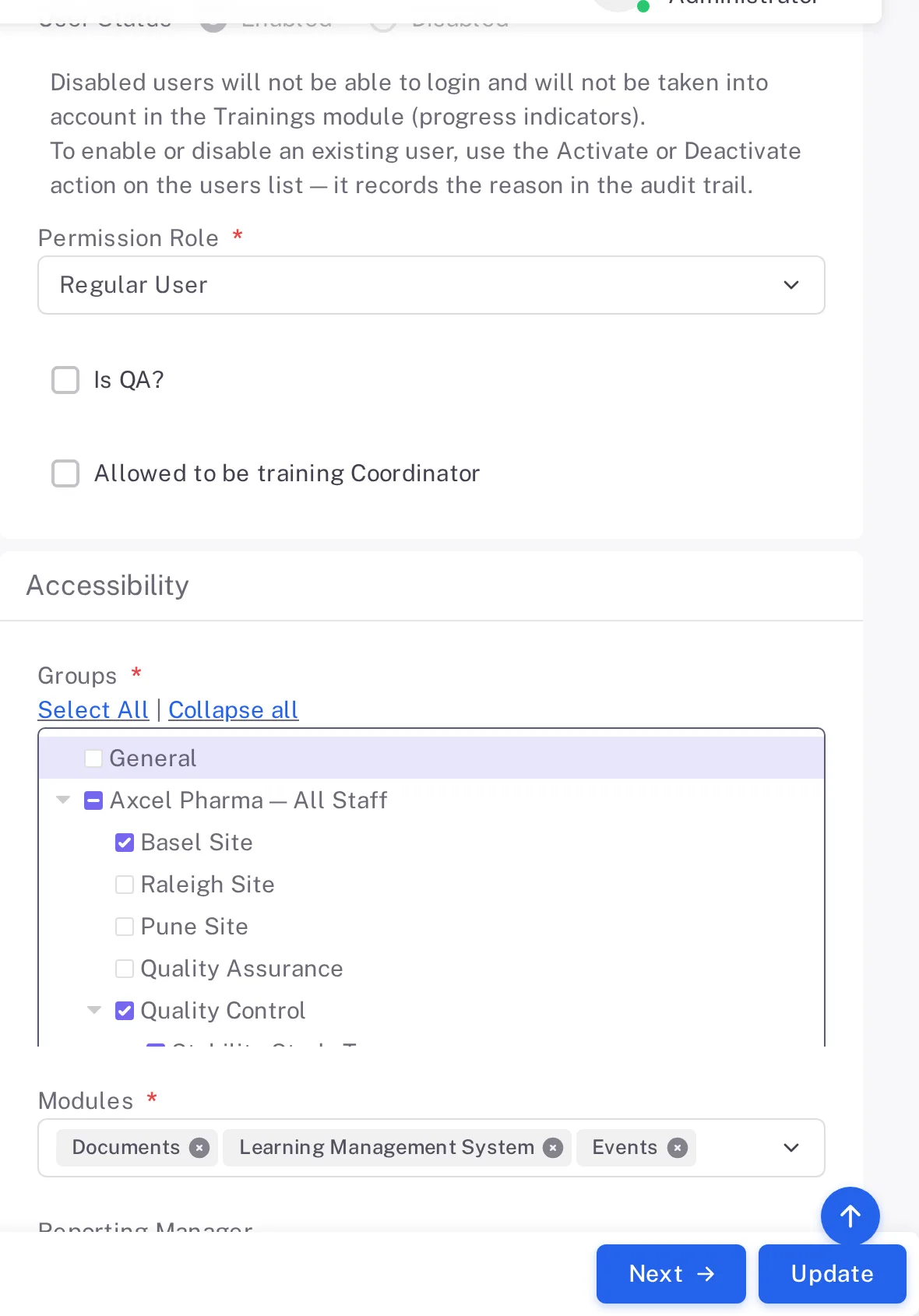
Step 2. The Users › Update form: Permission Role, Is QA?, the groups tree, Modules with Documents, Learning Management System and Events, and the Next and Update buttons Select Update. It is on every step of the form, so you do not need to go on to Review and Submit.
Result
The person's profile page opens and shows the new details, for example the Module, Departments and Location.
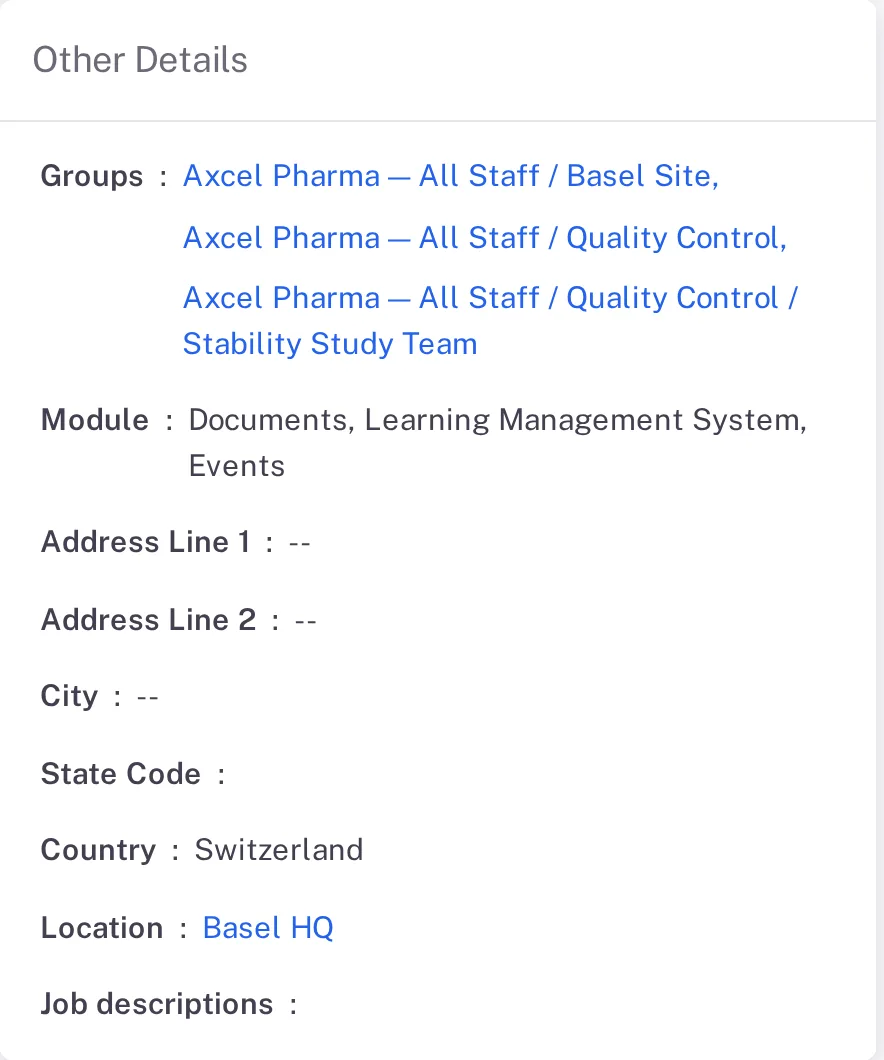
What gets recorded
The entry appears on the person's Audit Trail tab.
What the audit trail records
You selected Update.
- Action Type
- Updated
- Digitally Signed
- No
- Username
- Your username
- Date Created
- Date and time of the action
- Activity
- "User updated."
If something is different
You want to stop someone signing in.
Disable the user from the users list instead: see Disable a user.