
Before you start
- By default an Administrator and a Supervisor can add groups. Your company can change this in Role Permissions (see Change what a role can do).
- Decide where the group sits. A group usually matches a site, a department or a team, and it can sit under a parent group.
Steps
Open Complere Settings › Groups and select Add New.
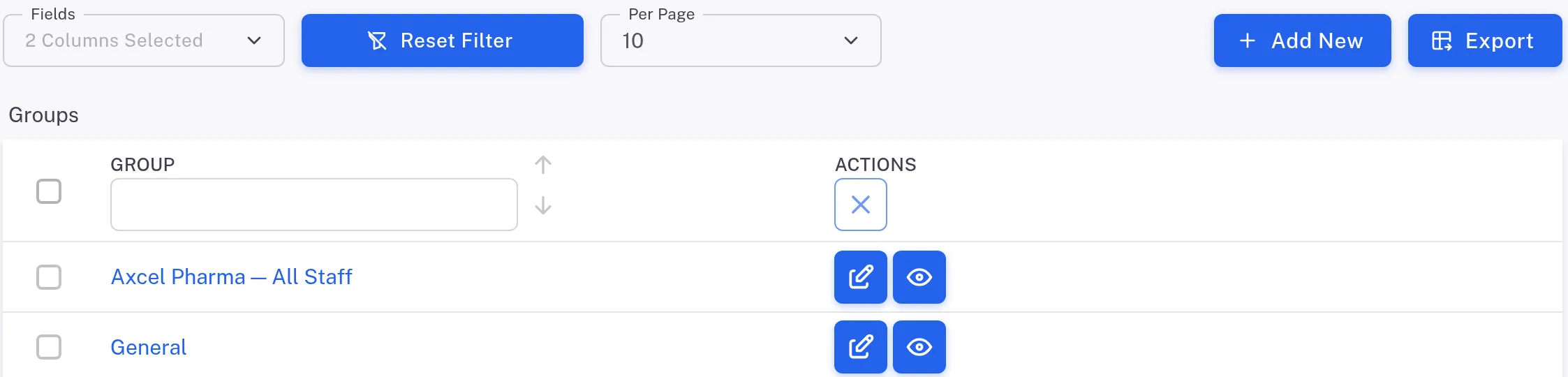
Step 1. The Groups list with the Fields, Reset Filter, Per Page, Add New and Export buttons On the page Groups › Create, type the Name. If the group sits under another one, choose it in Parent Group: each group is shown with its full path, for example "Axcel Pharma — All Staff / Quality Control". Write what the group is for in Description.
To create groups under it at the same time, select Add (or Add Multiple) next to Sub groups. A card Sub Group 1 opens: fill its Name and Description. To drop a card, select its close button and answer Yes to "Are you sure?".
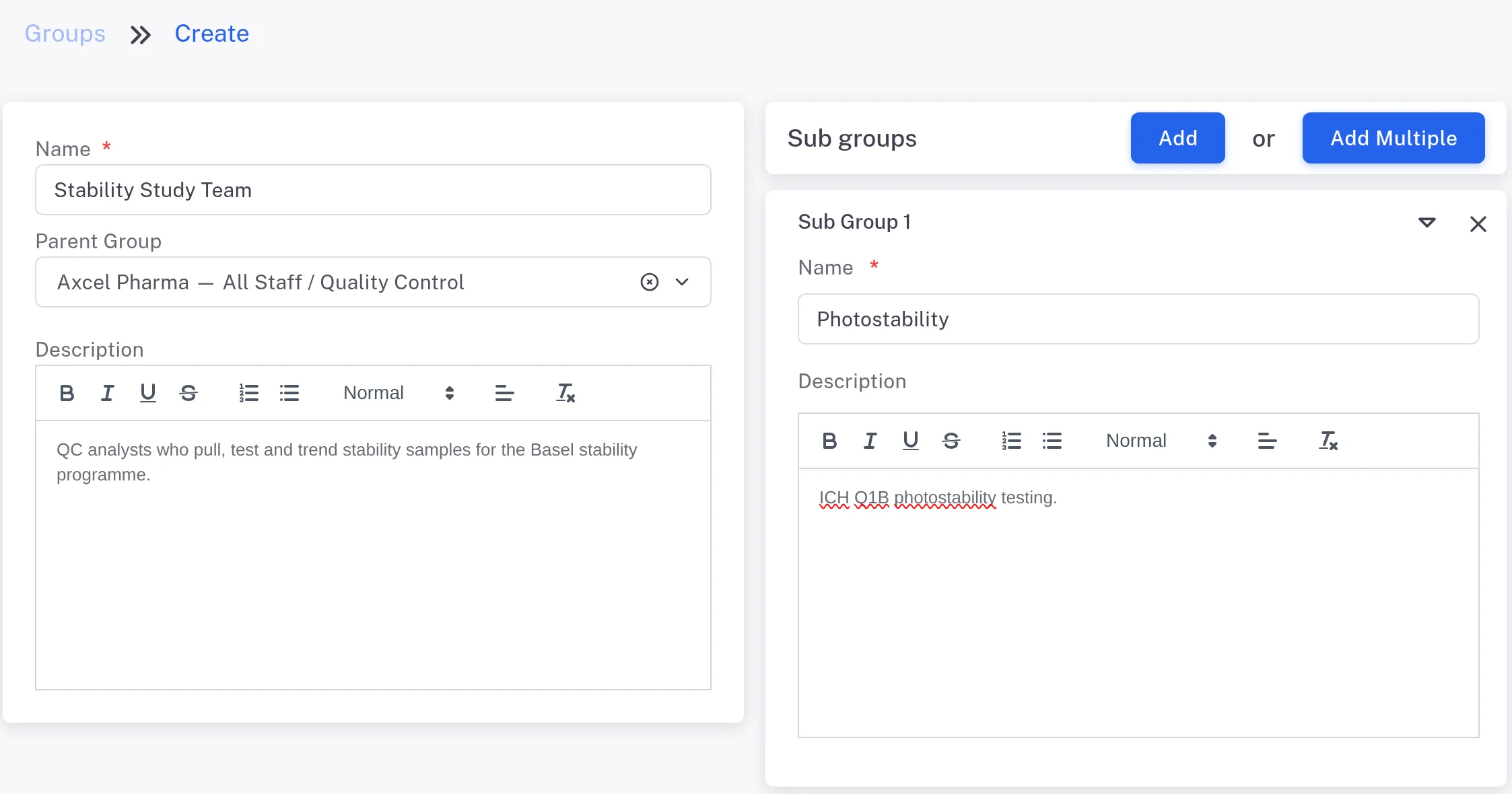
Step 3. The Create page of a new group with Name, Parent Group and Description, and one Sub Group card Select Save. To create another group straight away, select Save & New instead.
Result
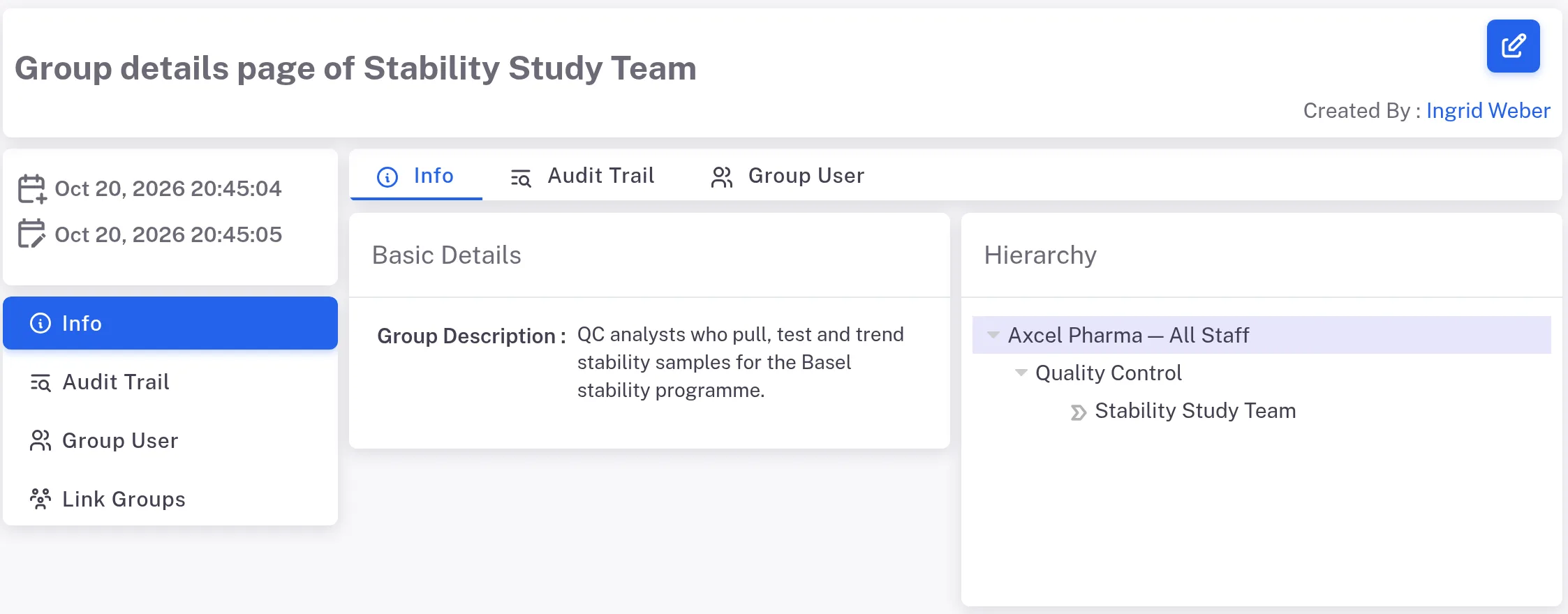
The message reads "Group name was saved successfully" and the page "Group details page of name" opens. Its Info tab shows the Group Description and, under Hierarchy, where the group sits.
If something is different
The new group already has members.
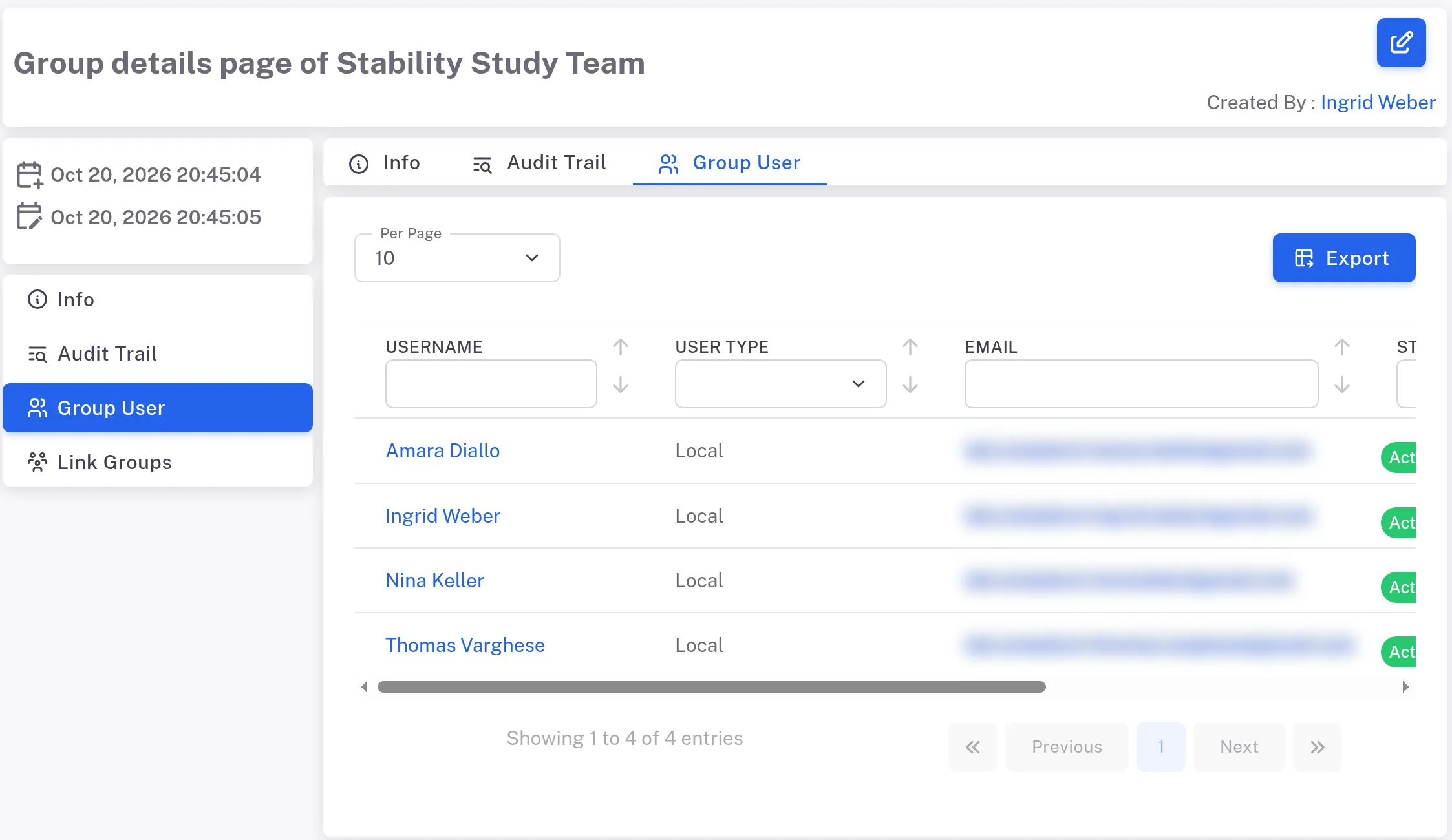
It sits under a parent group, and everyone in the parent group was made a member. This is expected. Change membership from each person's user record (see Add a user to a group, or take them out).
You added a Sub Group card you do not want.
Select the card's close button and answer Yes to "Are you sure?" before you select Save.