
Before you start
- You sign in to Complere with your e-mail address and a password, and you know your current password.
- If you have forgotten it, reset it instead: see Reset a forgotten password.
Steps
Select your name at the top right of any page, then Profile.
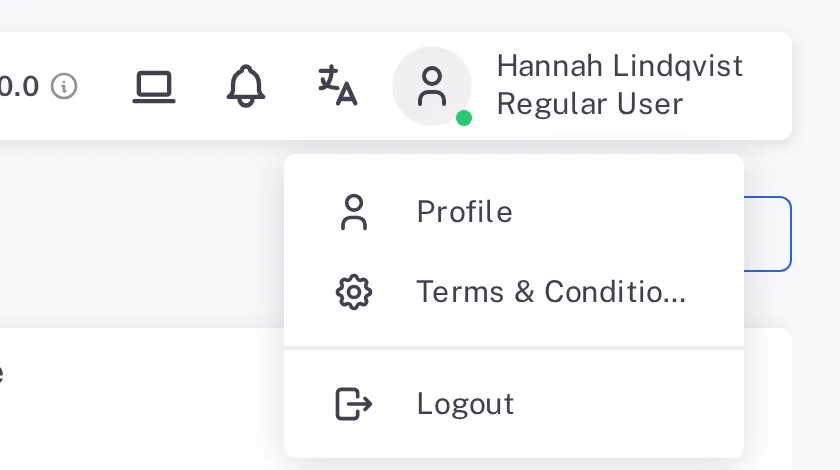
Step 1. The menu under your name with Profile, Terms & Conditions and Logout Open the Security tab.
Type your Current Password. Type the new one in Password and again in Confirm Password. Use at least 8 characters, with uppercase and lowercase letters, at least one number and at least one special character; the bar under the fields shows how strong it is. If the new password breaks the rule, a message under Password says what is missing, for example "Password must be at least 8 characters long."
Turn on Logout from all devices to be signed out everywhere, for example after using a shared computer. It signs you out of this browser too.
Select Change.
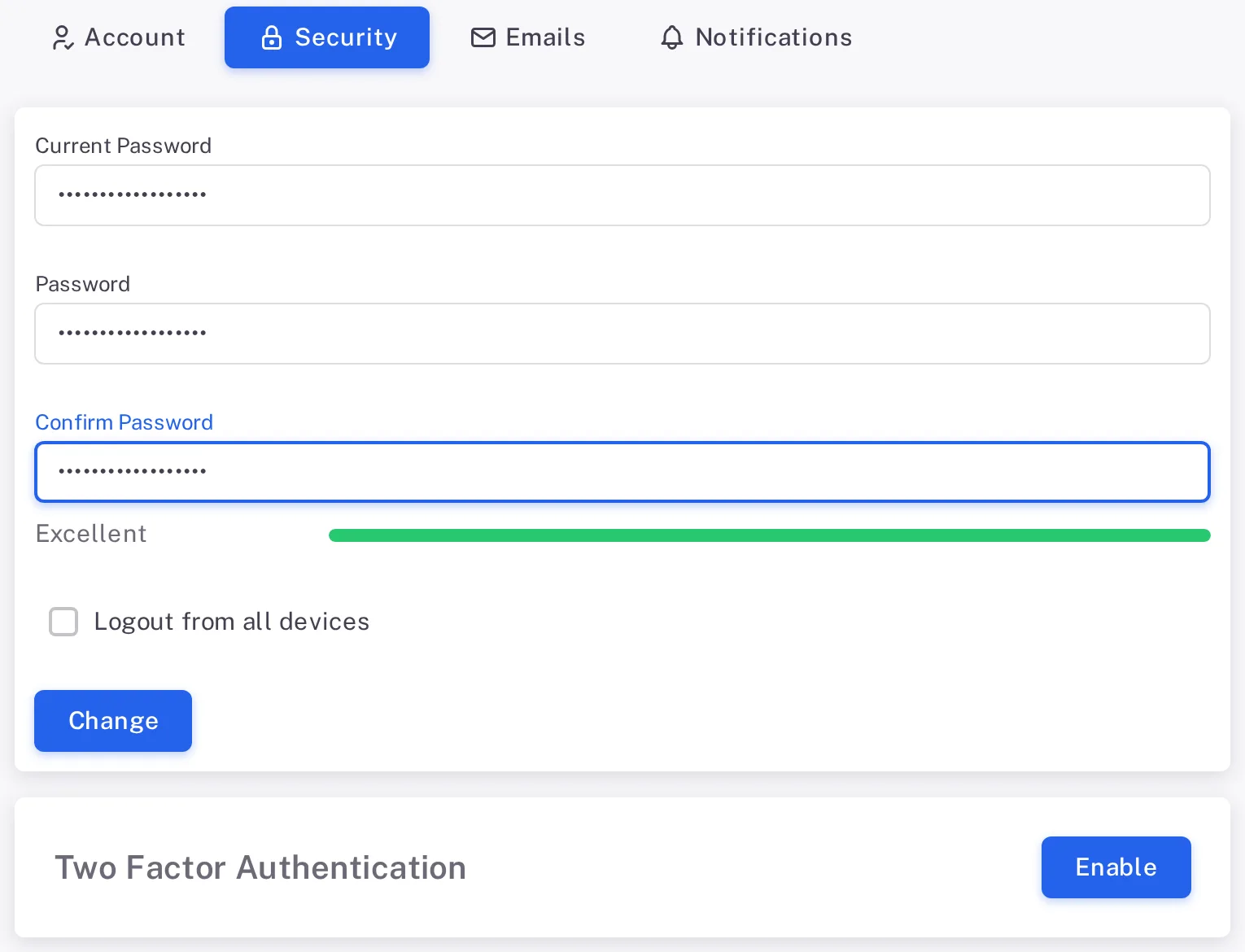
Step 5. The Security tab with Current Password, Password and Confirm Password filled in, the strength bar at Excellent, Logout from all devices and the Change button
Result
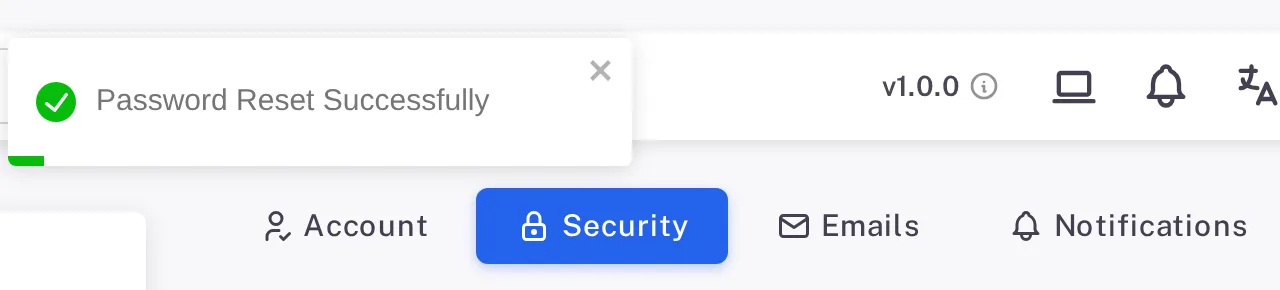
Complere shows "Password Reset Successfully". Sign in with the new password from now on.
With Logout from all devices on, Complere shows the sign-in page instead, here and on your other devices. Sign in with the new password.
What gets recorded
The entry appears on your user's Audit Trail tab, which an administrator sees in Complere Settings › Users.
What the audit trail records
You changed your password.
- Action Type
- Password Reset
- Digitally Signed
- No
- Username
- Your username
- Date Created
- Date and time of the action
- Activity
- "User password reset successfully."
If something is different
"Entered current password is incorrect."
The Current Password does not match. Type it again. If you no longer know it, reset it instead: see Reset a forgotten password.
A message appears under Password.
The new password breaks the rule in step 3, for example "Password must contain at least one uppercase and one lowercase letter." Change it until the message goes, then select Change.
"Cannot use old password"
Complere shows this when the new password is the one you used before your current one. Choose a different password and select Change again.