
Before you start
- You are an Administrator.
Steps
Open Complere Settings › General Settings and select the Roles tab. The four roles are listed with their Label and the name each shows in English, French (Française) and Spanish (Español).
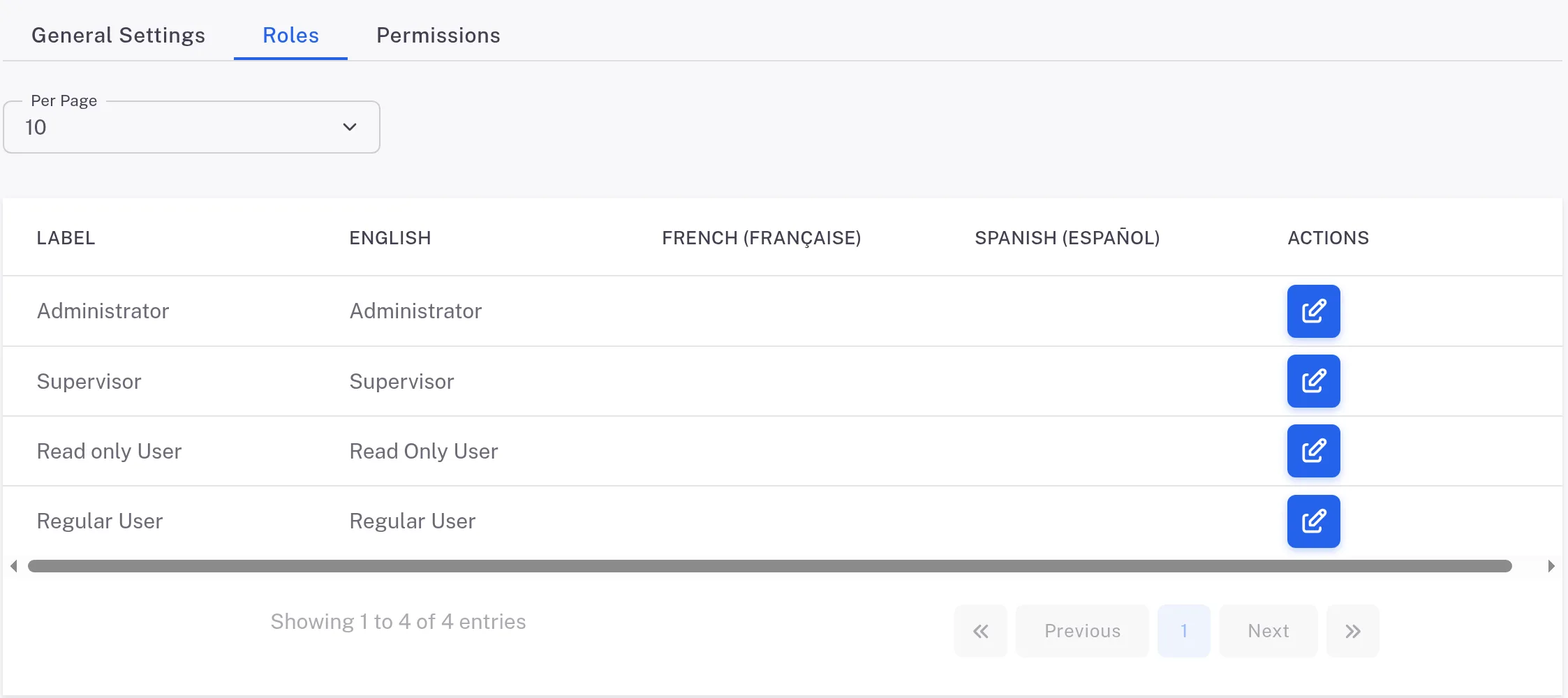
Step 1. The Roles tab of General Settings listing the four roles with the Label, English, French and Spanish columns and an edit button on each row Select the edit button in Actions on the role. The dialog "Update role name role label" opens.
Type the new name in English (required) and, if your company uses them, in French (Française) and Spanish (Español).
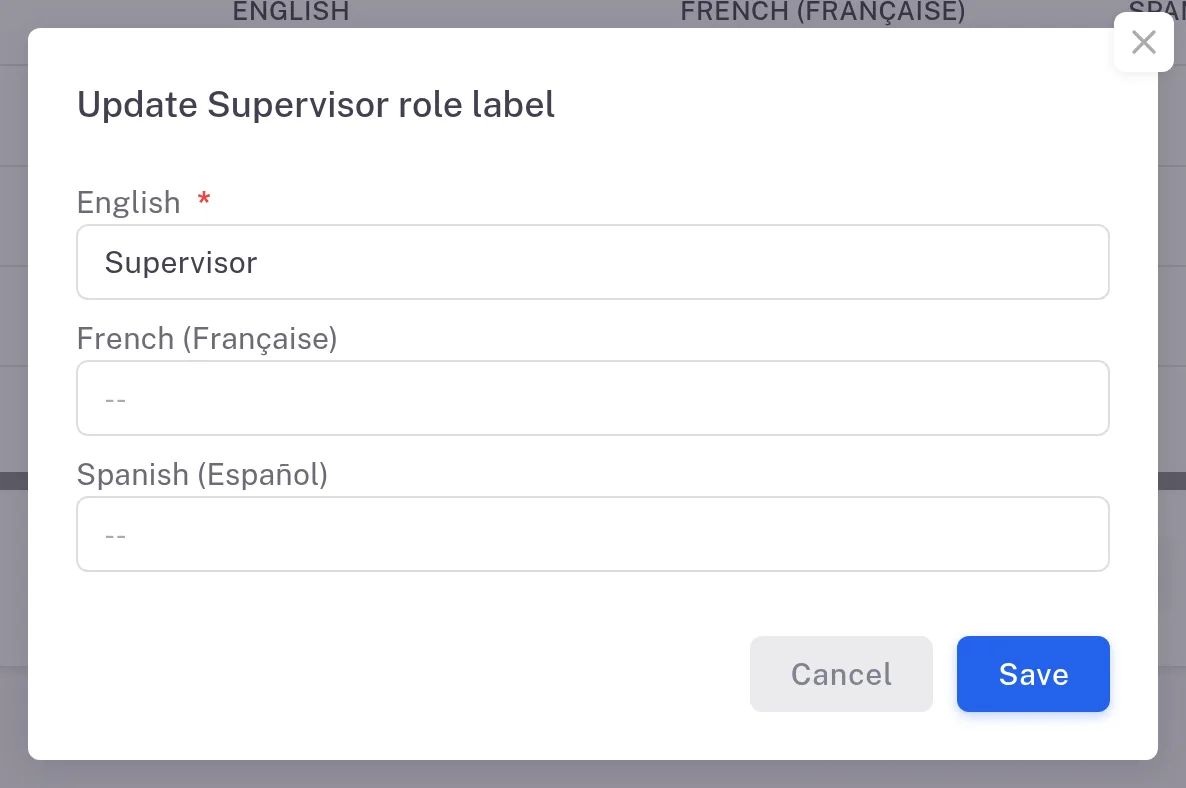
Step 3. The Update Supervisor role label dialog with the English, French and Spanish fields and the Cancel and Save buttons Select Save. To leave without changes, select Cancel.
Result
Complere shows "Role label role name was updated successfully", and the Roles tab shows the new name in each language you filled in.
If something is different
The Label column and the English column differ.
For example, Label reads "Read only User" and English reads "Read Only User". The Permissions tab shows the English name, "Read Only User".