
Before you start
- You are an Administrator.
- Disabling is a signed action: you need your Complere password and a Reason.
Steps
Open Complere Settings › Users. To find the person, type their name in the box under Username.
Tick the person's checkbox. In Bulk Actions choose Disable, then select Apply.
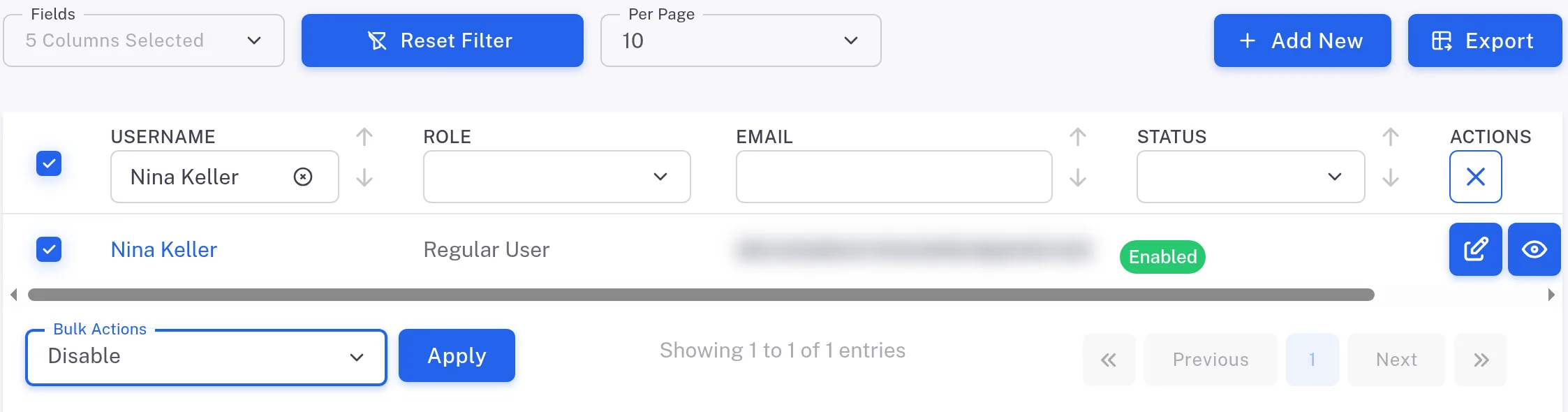
Step 2. The Users list filtered to one user, the user ticked, Bulk Actions set to Disable and the Apply button The Users deactivation form opens. Your Email is shown. Type your Password and a Reason.
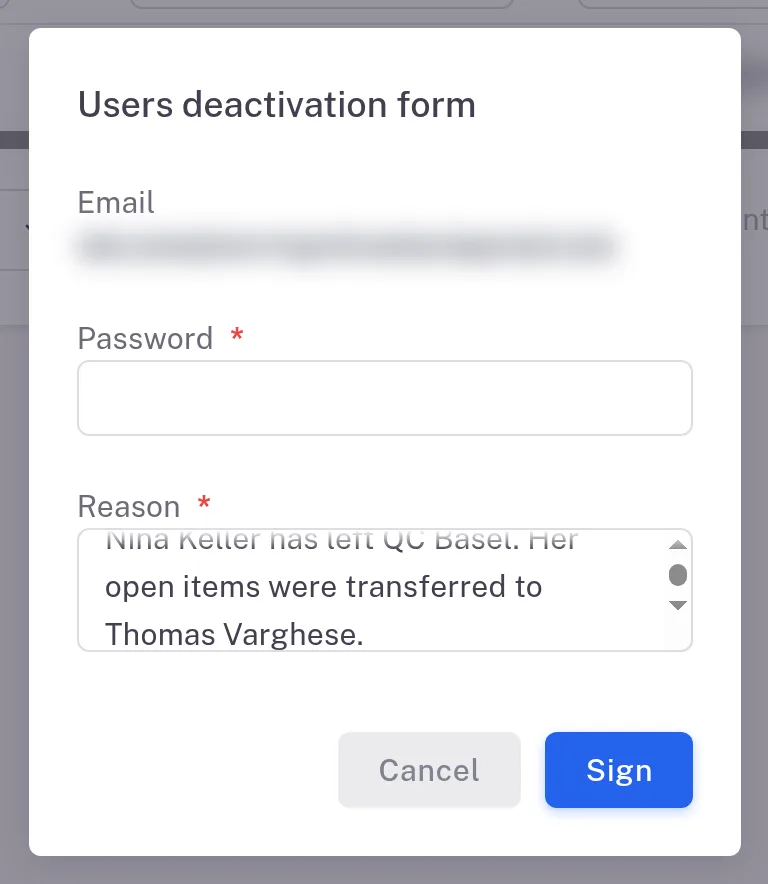
Step 3. The Users deactivation form with Email, Password and Reason, and the Sign button Select Sign.
Result
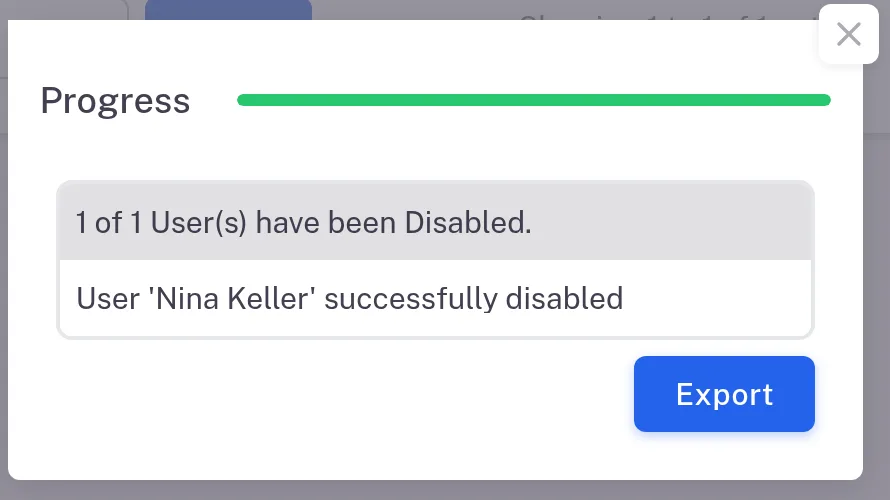
The Progress window reads "1 of 1 User(s) have been Disabled." and "User 'name' successfully disabled".
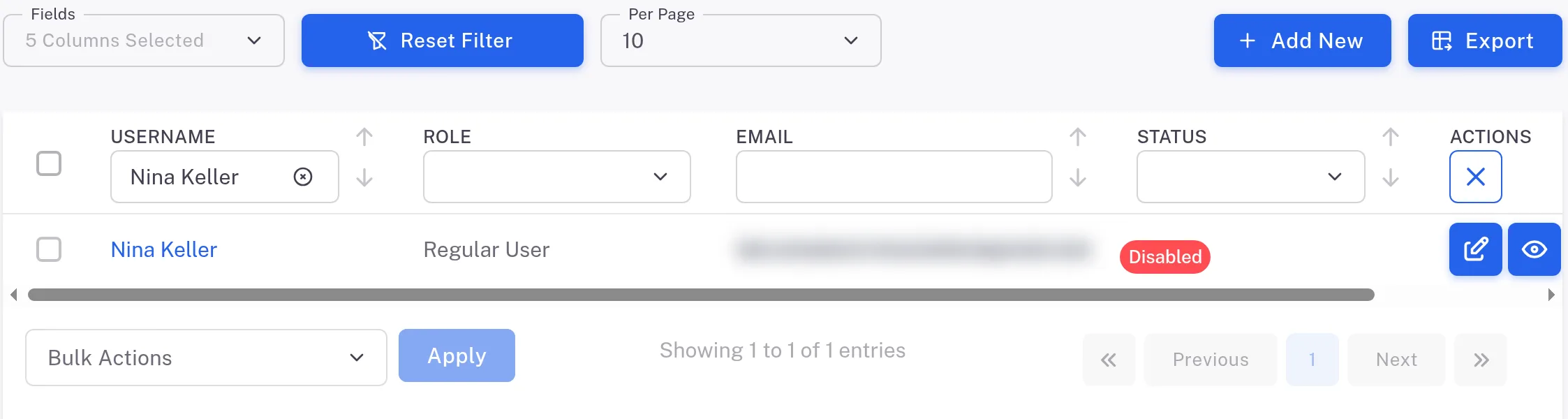
In Users, the person's Status is Disabled. As the user form says: "Disabled users will not be able to login and will not be taken into account in the Trainings module (progress indicators)." To let them back in, see Enable a disabled user.
What gets recorded
The entry is on the disabled user's Audit Trail tab, with its name in the Action Type column and Yes in Digitally Signed. If the Digitally Signed column is not shown, add it from Fields.
What the audit trail records
You disabled the user. The entry is on the disabled user's Audit Trail tab.
- Action Type
- User disabled
- Digitally Signed
- Yes
- Username
- Your username
- Date Created
- Date and time of the action
- Activity
- The person's name and "disabled", followed by the Reason you typed.
If something is different
You looked for a switch on the person's user form.
The edit form does not change an existing user's status. It reads: "To enable or disable an existing user, use the Activate or Deactivate action on the users list — it records the reason in the audit trail." Use Bulk Actions in Users, as above.