
Before you start
- You are an Administrator.
- Role Permissions cover the lists in Complere Settings. What a role may do inside a module is set on that module's Permissions page (see Read a module's Permissions page). How the two fit together is in How permissions work.
Steps
Open Complere Settings › General Settings and select the Permissions tab. Each role has a card with Edit Permission.
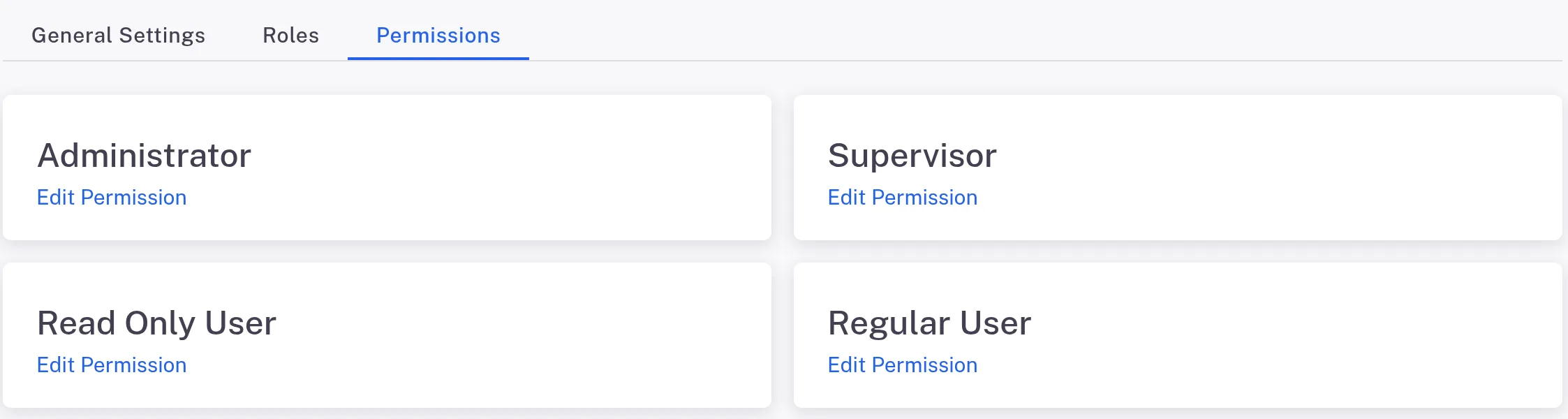
Step 1. The Permissions tab of General Settings with a card for each of the four roles and an Edit Permission link on each Select Edit Permission on the role you want to change. A dialog titled with the role's name opens, with the table Role Permissions.
Each row is a list in Complere Settings: Users, Groups, Labels, Contacts, Products, Departments, Locations and Job descriptions. Tick or clear View, Add, Edit, Delete, Restore and Export on that row. The Bulk action column holds the row's extra actions; for Users they are Enable, Disable, Activate Module, Deactivate Module and Transfer Ongoing. Select All ticks every box.
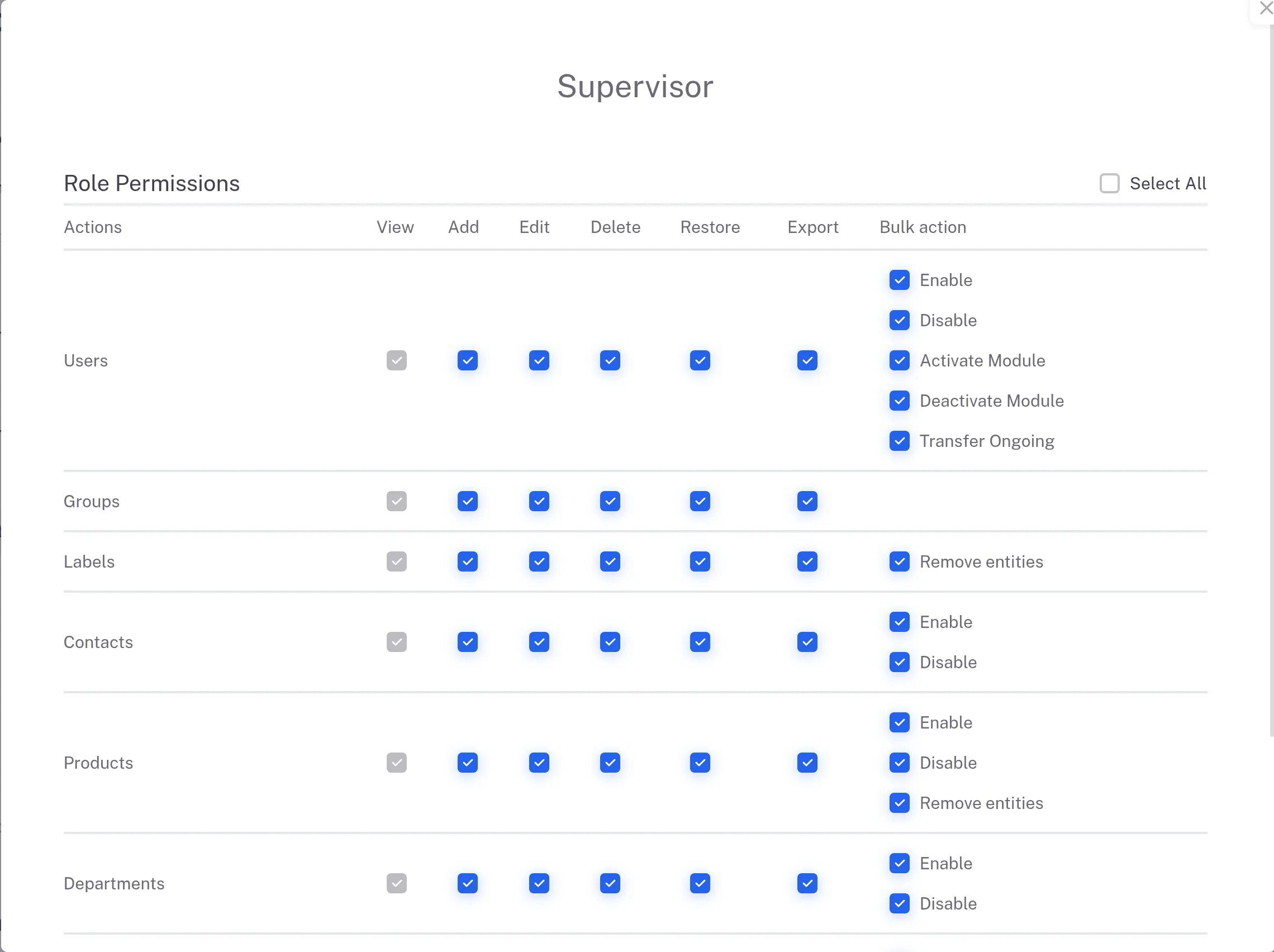
Step 3. The Role Permissions dialog of the Supervisor role with one row per list and the View, Add, Edit, Delete, Restore, Export and Bulk action columns Select Submit. To leave without changes, select Cancel.
Result
Complere shows "Permissions Updated Successfully". The role's new permissions apply to every user who holds that role.
If something is different
You cannot clear View on a row.
Add or Edit is ticked on that row. Clear them first, then View.
A user has the right role but still cannot see a record.
The role is one of three checks. See How permissions work.