
Before you start
- You sign in to Complere with your e-mail address and a password.
- You can open the inbox of the e-mail address your account uses.
Steps
On the sign-in page, select Forgot Password? under the password field. The page reads "Enter your email and we'll send you OTP to reset your password".
Type your Email and select Send OTP. Complere shows "If the email you entered is associated with an account, you will receive One-Time Password (OTP) shortly." and opens the Reset Password page.
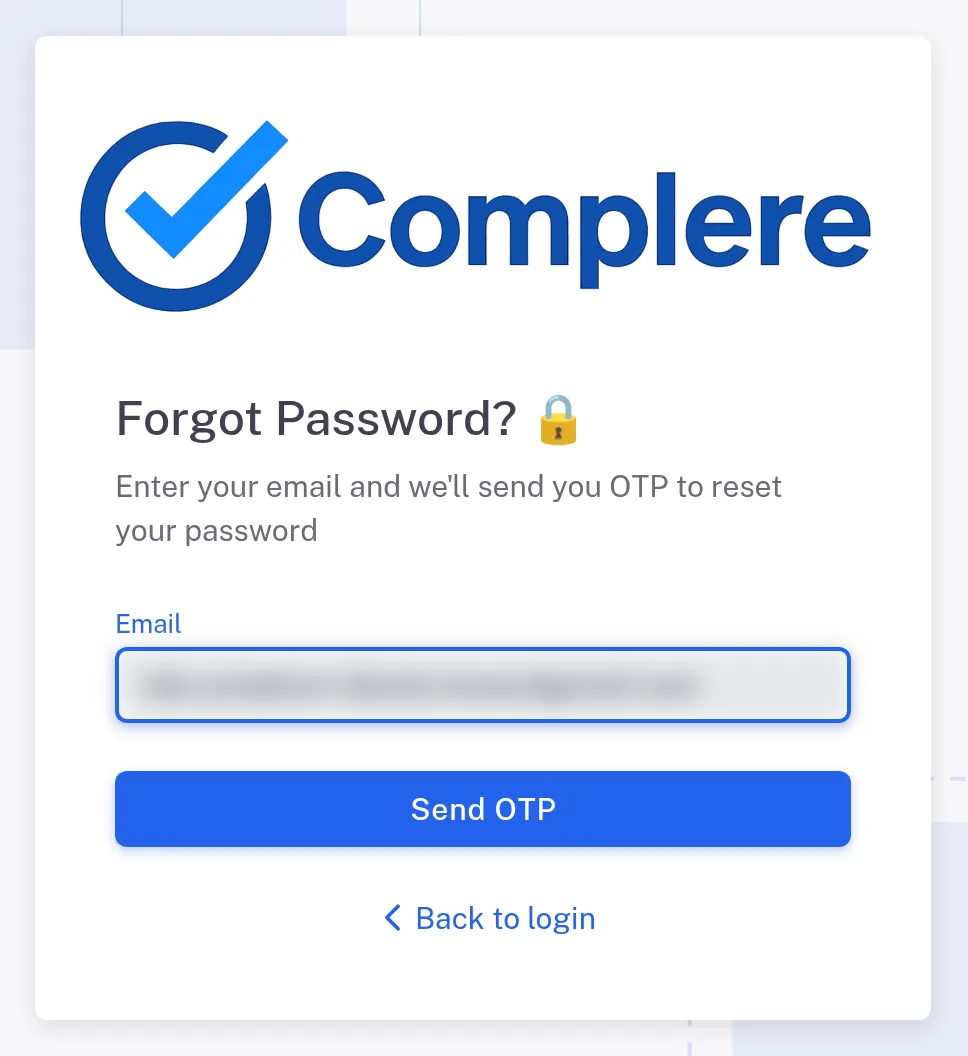
Step 2. The Forgot Password page with the Email field, the Send OTP button and Back to login Open the e-mail "[Complere] Reset your password" and note the six-digit code under "Your one-time code".
On Reset Password:
- type your New Password, following the rule on the page: "Enter at least 8 characters. Must include uppercase and lowercase letters, at least one number and at least one special character.";
- type it again in Confirm Password;
- under "Type your 6 digit security code", type the code from the e-mail into the six boxes;
- select Set New Password.
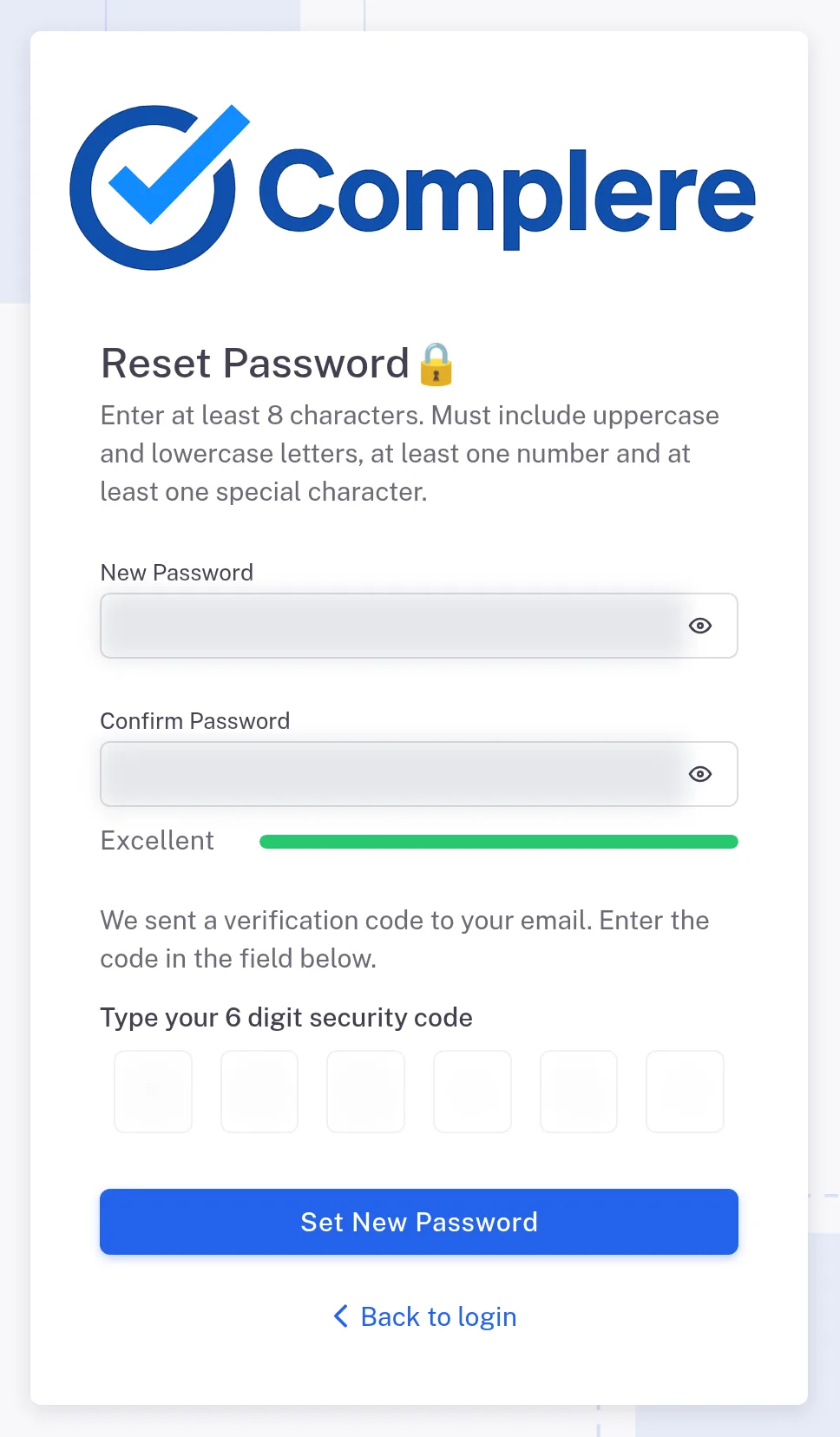
Step 4. The Reset Password page with the password rule, the New Password and Confirm Password fields, the six code boxes and the Set New Password button Complere shows "Password Reset Successfully" and returns you to the sign-in page. Sign in with your new password. If you have set up two-factor authentication, Complere still asks for the code from your app.
Result
Your new password is set, and you sign in with it from now on. Next: sign in as in Sign in to Complere.
If something is different
No e-mail arrives.
- Check your spam folder.
- Check that you typed the address your account uses.
- If it still does not arrive, ask your company's Complere administrator to check the e-mail address on your account.
"Invalid or expired OTP. Please try again."
The code was mistyped, or it is not the newest one: each time you select Send OTP, the earlier code stops working. Type the code from the newest e-mail, or start again at step 1 to get a new one.
"Cannot use old password"
Complere refuses your current password as the new one. Choose a different password, and select Set New Password again with the same code.